
Get an API token
An API token gives access to your databases in Latenode Tables. The same token works for two kinds of connections:
- in a Latenode scenario: paste the token into the Latenode Tables node connection, and the scenario can read and change rows. See Nodes in scenarios;
- in an external system: if needed, connect the database to your service, CRM, or script via the API. See Table endpoints.
Create a token
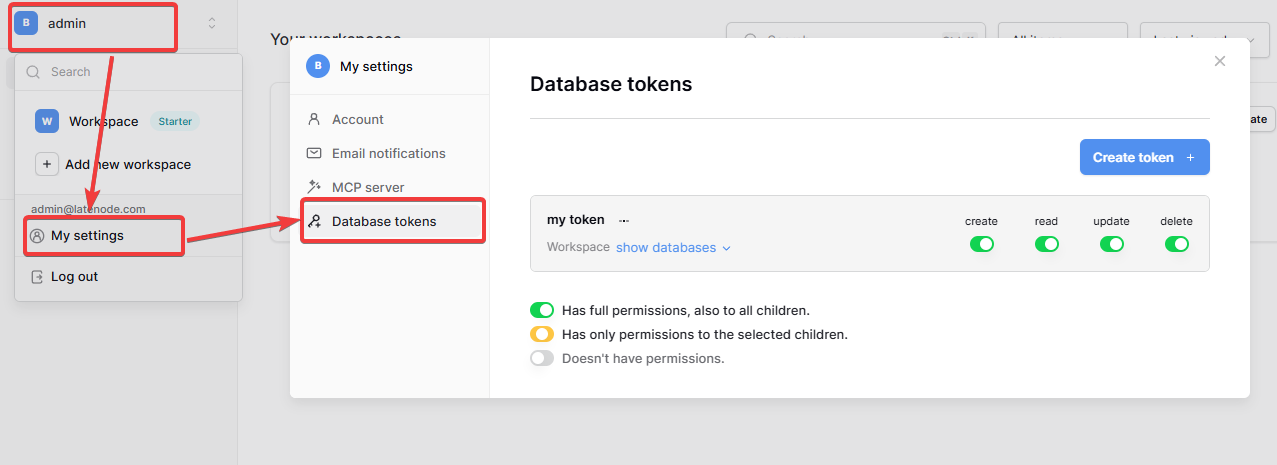
Open the settings
On table.latenode.com, click the workspace name in the top left corner and select My settings.
Go to Database tokens
In the left menu, open Database tokens. All your tokens are listed here.
Click Create token
Enter a clear name, for example Leads scenario, and the workspace whose databases the token needs access to.
Copy the token
Open the created token and copy its value. Keep it like a password: with the token, anyone can change data in your databases.
Set permissions
Each token has four toggles: create, read, update, and delete. Turn on only what you need. For example, a scenario that only looks up data in a reference table needs read access only.
Click show databases to grant permissions to specific databases and tables instead of the whole workspace. The toggle color shows the access level:
| Color | Access |
|---|---|
| Green | Full permissions, also to all nested databases and tables. |
| Yellow | Permissions only to the selected databases or tables. |
| Gray | No permissions. |
If the token has no permissions to a table, the node or request returns the ERROR_NO_PERMISSION_TO_TABLE error.
Introduction
The API docs generated for each Latenode Tables database
Connect via MCP
How to connect Latenode Tables to Claude, Cursor, and other AI agents via MCP
Need Help? Ask the community
If something on this page is missing or unclear, post on the Latenode community forum. Our team and other users usually reply quickly.