
Creating forms
Latenode Tables lets you create forms to collect data. They fully replace Google Forms: responses go straight into your table, each as a separate row.
You build a form from the table's fields and publish it with a link.
Create a form
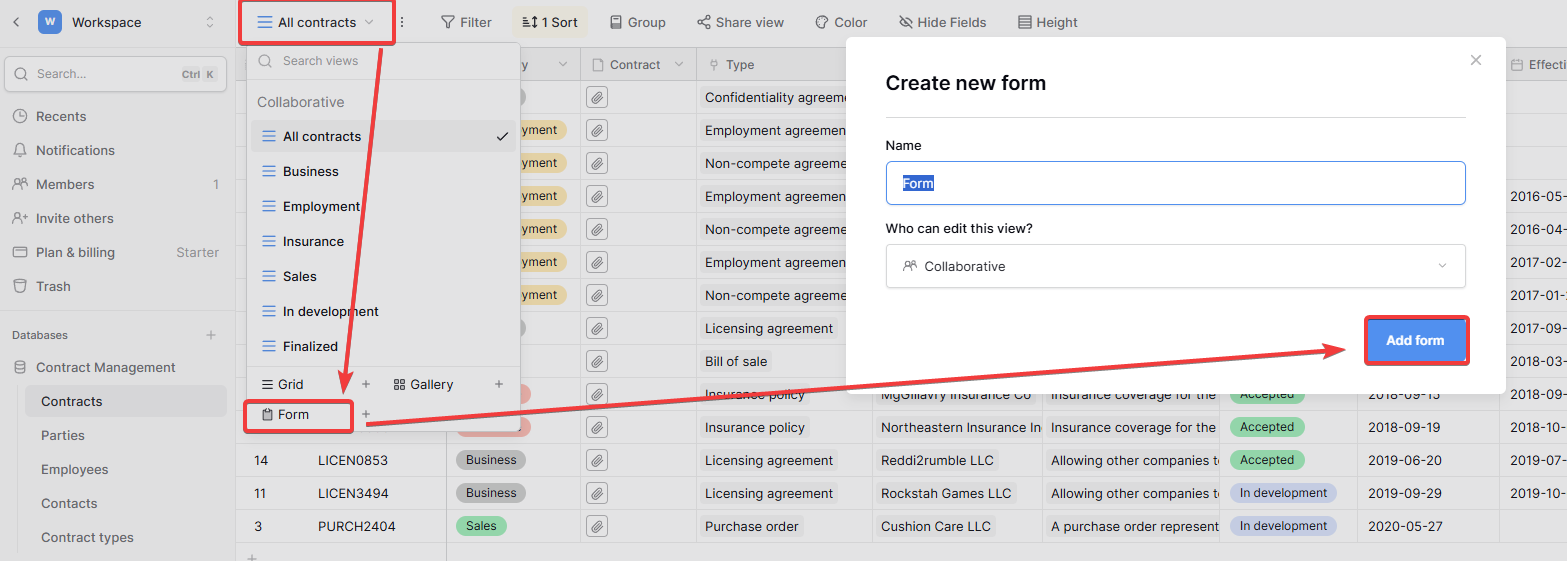
Open the table
On table.latenode.com, open the table where you want to collect responses.
Click the view name
Above the table on the left, click the name of the current view, for example All contracts. The list of views opens.
Select Form
At the bottom of the list, click Form. In the Create new form dialog, enter a name and choose who can edit this view. Click Add form.
Set up fields and appearance
The form editor opens after you create the form. The table's fields are on the left and the form itself is on the right.
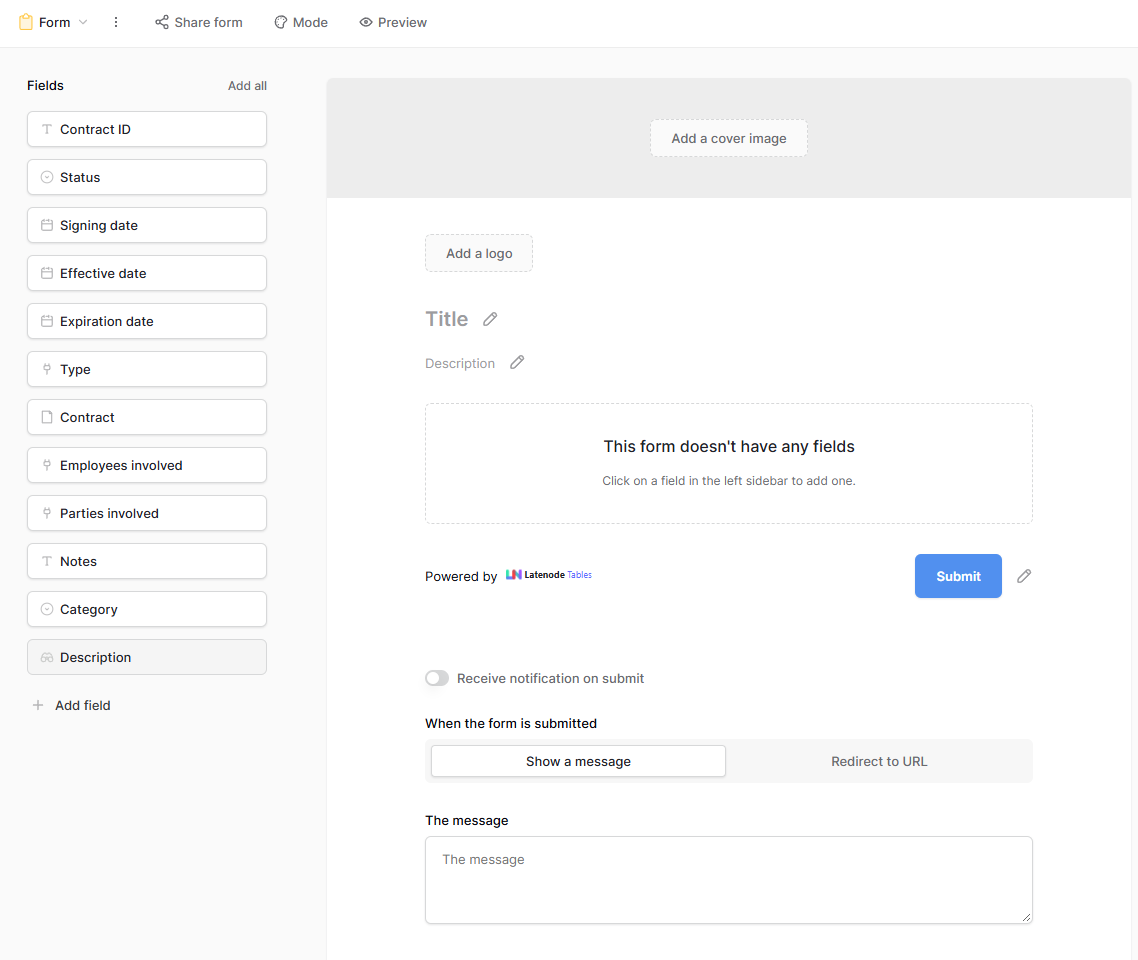
- Fields. Click a field in the left panel to add it to the form. Add all adds every field at once. Add field creates a new field if the one you need is missing.
- Cover and logo. Use Add a cover image and Add a logo to design the top of the form.
- Title and description. Click the pencil icon next to them to edit the text.
- Submit button. Change the text of the Submit button with the pencil icon next to it.
- Notifications. Turn on Receive notification on submit to hear about every new response.
- When the form is submitted. Select Show a message and enter the text in The message, or select Redirect to URL to send the person to a page of your choice.
To see the form the way other people will, click Preview at the top.
Publish the form
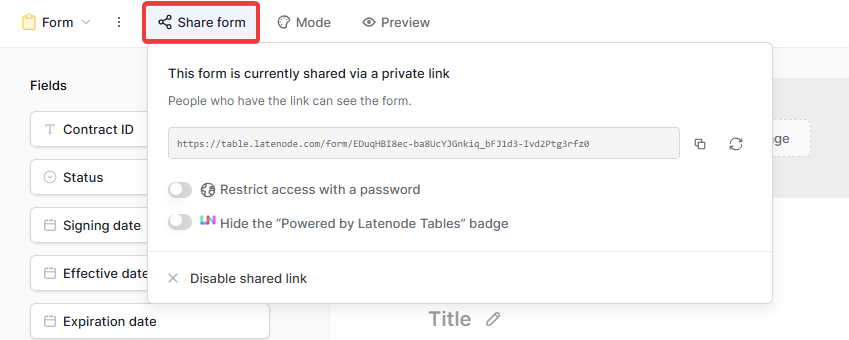
Click Share form at the top of the editor. A link like https://table.latenode.com/form/... appears: copy it and send it to the people who should fill in the form, or put it on your website. Anyone with the link can fill in the form.
In the same window you can:
- Regenerate the link. The arrows button next to the link creates a new link. The old one stops working.
- Restrict access with a password. Only people who know the password can open the form.
- Hide the "Powered by Latenode Tables" badge. Removes the label at the bottom of the form.
- Disable shared link. Closes access to the form by link.
How to run a scenario when the form is submitted
Each form response creates a new row in the table. To run a Latenode scenario every time someone submits the form:
- Add the Latenode Tables New Row Created trigger to the scenario. For setup details, see Nodes in scenarios.
- In the Table ID field, select the table the form belongs to.
- Activate the scenario.
The trigger now fires on every form submission, and the response data arrives in the scenario. From there you can, for example, send it to your CRM or forward it to a manager in Telegram.
Nodes in scenarios
How Latenode Tables nodes read and change rows from a Latenode scenario
Table endpoints
Field and row requests that are the same for every table
Need Help? Ask the community
If something on this page is missing or unclear, post on the Latenode community forum. Our team and other users usually reply quickly.