
Working with the built-in database
The built-in database on Latenode stores structured data in storages and collections. The rest of this page explains the main ideas for working with the database and with the scenario nodes.
Storage limit
Total built-in database storage per account: up to 1 GB.
How to create a database
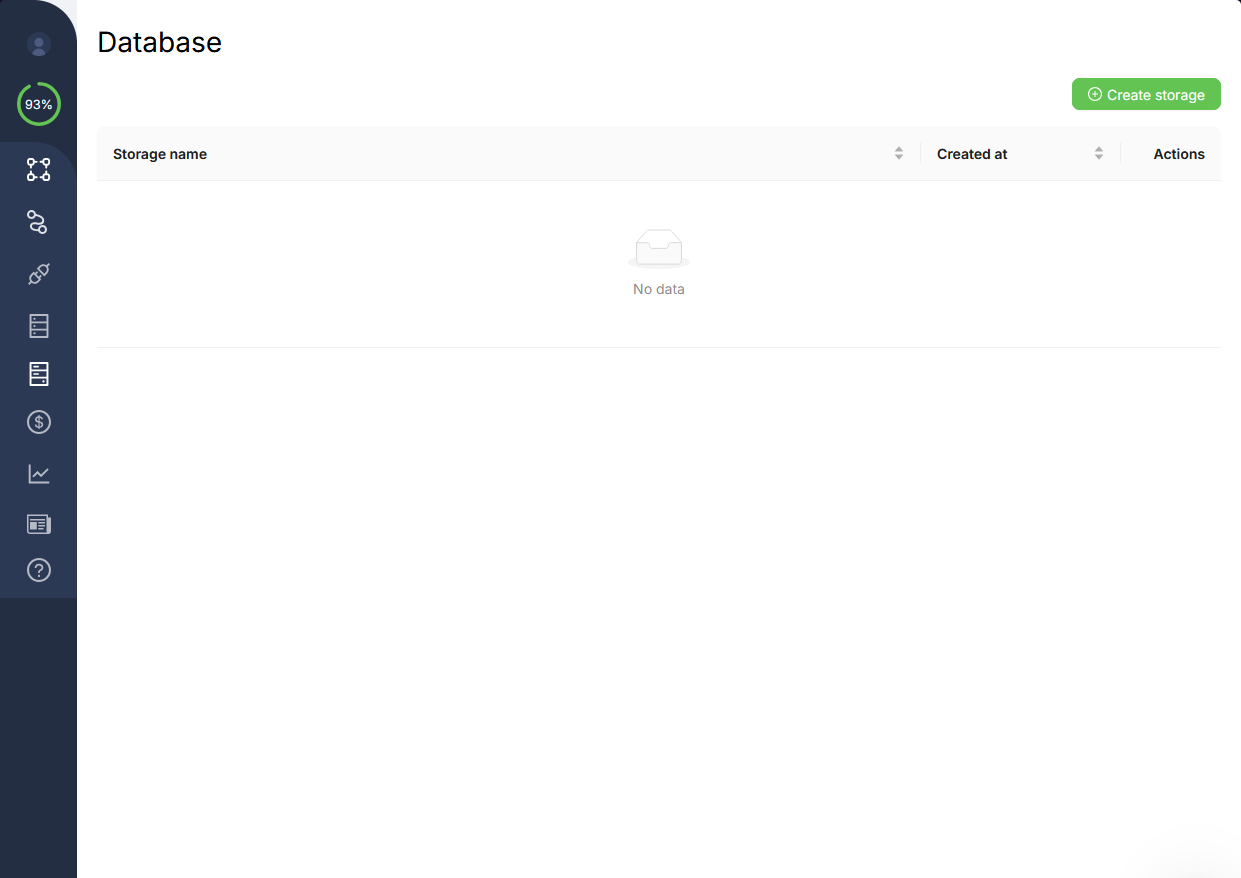
Create a storage
Click Create storage. In the name field, use Latin characters, no spaces, and _ between word parts. Below we use test_storage.
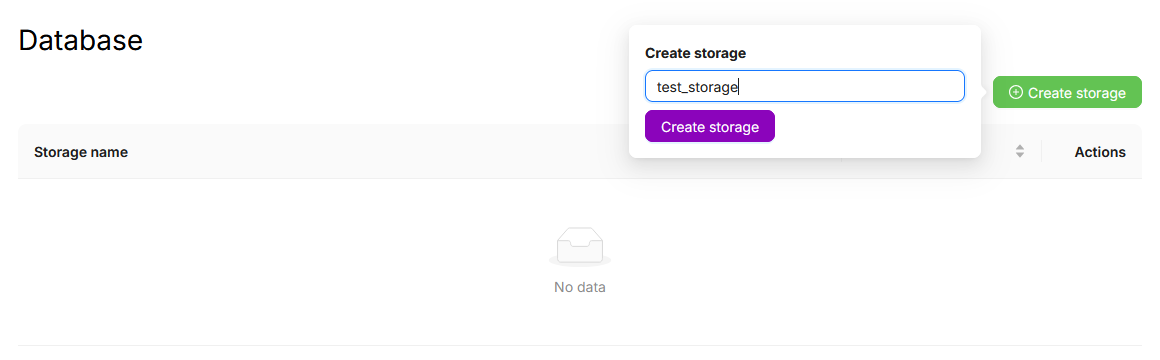
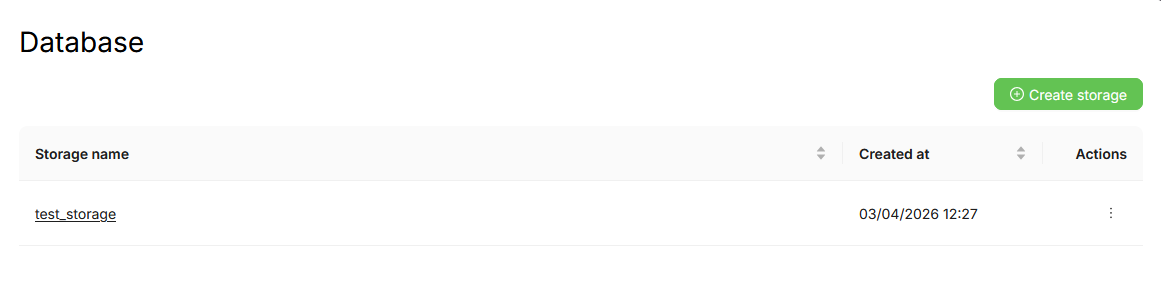
After you save, the new storage shows up on the Databases list.
Create a collection
Open storage test_storage, click Create collection, and set the collection name, e.g. users.
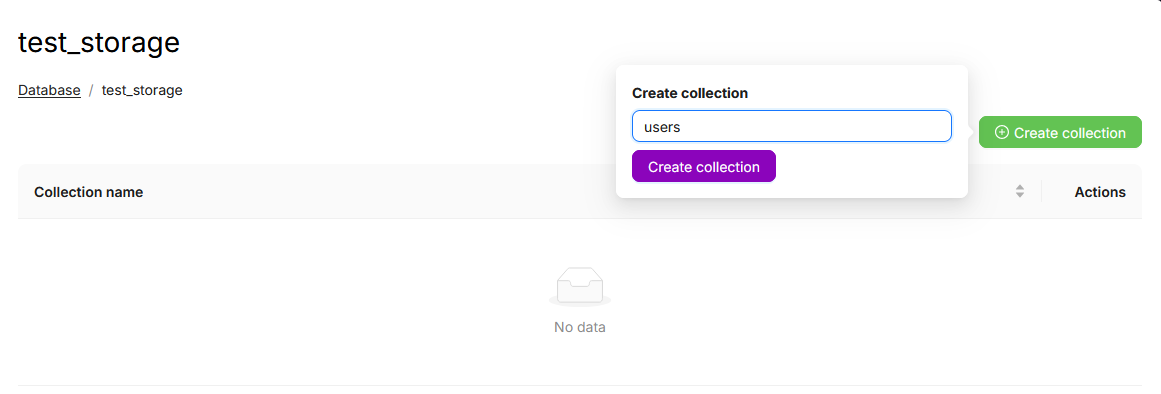
After you confirm, the collection appears in that storage’s UI alongside any others.
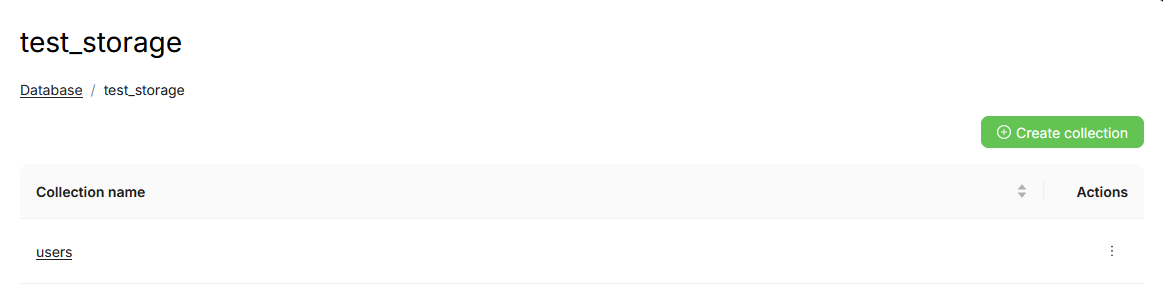
On the collection screen in the app (where you just created users), you can also manually create an object or filter values with a query.
Detailed filter options, operators, and bulk YAML update formats are on Querying a collection and Modifying data in a collection. The sections below cover basic settings that are enough to start.
Nodes in your scenario
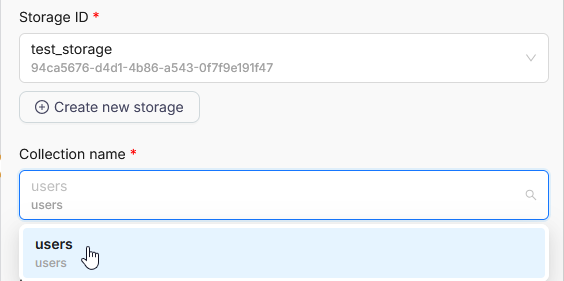
Once for every node below: Get elements, Create element, Update object, Update objects, and Delete object all share the same Storage ID and Collection name fields, both dropdowns. Pick test_storage and users (or whatever you named them). We show this screenshot once and do not repeat it in each section.
Create element: insert one object
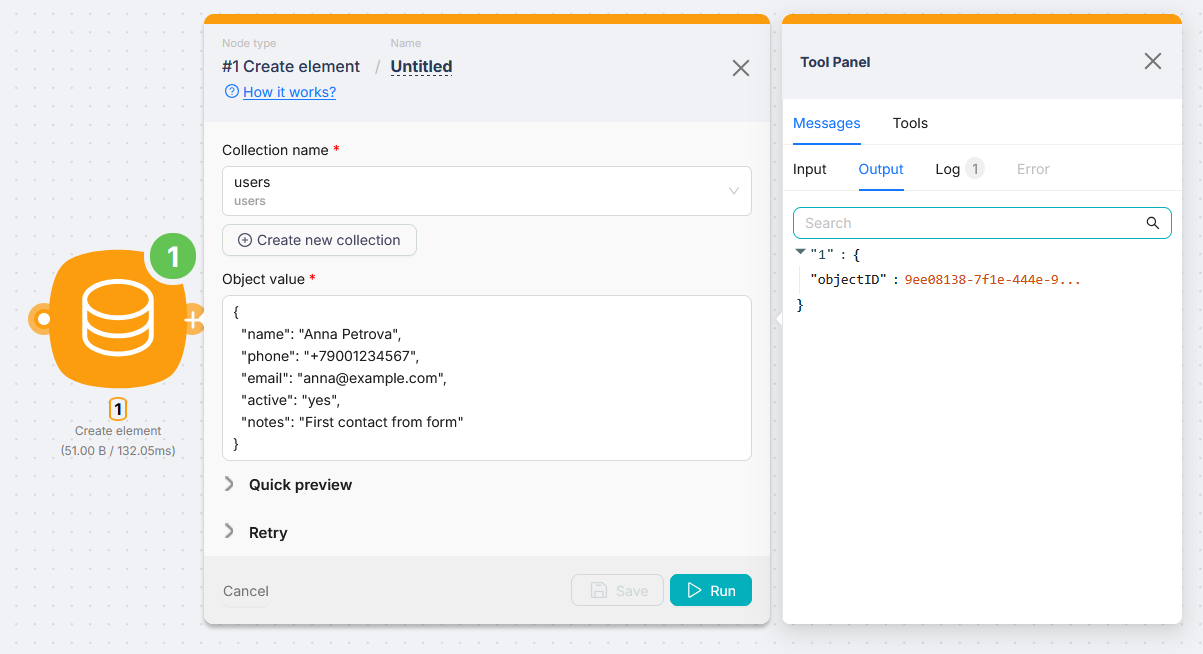
This node writes one object from Object value (JSON) into the collection.
Minimal sample (client card):
{
  "name": "Anna Petrova",
  "phone": "+79001234567",
  "email": "[email protected]",
  "active": "yes",
  "notes": "First contact from form"
}
Result: a new row with a generated object id. The node output includes the new Object ID.
Get elements: fetch objects by filter
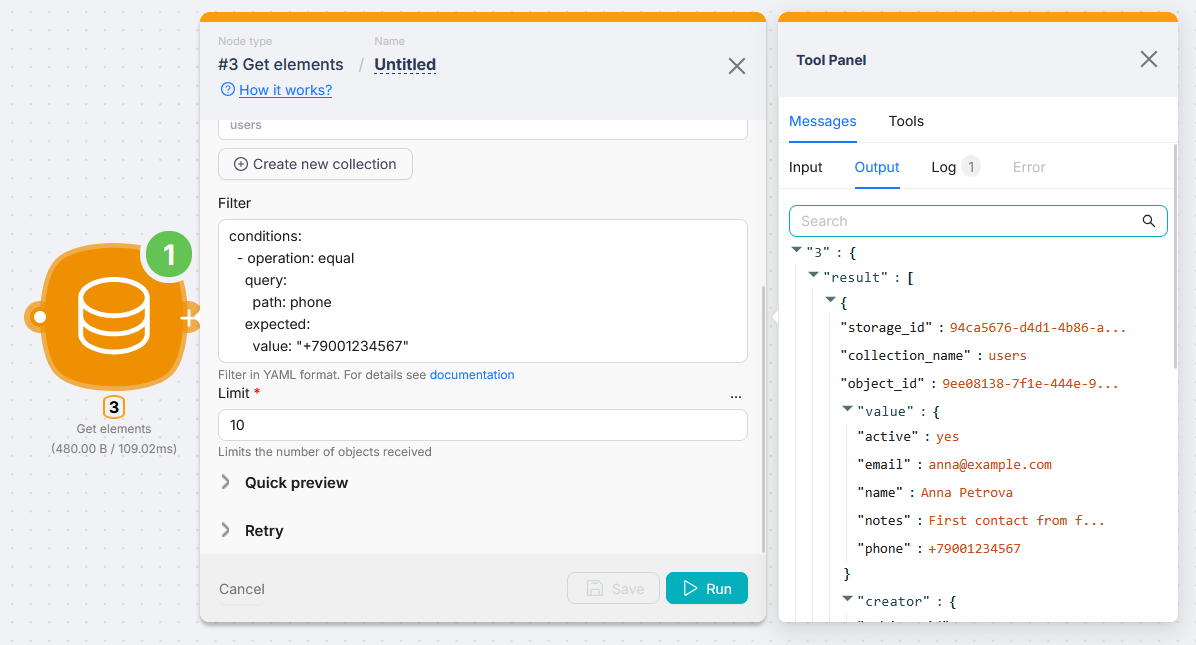
This node finds rows in the collection that match the Filter (YAML). Limit sets the maximum number of rows returned in a single node run.
Example: the same client row as above, by phone:
conditions:
  - operation: equal
    query:
      path: phone
    expected:
      value: "+79001234567"
Another example: filter by email:
conditions:
  - operation: equal
    query:
      path: email
    expected:
      value: "[email protected]"
Output: a list (array) of matching objects.
Update object: update one object by id
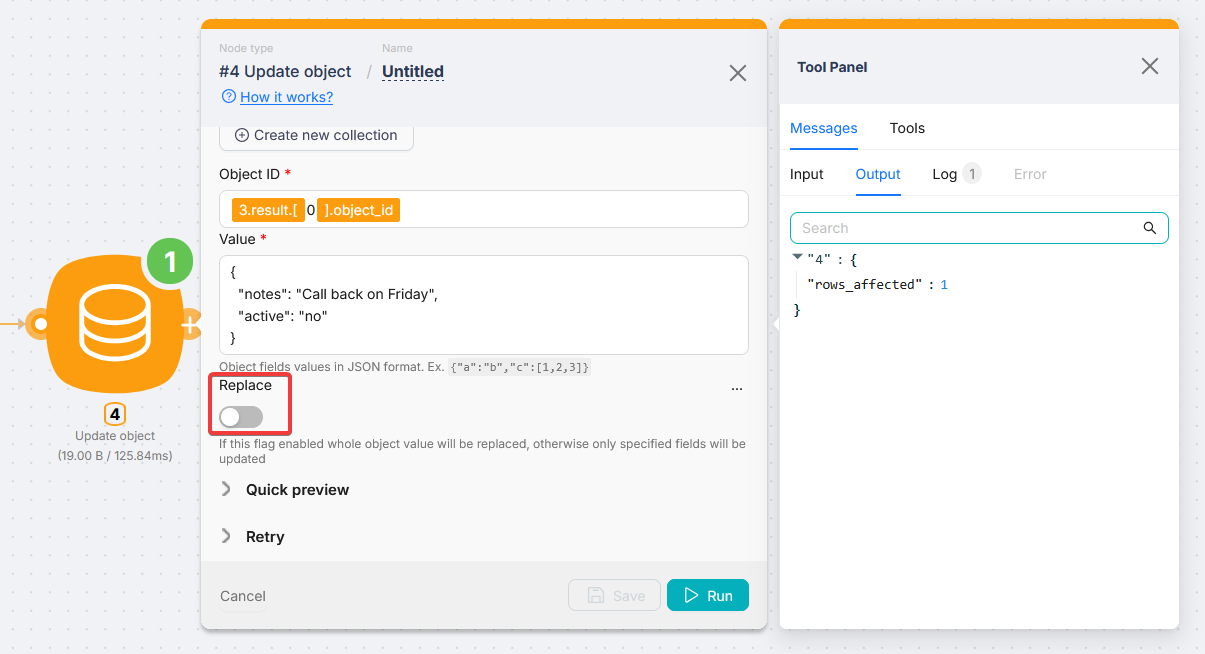
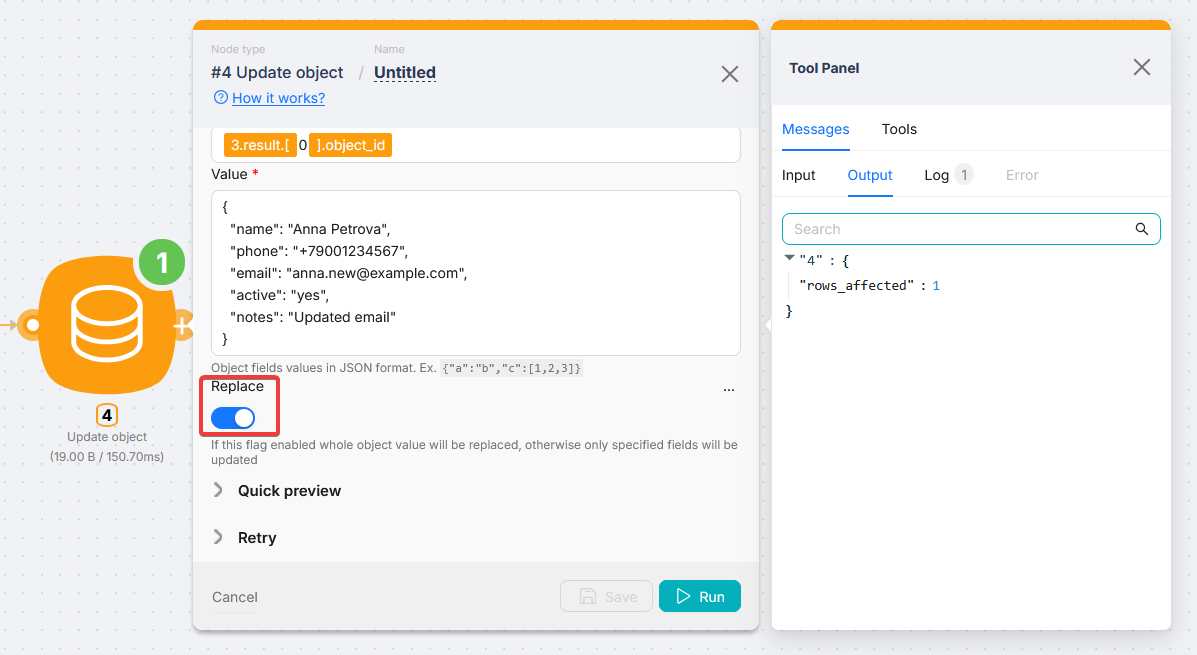
This node updates one row by Object ID; you set new data in Value (JSON). The Replace toggle chooses a partial update vs replacing the whole row. With off, only the fields in your Value JSON change; the rest stays. With on, the row in the collection is fully overwritten by what you put in Value.
- Replace off: list only fields to change; the rest of the stored object stays.
Example: change notes and deactivate the client:
{
  "notes": "Call back on Friday",
  "active": "no"
}- Replace on: Value fully replaces the stored object. Any field missing from JSON is removed.
Full replacement example after an email change:
{
  "name": "Anna Petrova",
  "phone": "+79001234567",
  "email": "[email protected]",
  "active": "yes",
  "notes": "Updated email"
}
Object ID usually comes from Create element (id in the output) or Get elements. In the screenshots below it is already mapped from a previous node.
First screenshot: Replace off. This is a partial update: Value lists only the fields you want to change. Every other field in the stored row stays as-is (the node does not rewrite name, phone, or email if they are not in the JSON). The UI shows Replace disabled and a short JSON payload. Check rows_affected in the output to confirm the row was found and updated.
Second screenshot: Replace on. This is a full overwrite: the collection row becomes exactly the JSON in Value. Any field missing from that JSON is removed from the stored object. The UI shows Replace enabled and a full object (same shape as the JSON example above).
Update objects: update multiple rows by filter
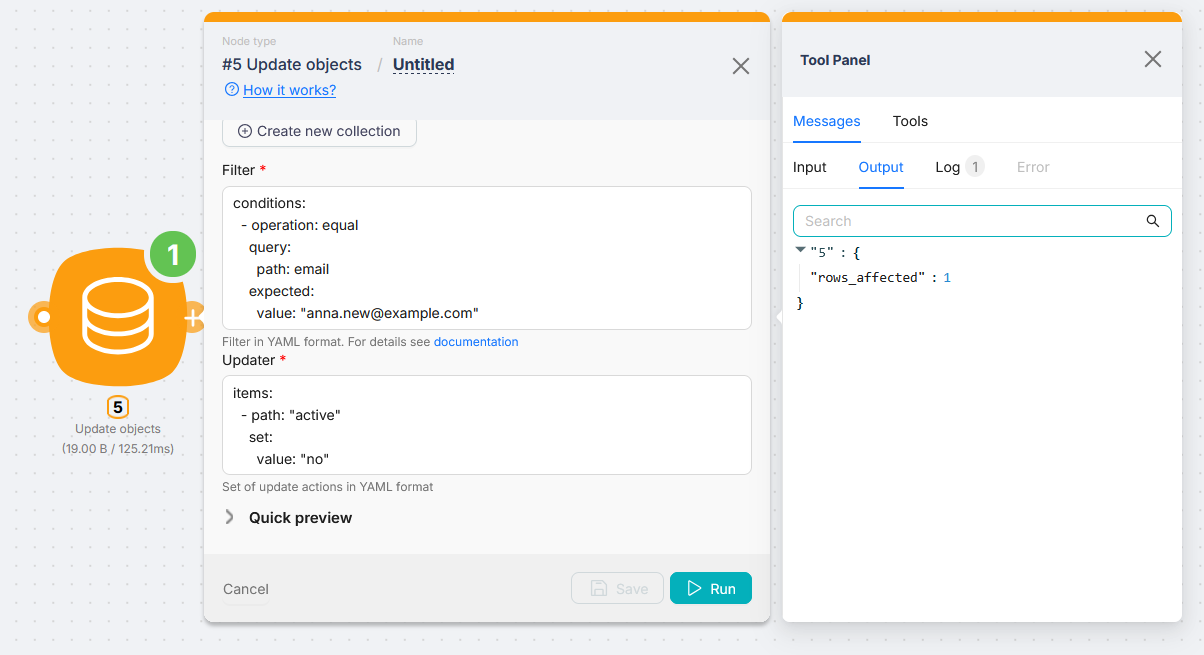
This node finds all rows that match the YAML Filter (same idea as Get elements) and applies the YAML Updater to each match.
Example: the client row now has [email protected] (after full replace in Update object). Set active to "no" for rows with that email. Filter:
conditions:
  - operation: equal
    query:
      path: email
    expected:
      value: "[email protected]"
Updater lists changes under items (full syntax: Modifying data in a collection). Minimal case, one field:
items:
  - path: "active"
    set:
      value: "no"
Result: every matching row gets active set to "no". Check rows_affected in the output. If it is 0, the filter matched nothing (verify email and conditions) and nothing changes in the table.
Delete object: delete one object
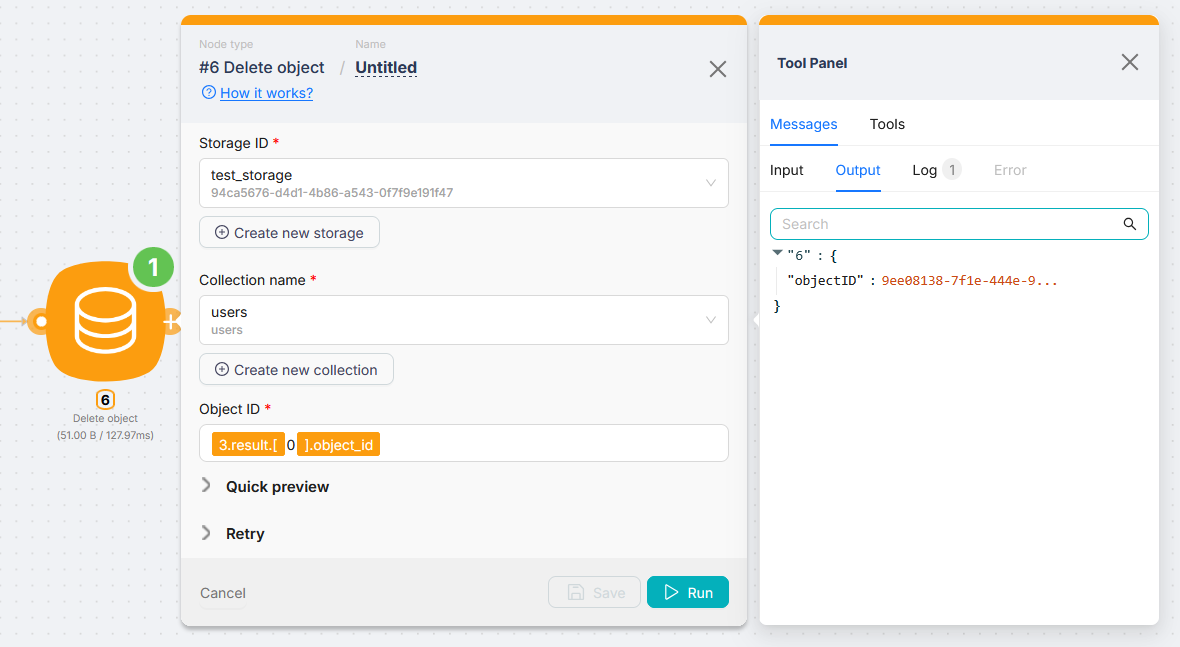
This node deletes the row for Object ID.
Example: pass Object ID from Get elements, Create element, or another step. The row is removed from the collection. The output returns the Object ID of the deleted record.
Notes
-
IDs from the URL. For Database from JS code or when you need exact storage and collection values, open the collection in the app and check the address bar: after
/data-storage/database/you get the storage ID (UUID), then the collection segment. -
Booleans. The built-in database interprets
trueandfalseas1and0. -
Storage size. Each storage currently has a 1 GB limit. Avoid loading very large raw payloads into the database (for example Base64 images, big binary strings, and similar).
Next steps
Run a single action
Run any action from the Latenode catalog from your AI agent and get the result in chat, without creating a scenario.
Querying Collection
Retrieving and analyzing data from database collections.
Need Help? Ask the community
If something on this page is missing or unclear, post on the Latenode community forum. Our team and other users usually reply quickly.