
MCP Server
The Latenode MCP Server lets you connect any MCP-compatible AI agent directly to your Latenode workspace. Once connected, the agent can build new scenarios, trigger runs, and manage complex workflows on your behalf.
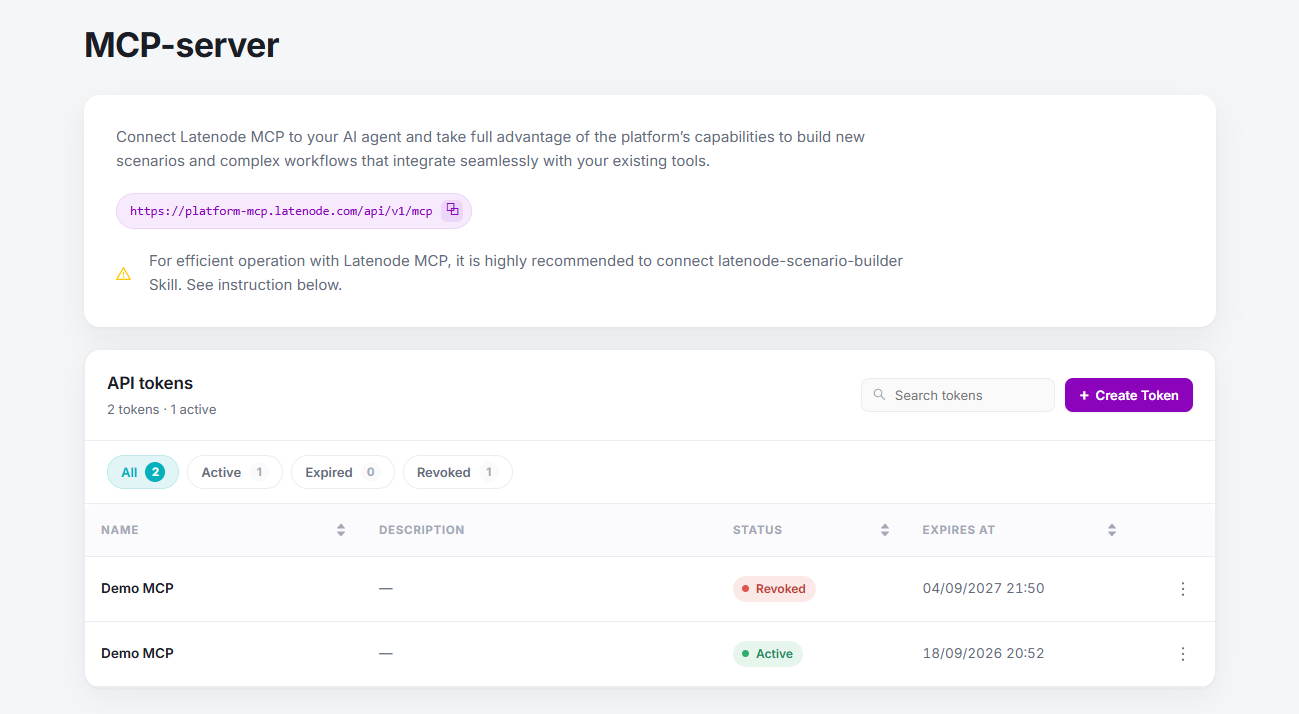
The server URL is:
https://platform-mcp.latenode.com/api/v1/mcpRecommended: install the Latenode Skill
For best results, also connect the latenode-scenario-builder Skill alongside the MCP server. See How to install Latenode Skill below.
Create an API token
Every MCP client connects with a Bearer token. Create one before configuring your client.
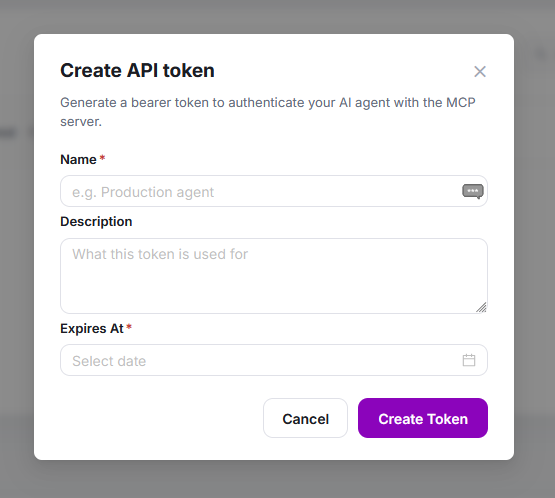
Click "Create Token"
Open app.latenode.com/mcp and click Create Token.
Fill in the token details
The Create API token dialog opens.
Fill in the token details
| Field | Description |
|---|---|
| Name (required) | A recognizable label, e.g. Production agent |
| Description | Optional note about what this token is used for |
| Expires At (required) | Expiration date for the token |
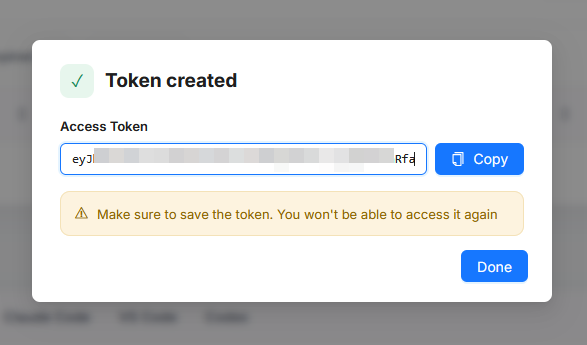
Copy the token immediately
After saving, the full token value is shown once with a Copy button and a warning to save it. On future visits only a redacted value is displayed and the copy button is disabled.
How to connect
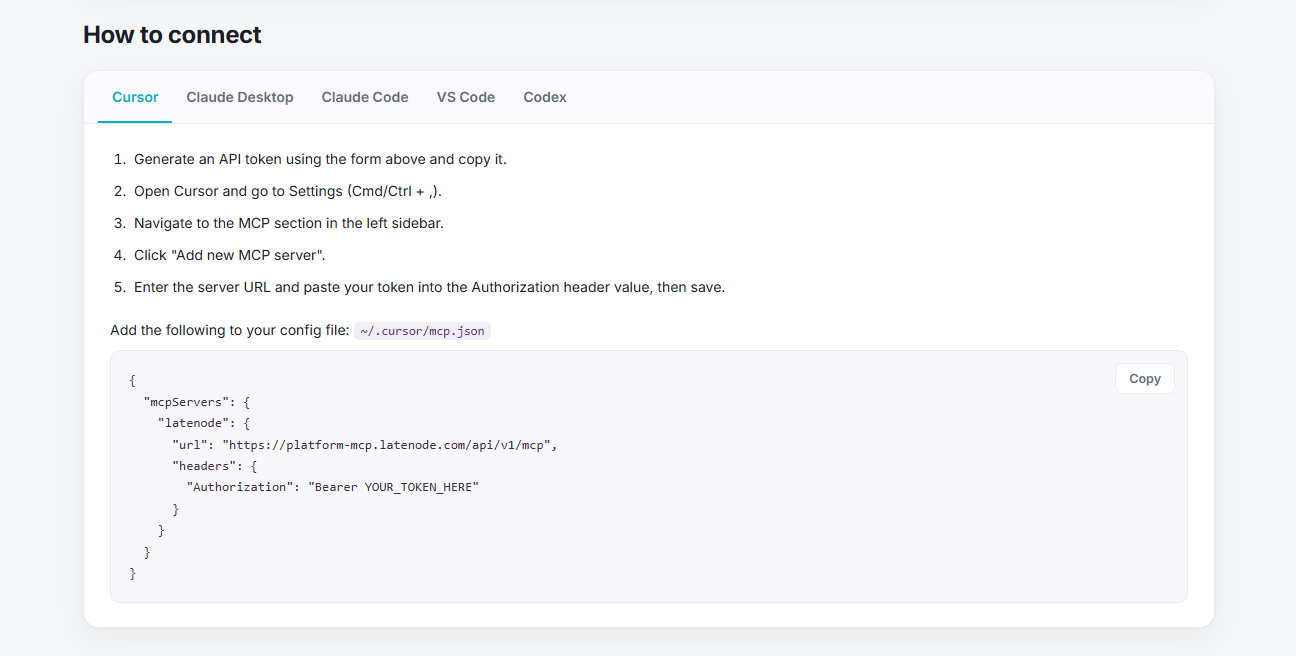
Use the token and server URL below to configure your MCP client.
- Generate an API token and copy it.
- Open Cursor and go to Settings (Cmd/Ctrl + ,).
- Navigate to the MCP section in the left sidebar.
- Click Add new MCP server.
- Enter the server URL and paste your token into the Authorization header value, then save.
Add the following to ~/.cursor/mcp.json:
{
  "mcpServers": {
    "latenode": {
      "url": "https://platform-mcp.latenode.com/api/v1/mcp",
      "headers": {
        "Authorization": "Bearer YOUR_TOKEN_HERE"
      }
    }
  }
}
Add the following to your claude_desktop_config.json:
{
  "mcpServers": {
    "latenode": {
      "type": "http",
      "url": "https://platform-mcp.latenode.com/api/v1/mcp",
      "headers": {
        "Authorization": "Bearer YOUR_TOKEN_HERE"
      }
    }
  }
}
Run in your terminal:
claude mcp add --transport http latenode https://platform-mcp.latenode.com/api/v1/mcp \
  --header "Authorization: Bearer YOUR_TOKEN_HERE"
Or add to your claude.json:
{
  "mcpServers": {
    "latenode": {
      "type": "http",
      "url": "https://platform-mcp.latenode.com/api/v1/mcp",
      "headers": {
        "Authorization": "Bearer YOUR_TOKEN_HERE"
      }
    }
  }
}
Add the following to your VS Code MCP config:
{
  "mcpServers": {
    "latenode": {
      "type": "http",
      "url": "https://platform-mcp.latenode.com/api/v1/mcp",
      "headers": {
        "Authorization": "Bearer YOUR_TOKEN_HERE"
      }
    }
  }
}
Add the following to ~/.codex/config.toml:
[mcp_servers.latenode]
url = "https://platform-mcp.latenode.com/api/v1/mcp"

[mcp_servers.latenode.http_headers]
authorization = "Bearer YOUR_TOKEN_HERE"
Replace YOUR_TOKEN_HERE with the token you created above.
How to install Latenode Skill
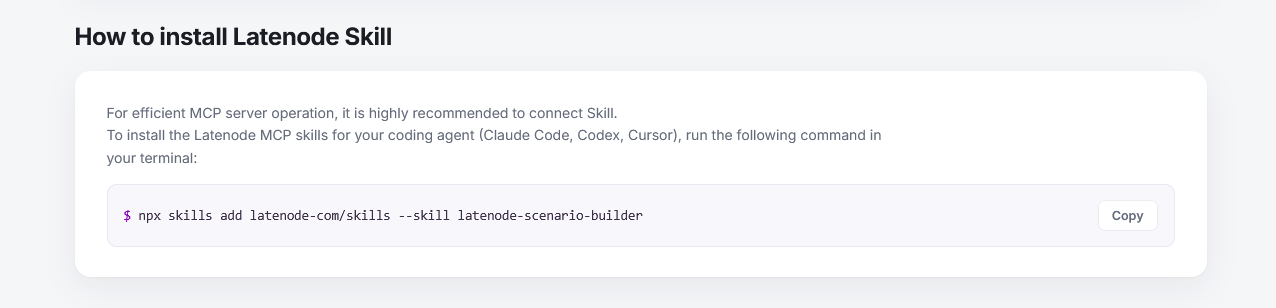
For efficient MCP server operation, it is highly recommended to connect the Skill. The Skill gives your coding agent (Claude Code, Codex, Cursor) the context it needs to build Latenode scenarios correctly.
Run the following command in your terminal:
npx skills add latenode-com/skills --skill latenode-scenario-builderManaging tokens
All tokens are visible on the MCP Server page under API tokens, with tabs for All, Active, Expired, and Revoked.
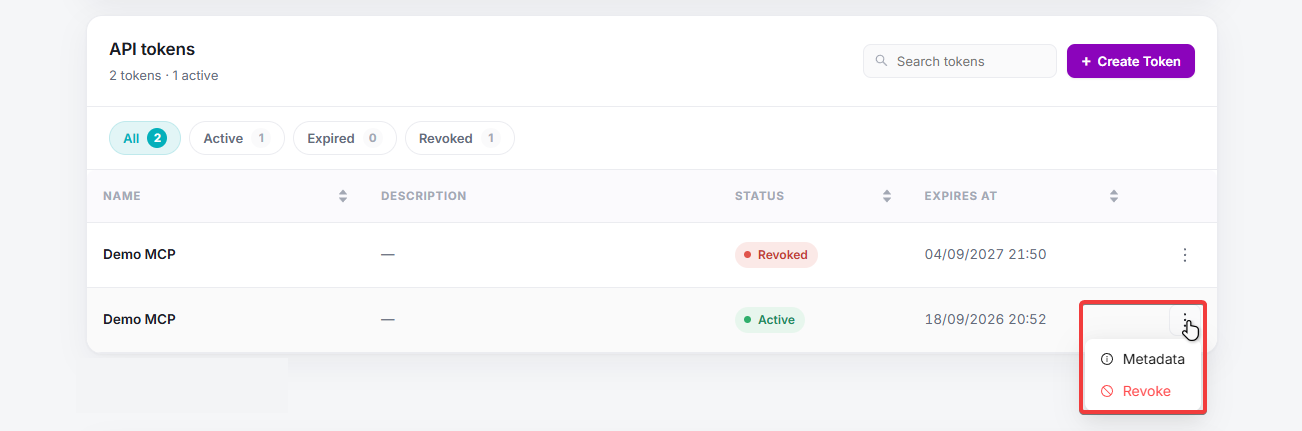
Hover over the three-dot menu on any token row to access its options:
- Token metadata - shows the token ID, creation date, expiry date, and revocation date
- Revoke - deactivates the token after a confirmation prompt
Revoking a token
After revocation the token is immediately deactivated. Update all connected MCP clients with a new token.
Troubleshooting
Agent can't connect: check that the token is active (not expired or revoked) and that the Authorization header is formatted as Bearer YOUR_TOKEN_HERE.
Agent can't find or run scenarios: make sure the latenode-scenario-builder Skill is installed. Without it, the agent lacks the instructions to work with Latenode effectively.
Guardrails for AI Agents
Strategies to control agent behavior, validate inputs and outputs, and ensure safe, predictable automation flows.
MCP Tools Reference
Full reference for all tools exposed by the Latenode MCP Server.
Need Help? Ask the community
If something on this page is missing or unclear, post on the Latenode community forum. Our team and other users usually reply quickly.