
Build with AI
AI scenario helper is an AI assistant built into the Latenode Visual Builder. Describe your task in plain language and the assistant builds the scenario: it places nodes on the canvas, connects them, and fills in settings where possible.
The result is a normal Latenode scenario. You can open it, inspect it, edit it, test it, and publish it like any other scenario.
Using the AI scenario helper consumes PnP tokens. Longer conversations and repeated iterations use more tokens.
AI scenario helper is currently in beta. It can make mistakes, and behavior may change while we improve the feature. Always review generated scenarios before using them in production.
What it can do
You interact with the assistant in a chat inside the Visual Builder.
Build scenarios. Describe the task: the assistant proposes a structure and places nodes on the canvas. Refine, edit, and add conditions right in the chat.
Understand the canvas. The assistant sees what is currently open on your canvas. It can explain how any node works, walk you through the full scenario logic, and answer questions about platform features in context of what you have in front of you.
Debug. Something went wrong: describe the problem. The assistant finds where it broke and suggests how to fix it.
Before you start
Make sure that:
- You have a Latenode account and access to the workspace where you want to build.
- You know what should trigger the scenario and what the result should be.
- You are ready to connect authorizations for the apps the scenario needs.
The assistant works inside your account. It cannot access services or credentials you have not set up.
How to work with it
- Describe your goal - what triggers the scenario, what data is involved, and what the result should be.
- Review the plan - the assistant puts a numbered plan on the canvas before it changes anything.
- Monitor the build - after you approve, the assistant adds nodes, connects them, and configures settings, and the chat tracks the plan step by step.
- Review and refine - verify authorizations, required inputs, and assumptions; ask the assistant to adjust as needed.
Use Clear to reset the chat when you switch to an unrelated task. Starting a fresh conversation helps the assistant stay focused and can reduce unnecessary token use.
Approve the plan
After the assistant thinks through your request, it puts a plan on the canvas as a card: which nodes to add, how to wire them, and what it still needs from you (for example a Gmail connection). The card stays on the canvas even after you clear the chat and start a new session.
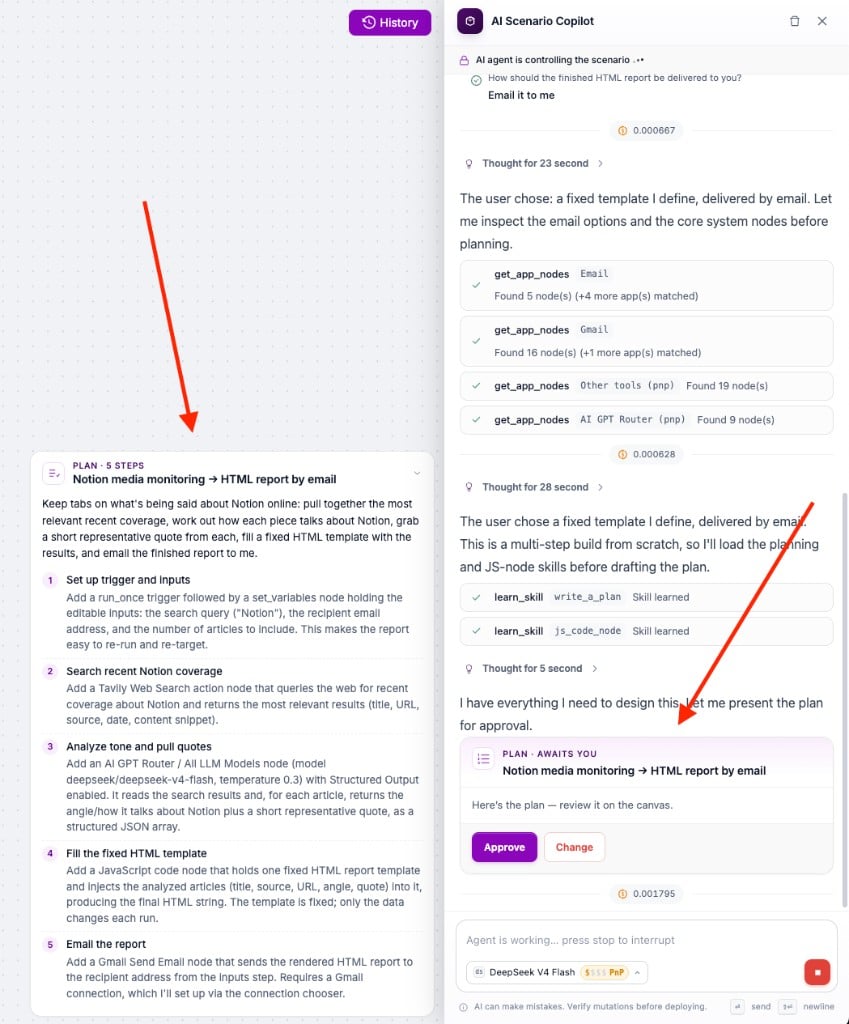
- Click Approve to let the agent start building on the canvas.
- Click Change to describe what to adjust before any nodes are added.
While the agent works, the canvas is locked and the banner AI agent is controlling the scenario appears. Use Stop to interrupt the build.
Follow the build in the task tracker
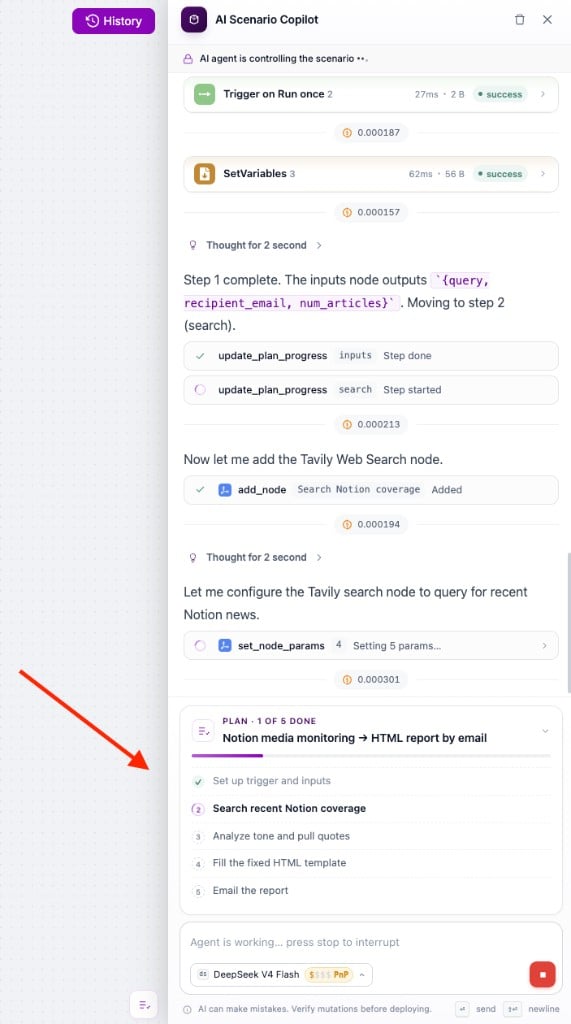
After you approve, the chat shows the plan as a task tracker: completed steps are checked off and the current one is highlighted.
Answer the assistant's cards
When the assistant needs something from you, it asks with a card instead of plain text.
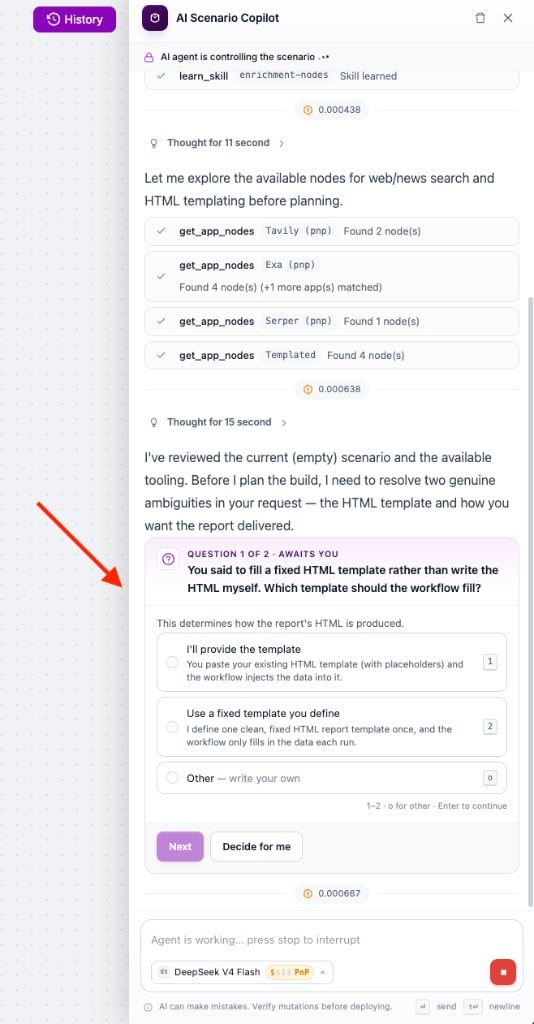
Questions with answer options. Pick a numbered option, or choose Other and write your own.
Questions with a free-text answer. For details only you know, such as which address a report should go to.
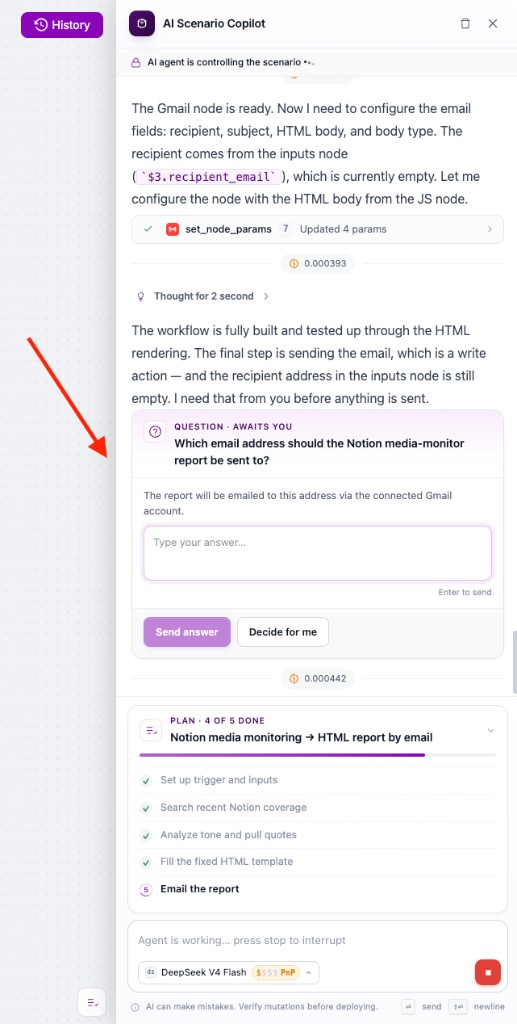
Both kinds of question have a Decide for me button if you would rather let the assistant choose.
Quick actions. Before running a real action with an external effect, such as sending an email, the assistant lists what will happen and asks for confirmation.
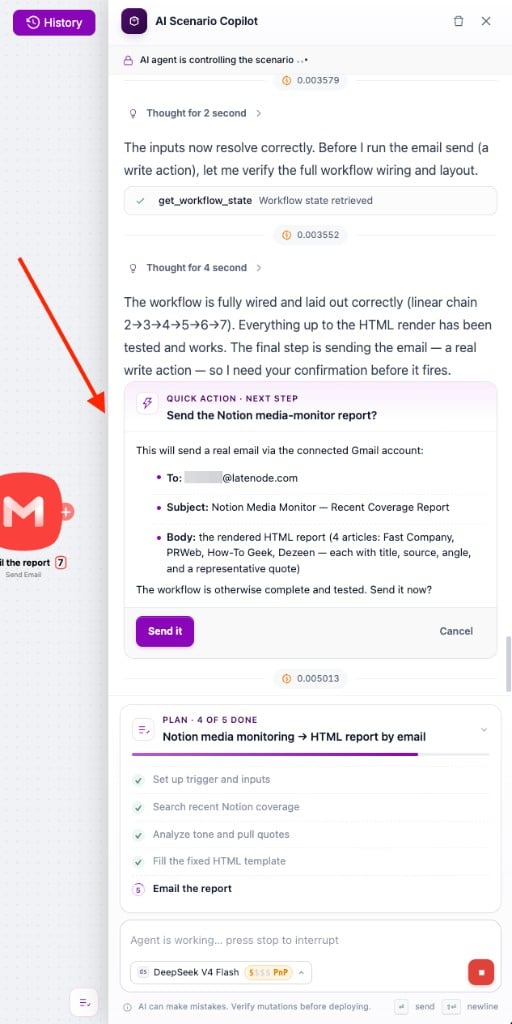
Confirm to run the action, or click Cancel to skip it and continue.
Track PnP token usage
Using the AI scenario helper consumes PnP tokens. Below each assistant message you see the cost for that step as a coin icon with a number.
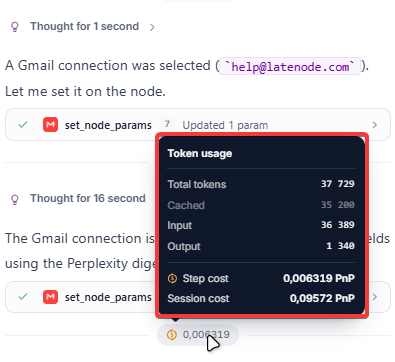
Hover over the cost badge to open Token usage:
| Field | Meaning |
|---|---|
| Total tokens | Tokens processed in this step |
| Input / Output | Tokens in the request and in the reply |
| Cached | Tokens served from cache (shown separately) |
| Step cost | PnP tokens charged for this message |
| Session cost | PnP tokens charged for the whole chat |
Longer conversations, larger scenarios, and repeated iterations increase the session cost.
Write effective prompts
Specific prompts produce better results with fewer back-and-forth messages.
Include:
- what should trigger the scenario,
- which apps or services to use,
- what data to read, send, or update,
- what should happen on success or failure.
Example prompts
Create a scenario
Every day at 9 AM collect AI news via Perplexity and email a short digest to me.
Use a schedule trigger.
Debug a failed run
The last run failed on the Gmail node.
Explain what went wrong and suggest a fix before changing anything.
Update an existing scenario
Add a Slack notification when the HTTP node returns an error,
then keep the rest of the scenario unchanged.
Review before you publish
Before you publish a generated scenario, click Save, then Deploy, and turn the scenario on when you are ready:
- Review the scenario logic on the canvas.
- Check node settings and authorizations.
- Run a test with Run Once and inspect the output in Execution History.
- Confirm error handling matches what you expect.
Possible issues in the builder
AI scenario builder stopped responding
If the AI scenario builder panel in the visual builder hangs, stops replying, or returns an error:
- Copy the task description and any important clarifications you want to keep.
- Click Clear in the assistant panel and start a new chat.
- Paste the saved text into a new message and continue. The assistant still sees the open scenario on the canvas.
On long chats, starting a new session after Clear often helps.
Latenode IP Address for Whitelisting
IPs to allow for external connections.
Interface
How to navigate and manage scenarios in the Scenarios interface.
Need Help? Ask the community
If something on this page is missing or unclear, post on the Latenode community forum. Our team and other users usually reply quickly.