
Nodes
Configure & Run a Node
Node Configuration and Execution
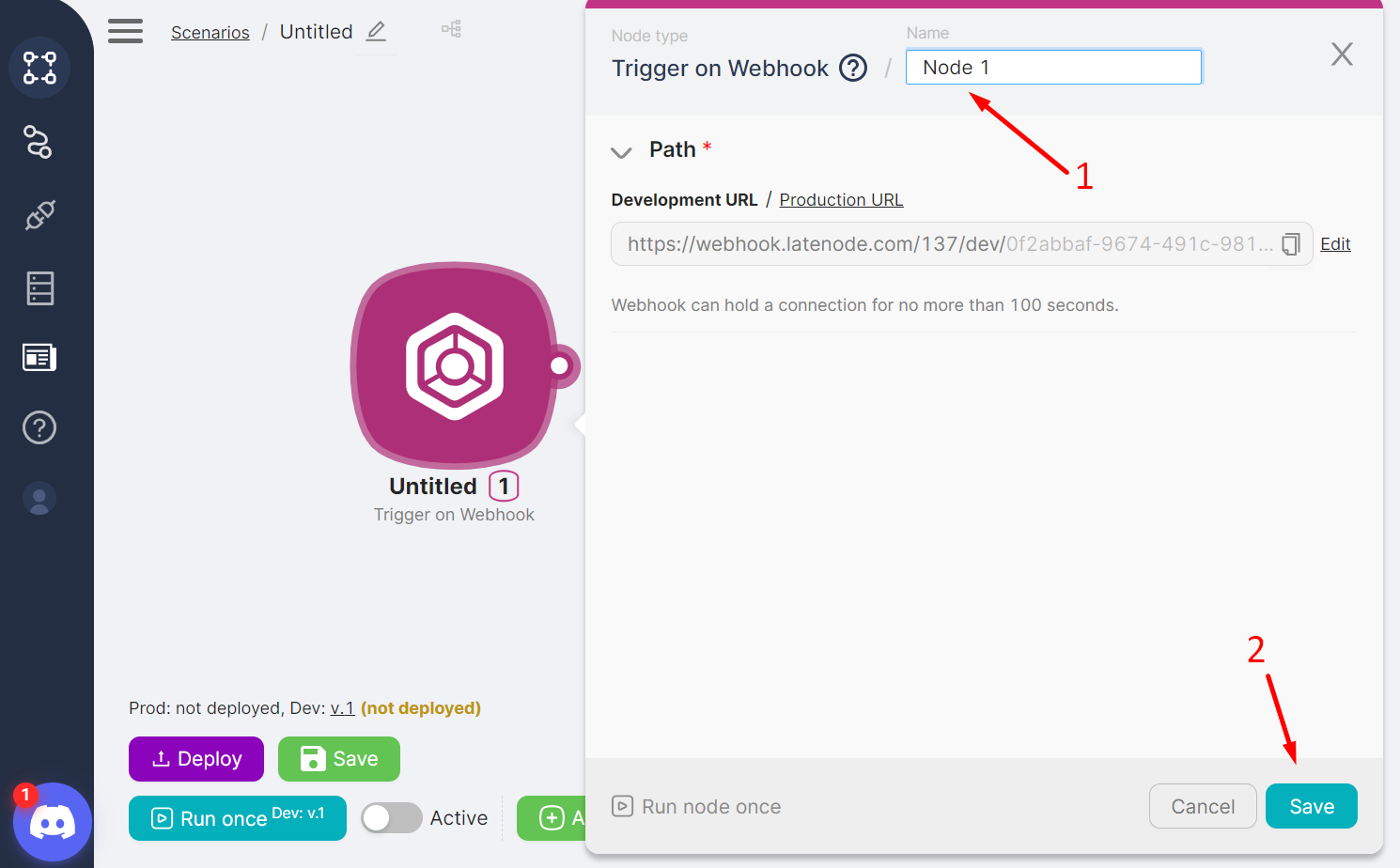
After adding a node, you can modify the node's name (1) in the settings window and save the changes by clicking the Save button (2).
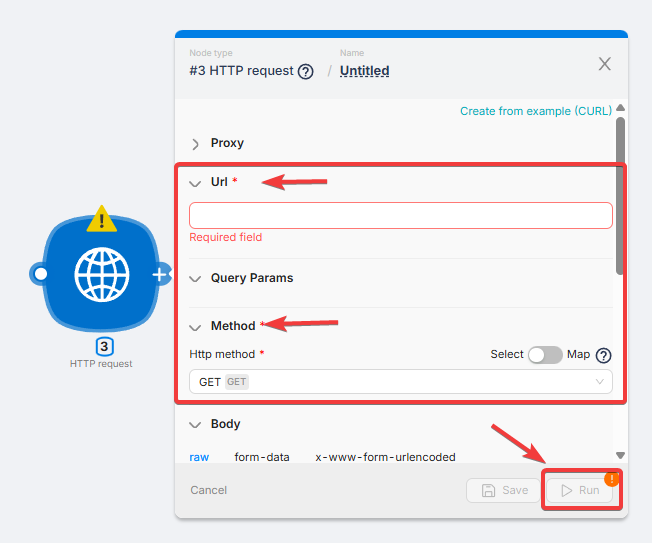
When configuring any node, you should:
- Fill in the mandatory fields (1).
Note
The set of fields for configuration is unique to each node.
- Save the settings and changes by clicking the Save button in the node's configuration window.
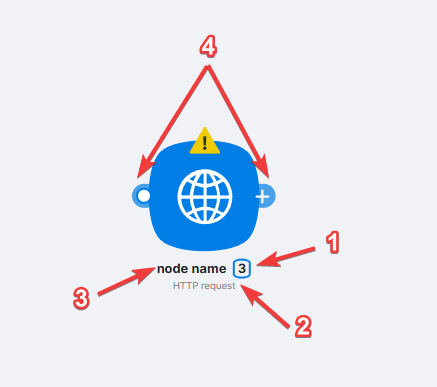
Each added and configured node is accessible for viewing on the scenario page and displays:
- (1) Node Number - a unique identifier within the scenario for the node;
- (2) Node Type - the system name of the node;
- (3) Node Name - the name entered by the user;
- (4) Route Points used to create new nodes or routes between nodes.
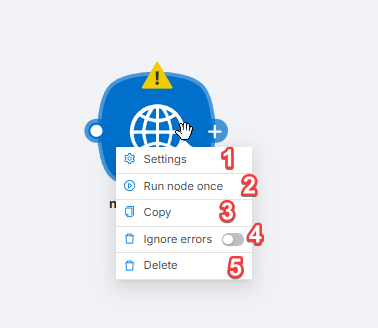
By right-clicking on a node, a node menu opens with the following buttons:
- (1) Settings - access the node's settings;
- (2) Run Once - manually run the node once. Running a node separately allows you to check its functionality without running the entire scenario;
- (3) Copy - copy the node or selected group of nodes. You can paste:
- into external tools, such as Notepad;
- into the interface for creating/editing an existing scenario.
- (4) Ignore Errors - error handling feature;
- (5) Delete - delete the node.
Add a Node
How to add a node to a scenario.
Copy Scenarios & Nodes
How to copy scenarios and nodes within or across accounts.
Need Help? Ask the community
If something on this page is missing or unclear, post on the Latenode community forum. Our team and other users usually reply quickly.
0/100
0/2000