
Copy Scenarios & Nodes
Copying Scenarios and Nodes
Existing scenarios and nodes can be copied:
- within one account, either within the same scenario or between different scenarios;
- between different accounts.
The result of copying nodes within one account is identical, whether nodes are copied within the same scenario or across multiple scenarios.
Steps for copying a scenario or nodes
You can copy a single node or multiple nodes in two ways.
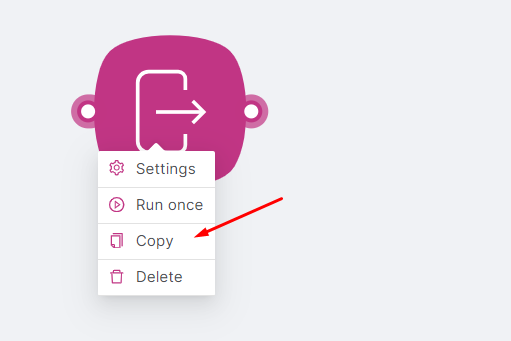
Option 1: Copy from the node context menu
To copy a node or multiple nodes:
- Right-click on the node;
- Click the Copy button;
- Right-click on any empty space on the page of the current scenario or another scenario;
- Click the Paste button.
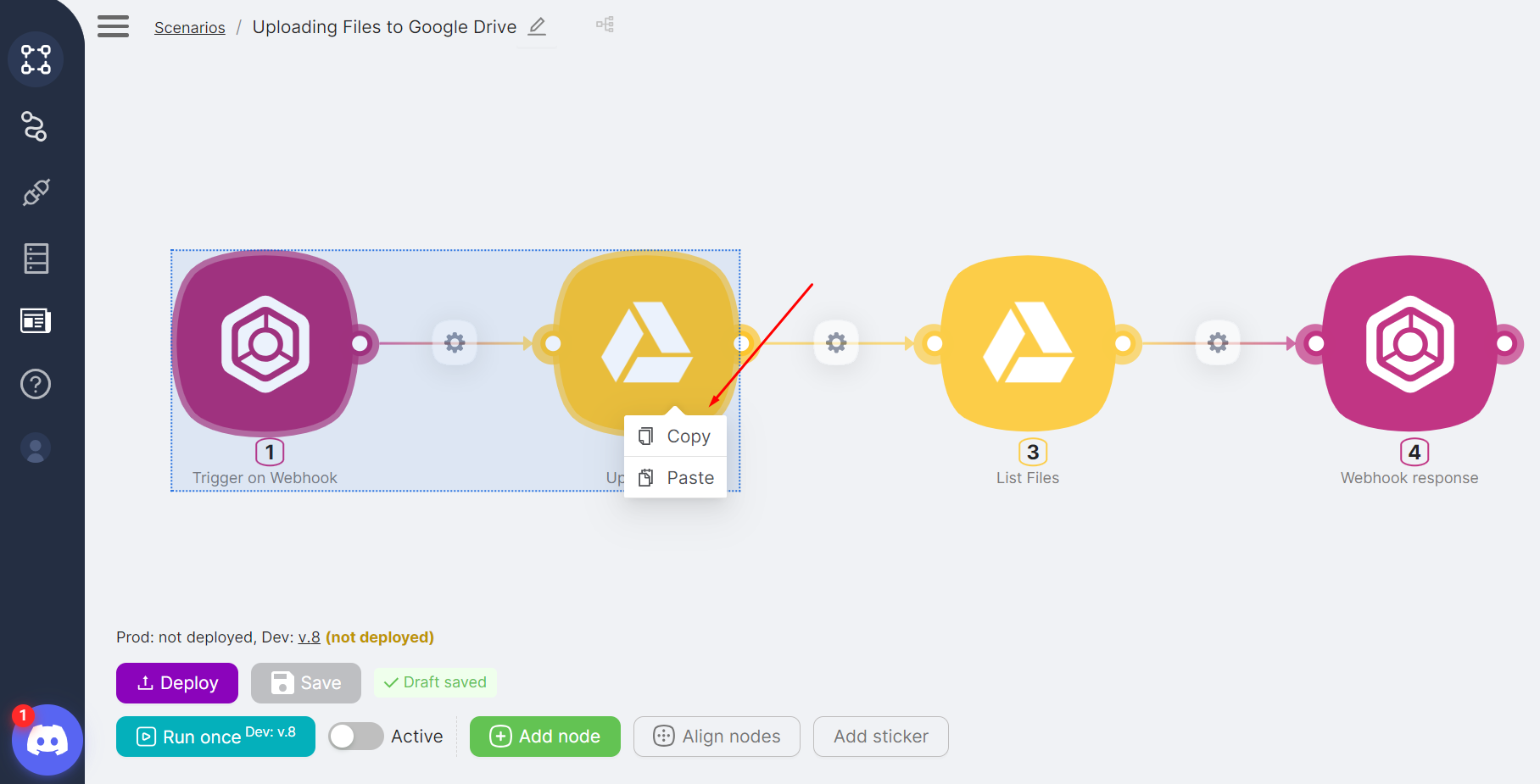
Option 2: Select nodes, then paste
- Press Shift;
- Click and drag the mouse pointer across the screen to select a node or multiple nodes;
- Right-click on any empty space on the page of the current scenario or another scenario;
- Click the Paste button.
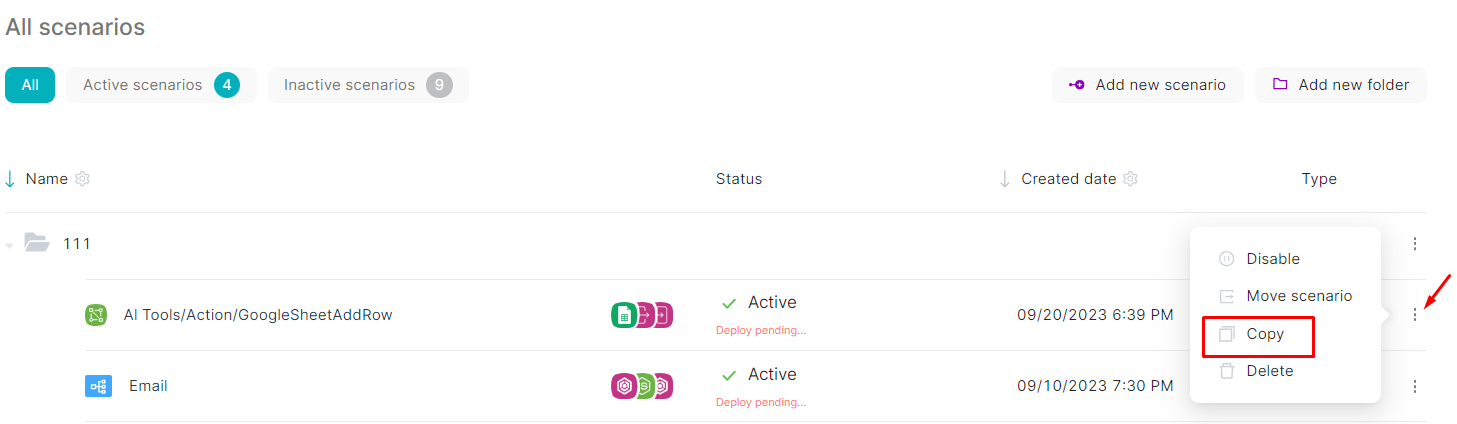
To copy a scenario, you need to:
- Go to the Scenarios page;
- Open the menu for the row of the desired scenario;
- Click the Copy button;
- Right-click on any empty space on the page of another scenario;
- Click the Paste button.
Alternative: copy all nodes from the canvas
- Press Shift;
- While holding the left mouse button, select all nodes in the scenario;
- Right-click on any empty space on the page of another scenario;
- Click the Paste button.
Rules for Copying Scenarios and Nodes
When copying an entire scenario or one/multiple nodes, the duplicated nodes retain their routes and settings.
The numbers of duplicated nodes depend on whether the copying and pasting occurred within the same scenario:
- If nodes are copied and pasted within the current scenario, node numbers are updated, and the settings of these nodes are automatically adjusted to the new numbers.
- If nodes are copied and pasted into another scenario, node numbers remain the same.
Authorizations of duplicated nodes are preserved if copying occurs within the same account and are not preserved if copying and pasting occurs between different accounts.
Examples of Copying Scenarios/Nodes
Example 1:
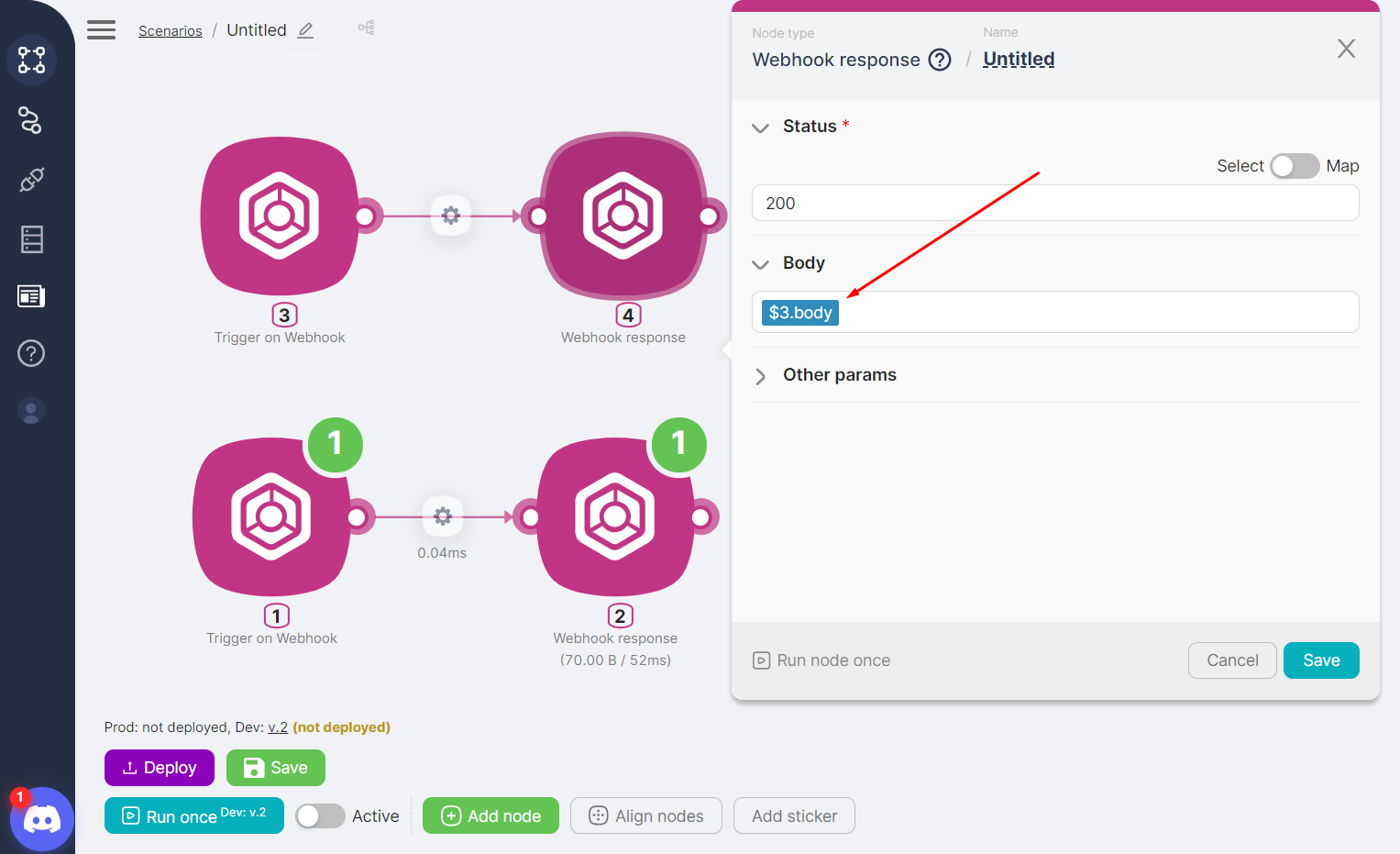
- A scenario is created where node 2, Webhook Response, displays the value from node 1, Trigger on Webhook, in the Body field;
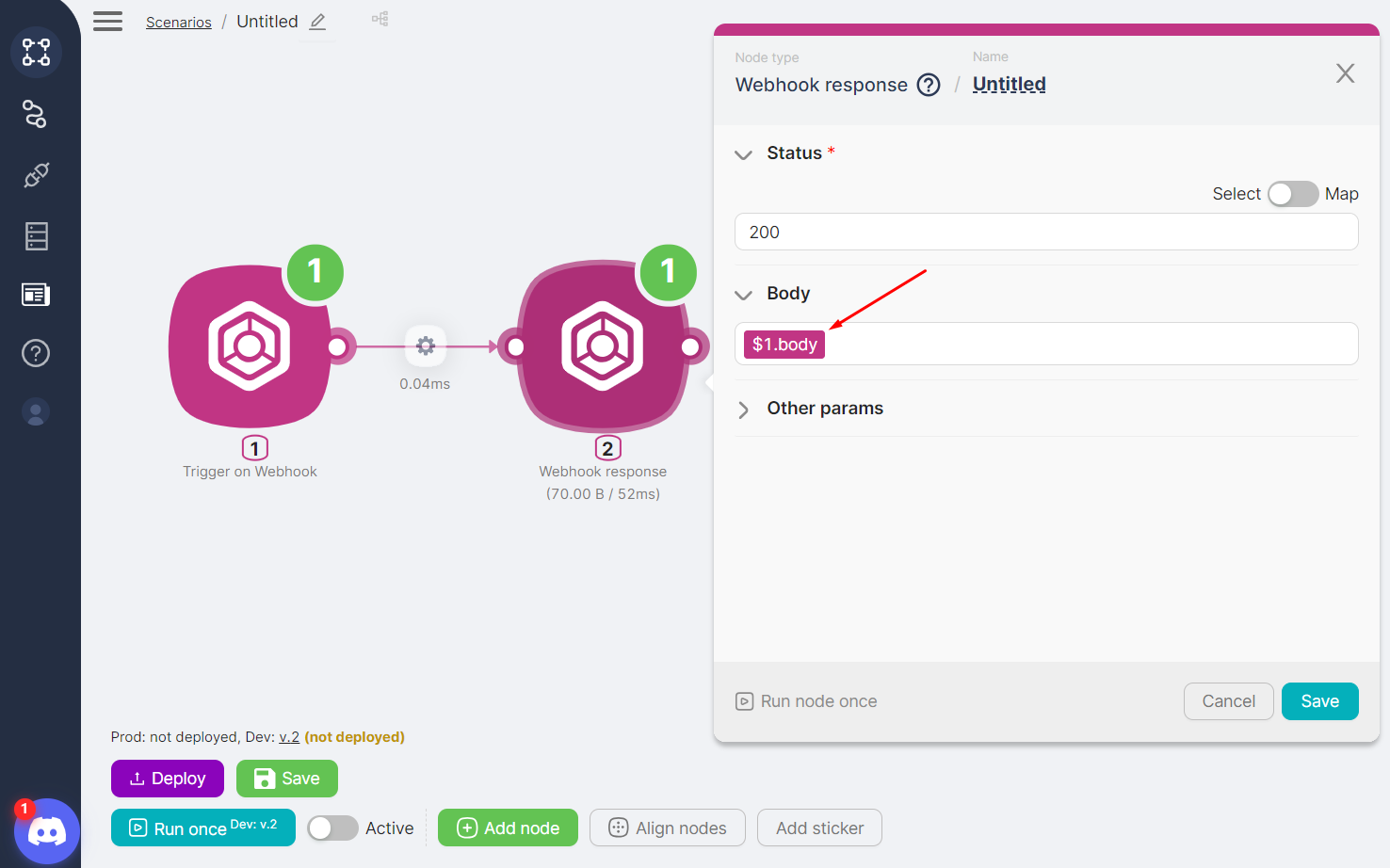
- Both nodes of the scenario are copied and pasted into the same scenario;
- Node 4, Webhook Response, displays the value from node 3, Trigger on Webhook, in the Body field. This means that node settings were preserved and updated according to the new node numbers.
Important
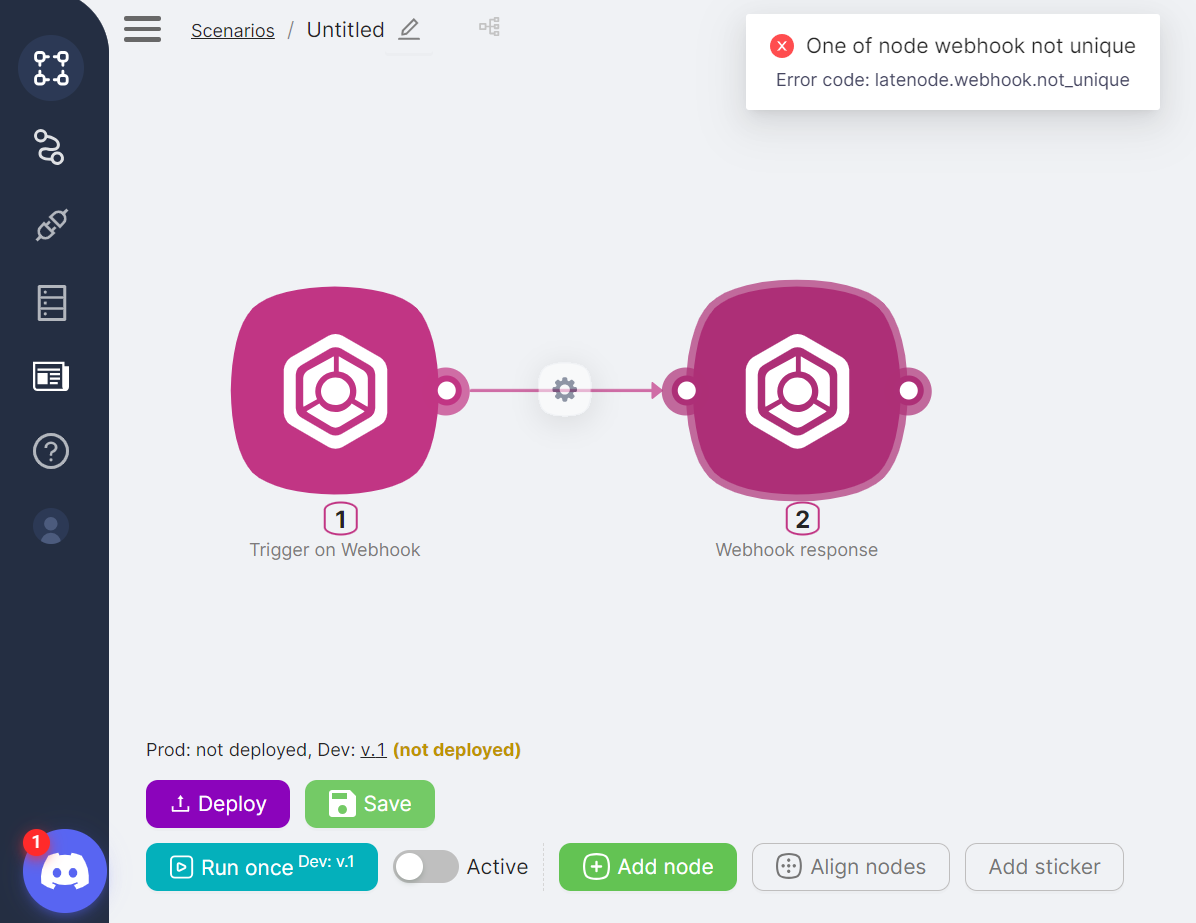
When copying, the Trigger on Webhook URL of the node is duplicated without changes. You need to manually adjust the address to ensure requests are sent to the correct Trigger on Webhook.
When attempting to save a scenario with a non-unique Trigger on Webhook node address, a corresponding notification is displayed.
Example 2:
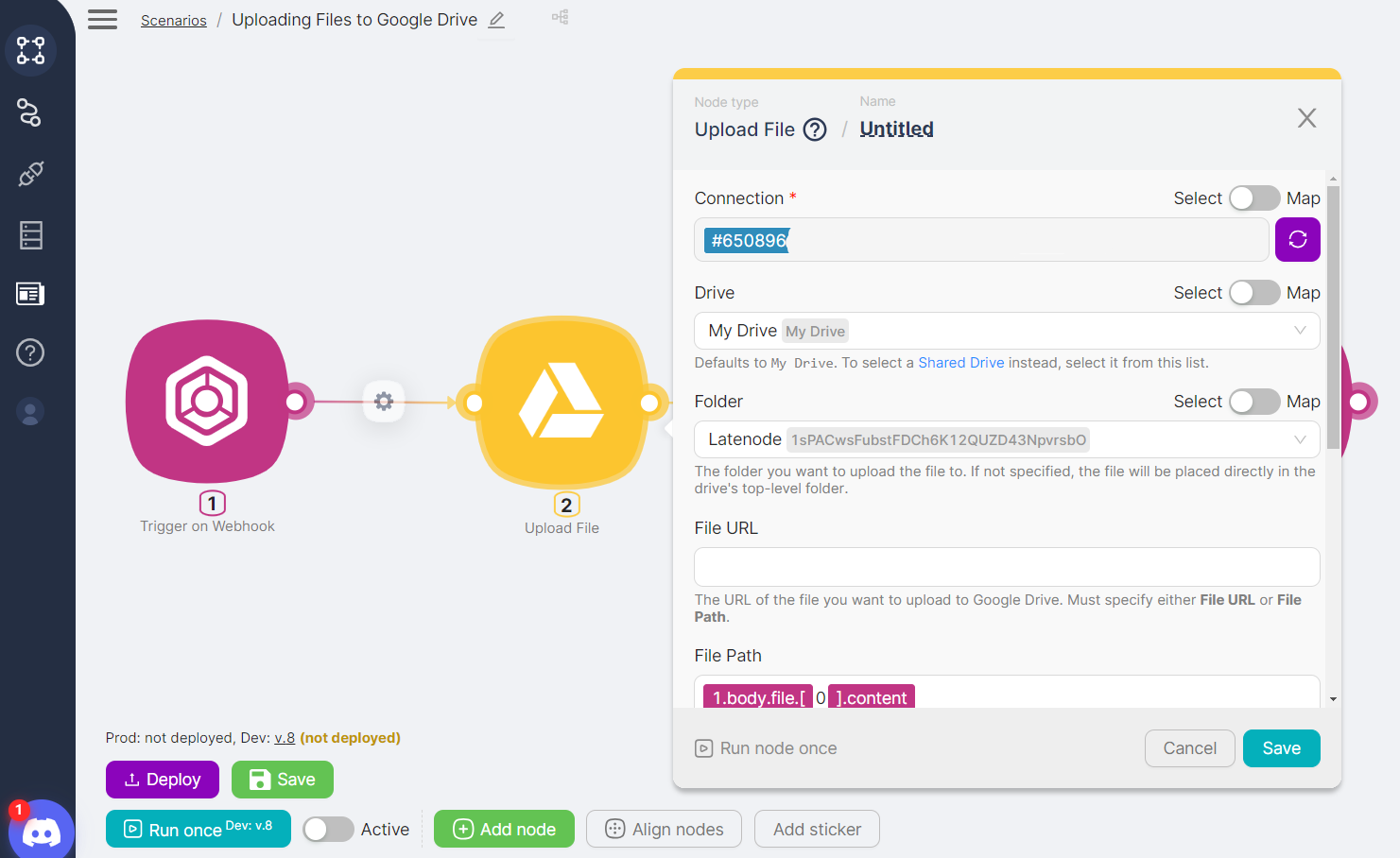
- In account 1, a scenario with an Upload File node has been created, with an authorization to Google Drive configured;
- In account 2, an empty scenario has been created;
- All nodes from the scenario in account 1 have been copied and pasted into the empty scenario of account 2;
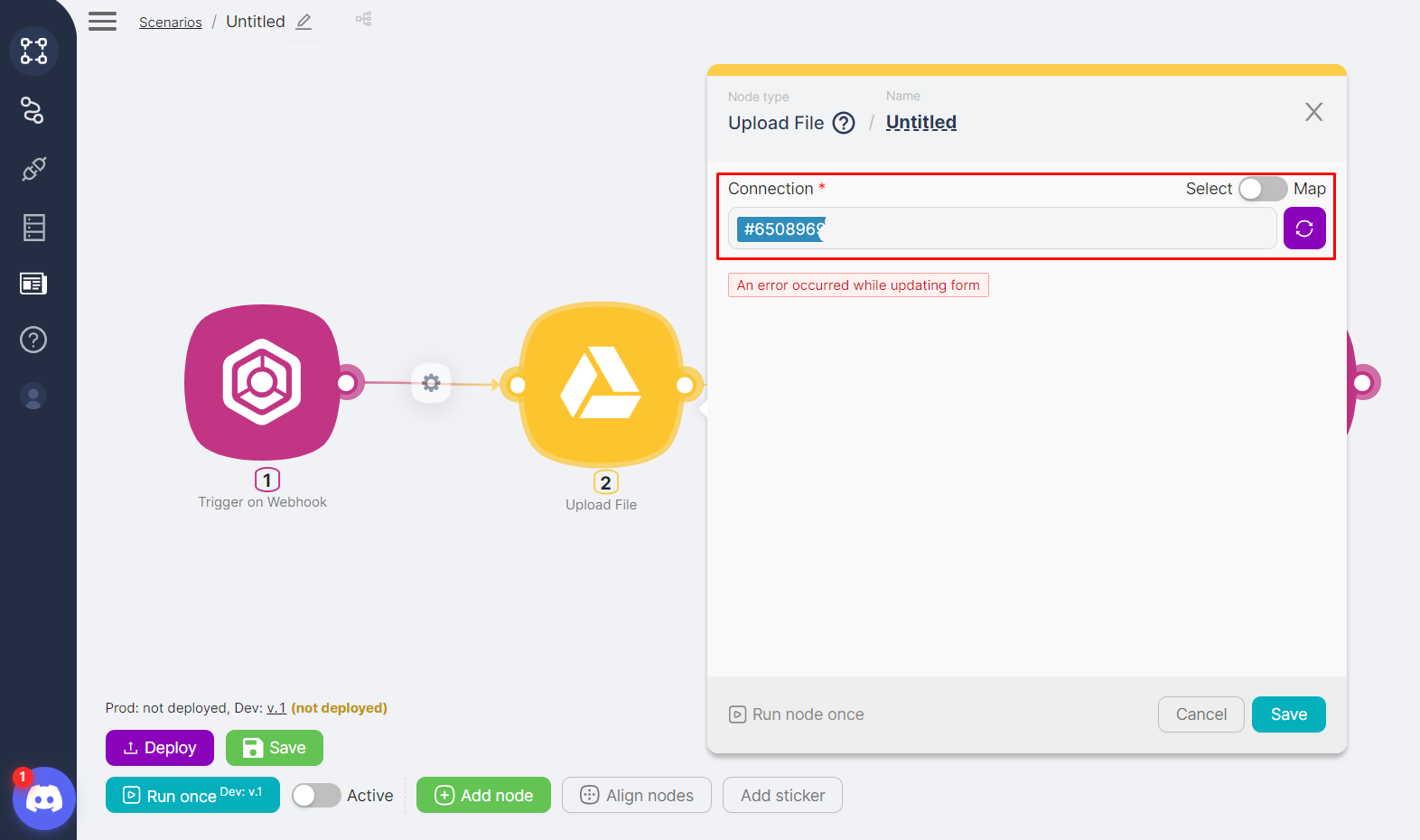
- In the scenario of account 2, an error is displayed in the Upload File node, and setting up a new authorization is required.
Configure & Run a Node
How to configure node settings and run a node.
Authorizations
App authorizations section: where to find it, renaming, reauthorizing, and deleting.
Need Help? Ask the community
If something on this page is missing or unclear, post on the Latenode community forum. Our team and other users usually reply quickly.