
Import and Export
Export
Export Scenario
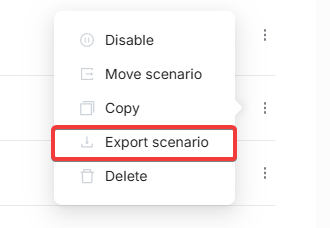
Next to each scenario, open the context menu (?) and select Export scenario. This will download the scenario as a JSON file.
Export Folder
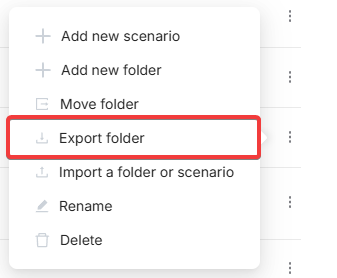
In the context menu next to any folder, select Export folder to export the entire folder as an archive. The archive includes all nested folders and scenarios.
Import
Import to a Specific Folder
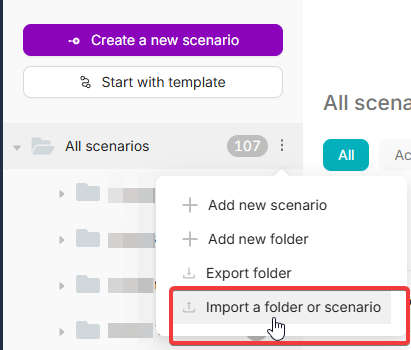
In the context menu of any folder, select Import a folder or scenario to upload previously exported files directly into that folder.
Import from Top Menu
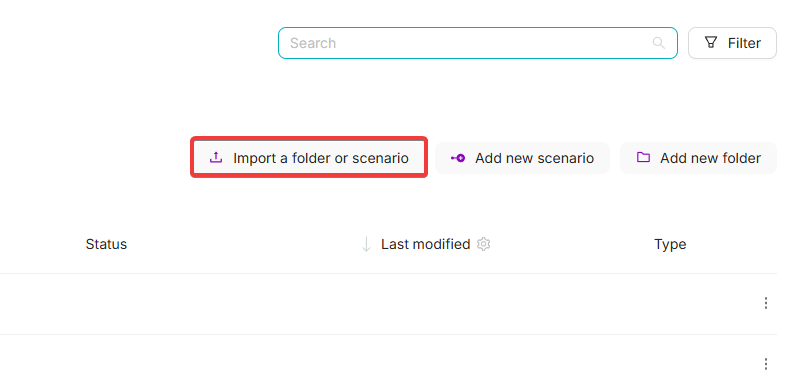
You can also use Import a folder or scenario in the top toolbar to import files into the root directory or the currently selected folder.
Migrating All Scenarios Between Accounts
To transfer all your scenarios from one account to another:
- Move all scenarios into a single folder.
- Use Export folder to export the folder as an archive.
- Log in to the target account and use Import a folder or scenario to upload the archive.
- Recreate and reconnect all authorizations (tokens, API keys, etc.) manually — they are not transferred with the scenarios.
Publishing Scenarios
How to publish a scenario to Production with Deploy and turn it on for live runs.
Enhanced Compute Resources (Engine Tier 1)
Everything about enhanced compute resources for scenarios requiring more RAM or CPU.
Need Help? Ask the community
If something on this page is missing or unclear, post on the Latenode community forum. Our team and other users usually reply quickly.