
Discord
Discord nodes let you send messages, manage channels and roles, handle members, and start scenarios from Discord events.
Connection
Discord supports OAuth (Latenode shared bot) and Access Token (Personal App) (your bot).
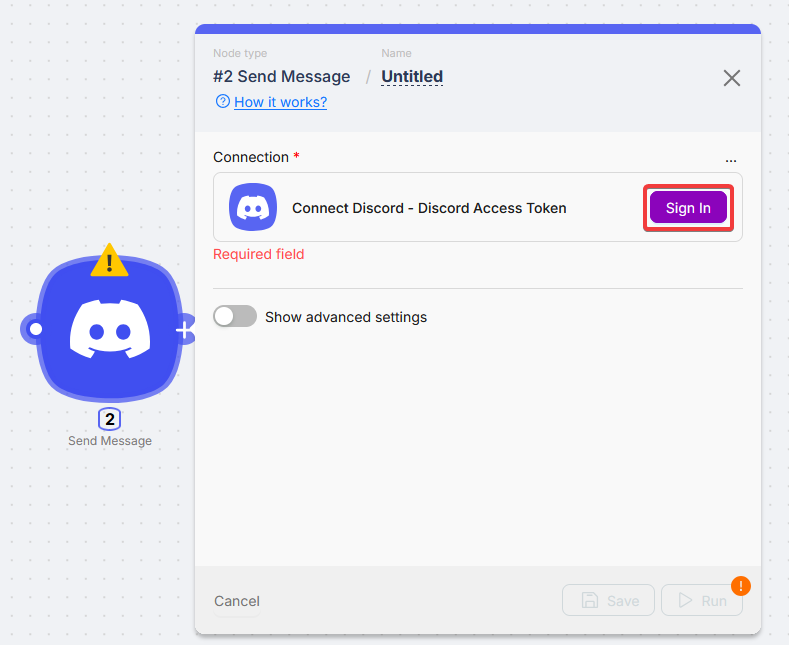
OAuth
You authorize Latenode's bot and add it to your server. No separate bot hosting on your side.
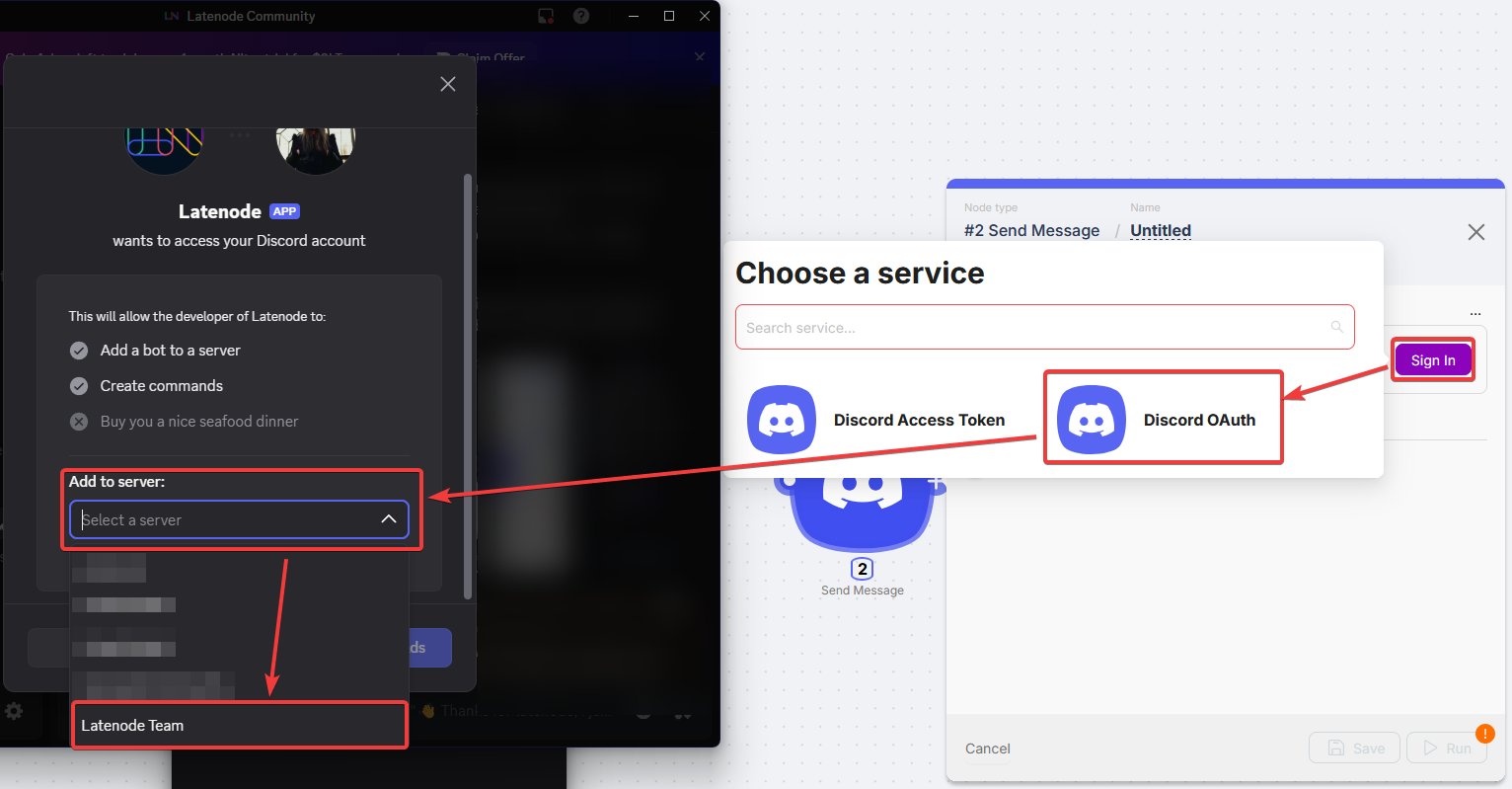
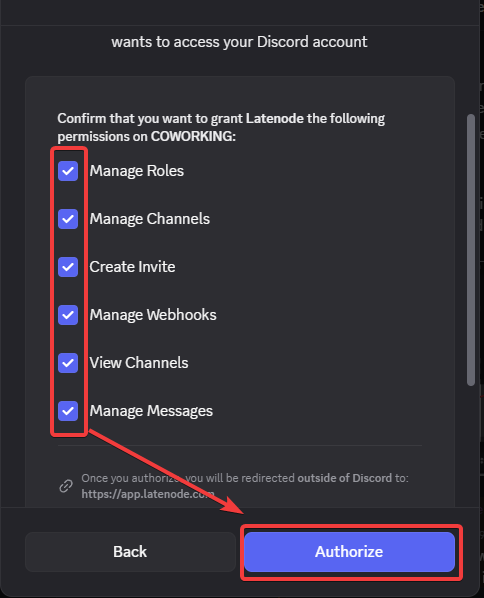
Sign in with Discord
Click Sign in with Discord, choose the server, and confirm permissions.
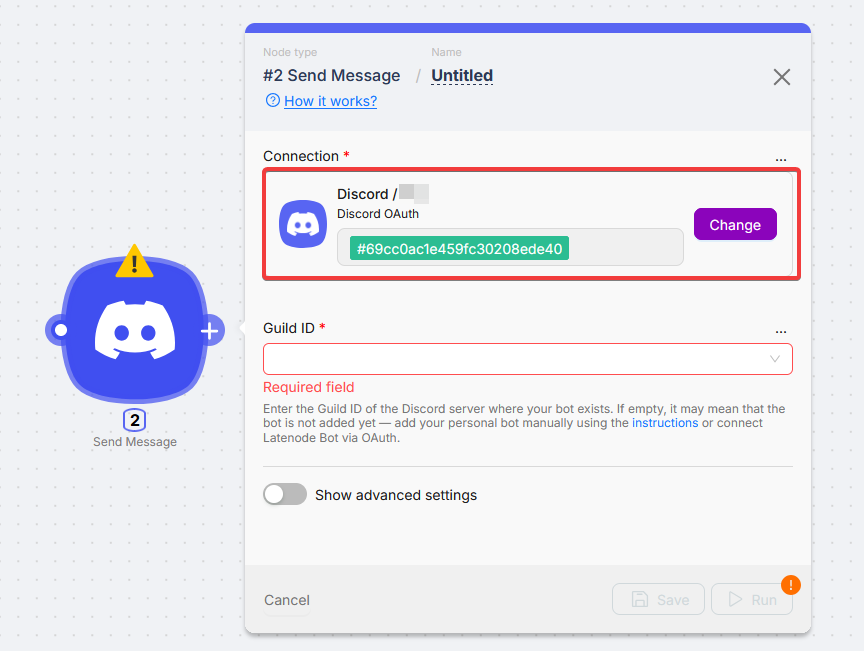
Server ID for channel lists
After OAuth, set Server ID so Latenode can load channels.
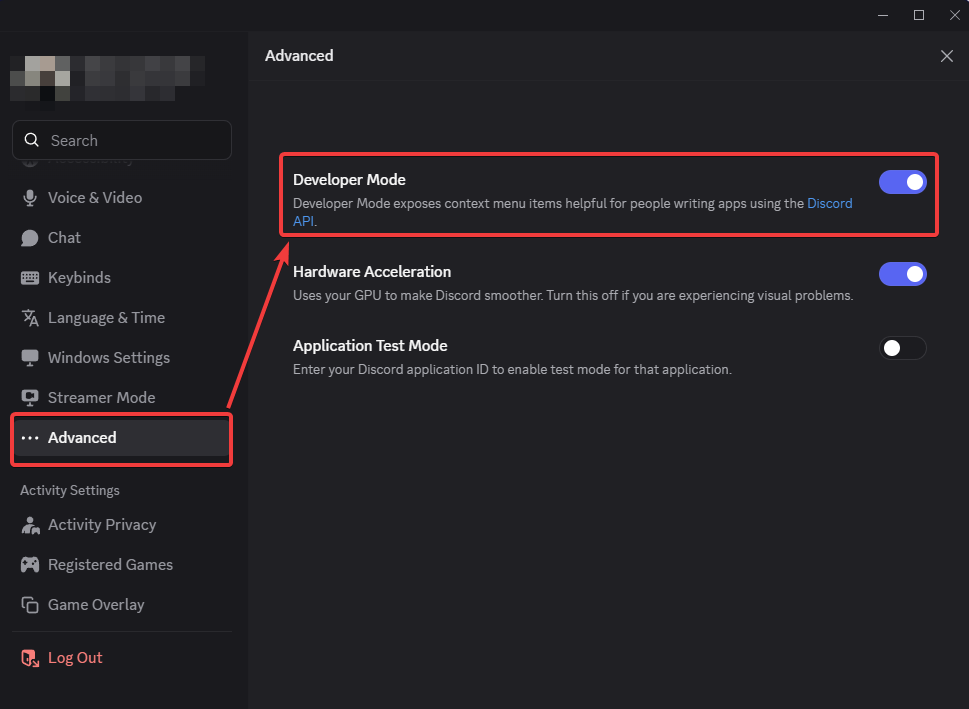
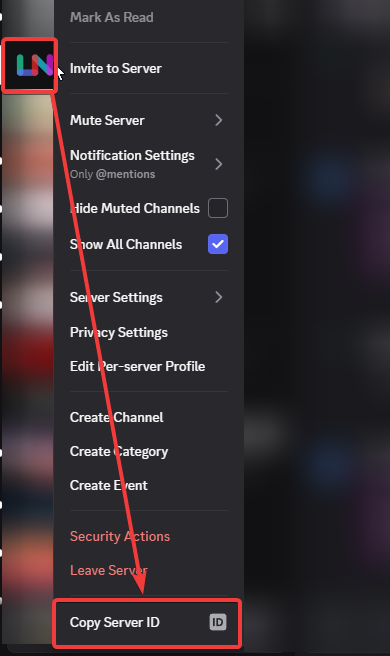
Paste into the node
Switch Guild ID from Select to Map, paste the ID, then set the channel field (paste Channel ID if needed).
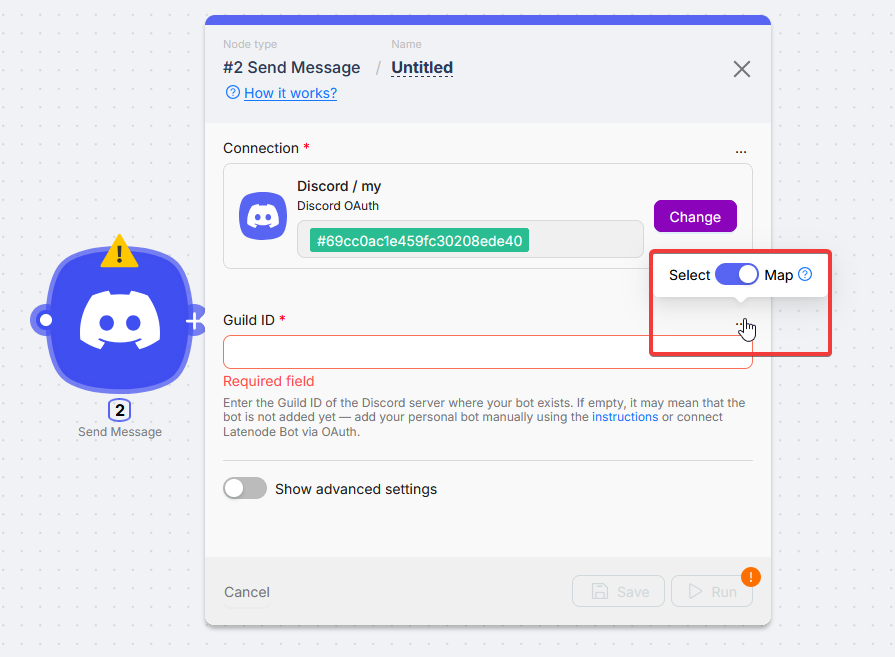
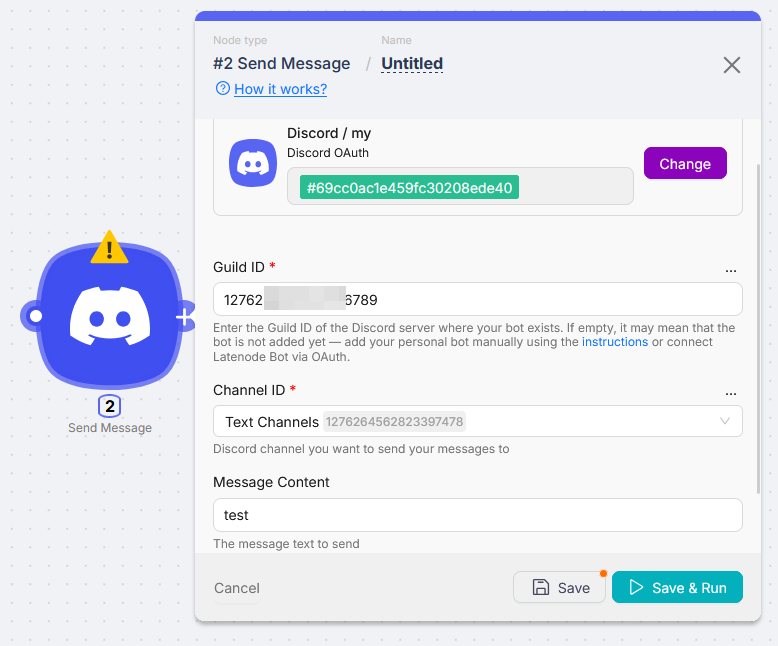
Access Token (Personal App)
Your bot from the Discord Developer Portal.
Open your application
In the portal, open the app that owns the bot.
Copy the bot token
Bot → copy Token.
Paste into Latenode
Paste into Bot Token, name the connection, and save.
Add the bot to the target server with the right permissions before using it in a scenario.
Actions
Most ID fields support Select (pick from a loaded list) or Map (paste the numeric id you copy in Discord, or reference data from another node). If lists stay empty, set Guild ID first and check Connection above (OAuth needs Server ID).
Triggers
Custom LLM Connection
Call OpenAI-compatible APIs with your own key and base URL from a single node.
Gmail
Send and receive mail, manage drafts and labels, and trigger scenarios from Gmail events.
Need Help? Ask the community
If something on this page is missing or unclear, post on the Latenode community forum. Our team and other users usually reply quickly.