
Google Sheets
Google Sheets is an app node group for working with spreadsheets from your scenarios. It helps you add and update rows, search data, manage worksheets, and start runs when something changes in a sheet. When you add a Google Sheets node and open its settings, you pick a connection, drive, spreadsheet, and (for most modules) a worksheet.
Connection
Every Google Sheets module needs an active connection to your Google account. You create it once and reuse it across modules.
Setting up a connection
When you open any Google Sheets module for the first time, the Connection field is empty.
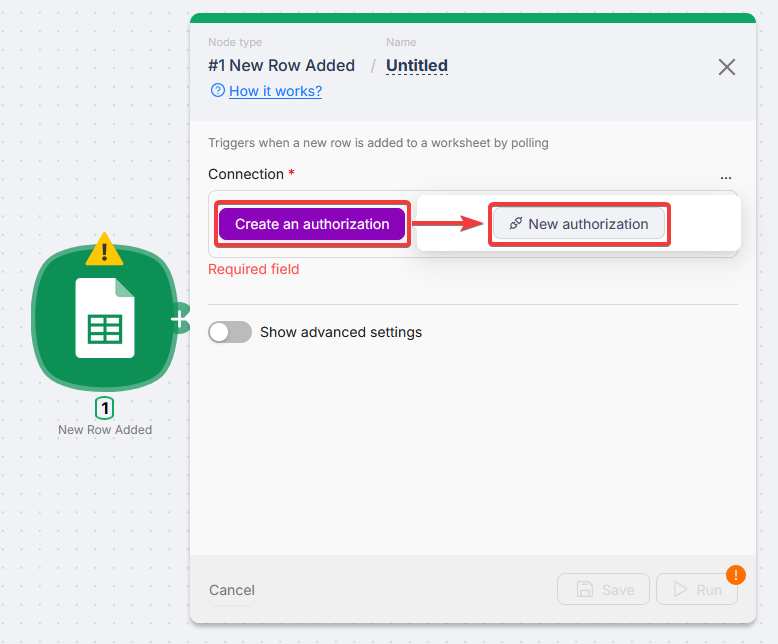
Click Create an authorization. A popup opens so you can choose the connection type.
Connection types
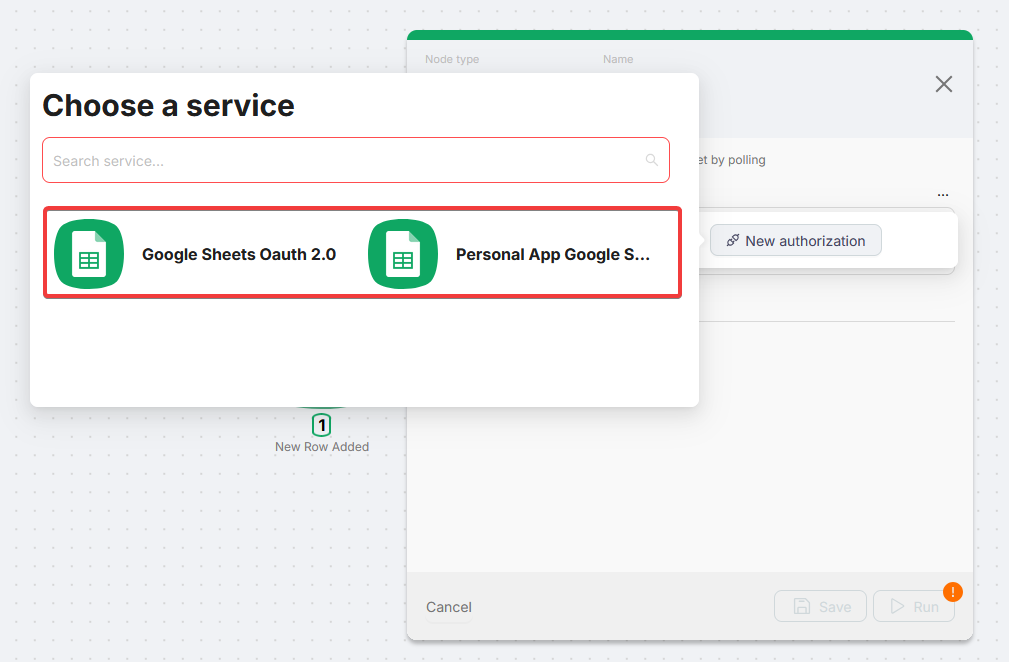
There are two options:
- Google Sheets OAuth 2.0 - Sign in with your Google account. Latenode requests the scopes it needs and redirects you to Google. Use this for most setups.
- Personal App Google Sheets - Use your own Google Cloud OAuth app (Client ID and Client Secret). Use this if you need your own quota or custom OAuth settings.
Personal App setup
For step-by-step Google Cloud setup, see Google Services (Personal Account).
Authorization
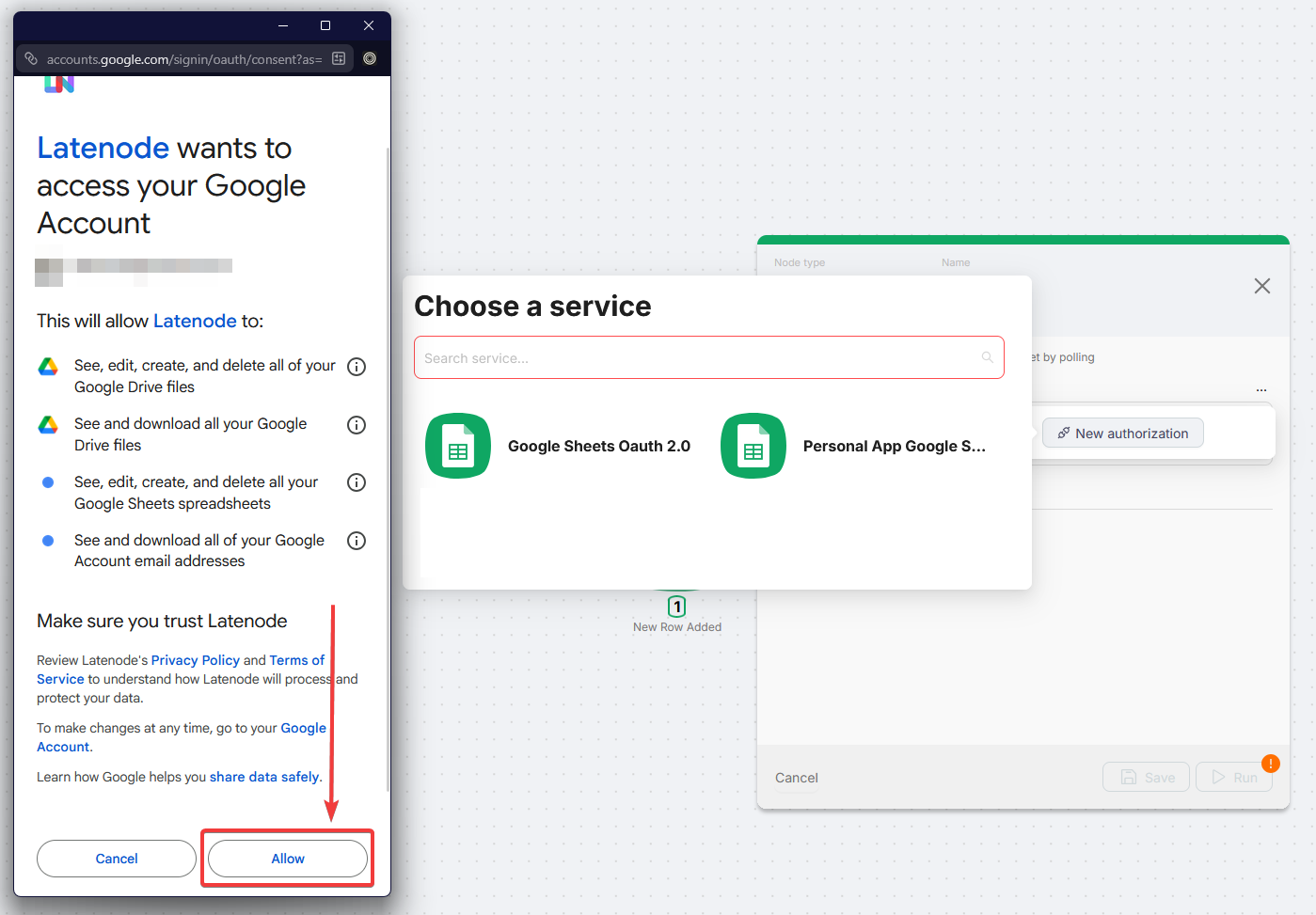
Choose Google Sheets OAuth 2.0
In the authorization dialog, select Google Sheets OAuth 2.0.
Name the connection and save
Enter a Connection name you will recognize later (for example My Work Account). Click Save. A Google sign-in window opens.
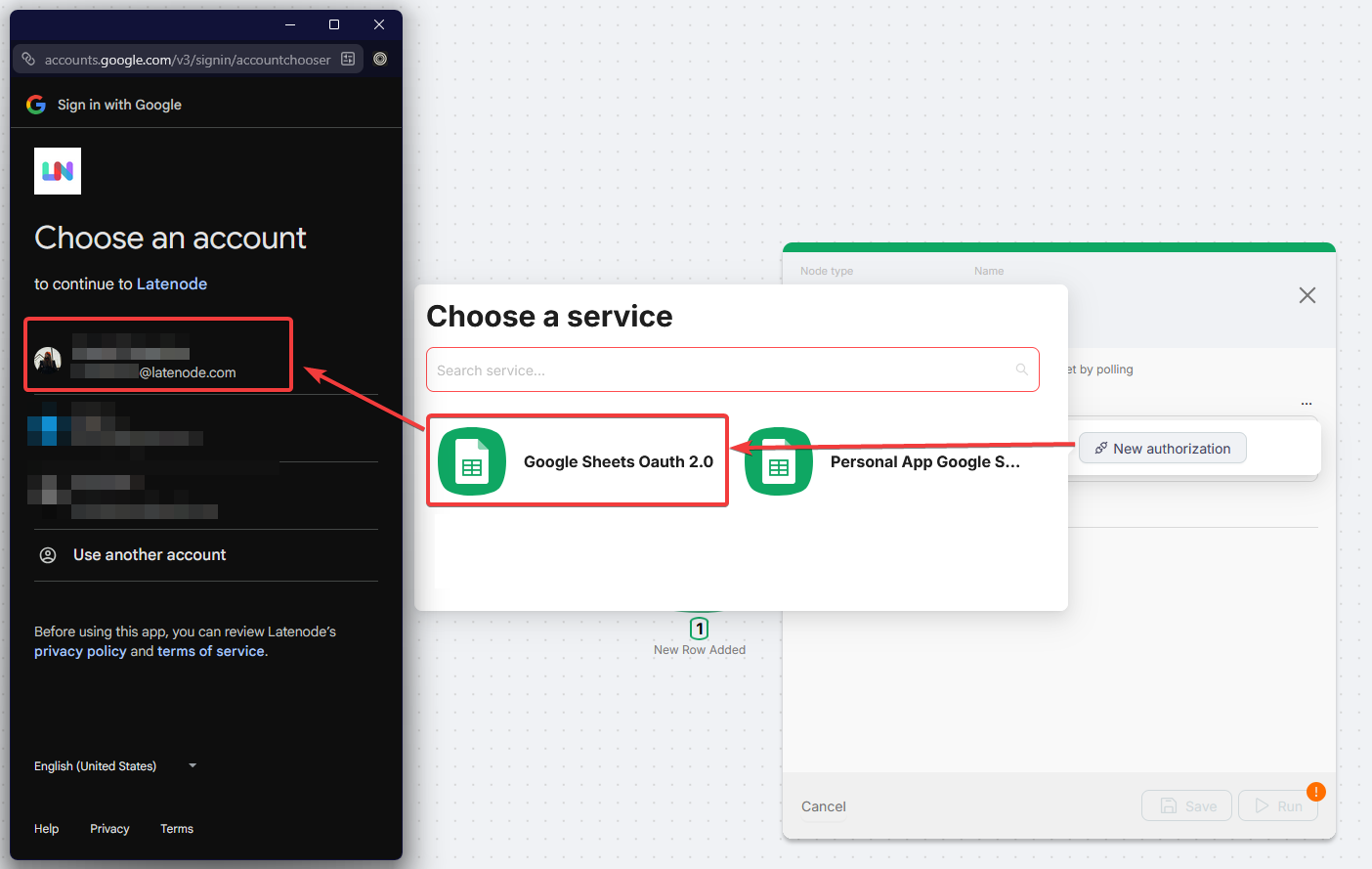
Sign in and allow access
Pick the Google account to connect and grant the requested permissions.
Confirm the connection in the node
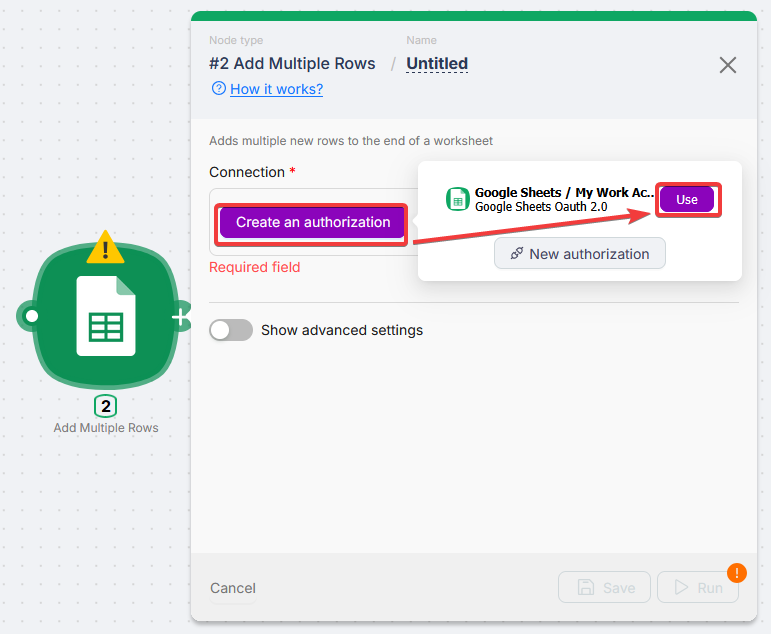
When the window closes, the new connection appears in the Connection field.
Reusing an existing connection
If you already created connections, they appear in the Connection dropdown. Click Use next to one, or New authorization to add another.
Selecting a spreadsheet
After you choose a connection, most modules need a Drive, Spreadsheet, and sheet (tab).
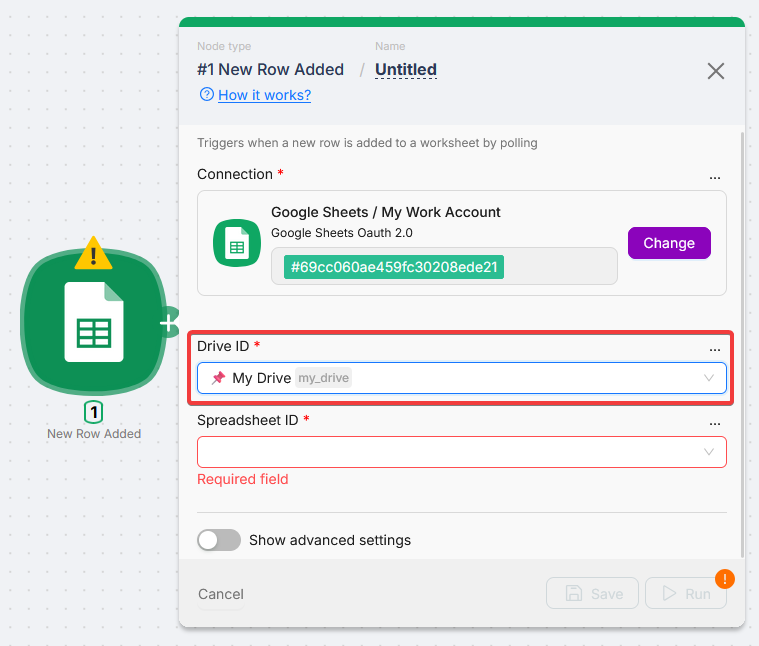
Drive ID
Select the Google Drive that holds the spreadsheet. The list includes My Drive and Shared drives you can access.
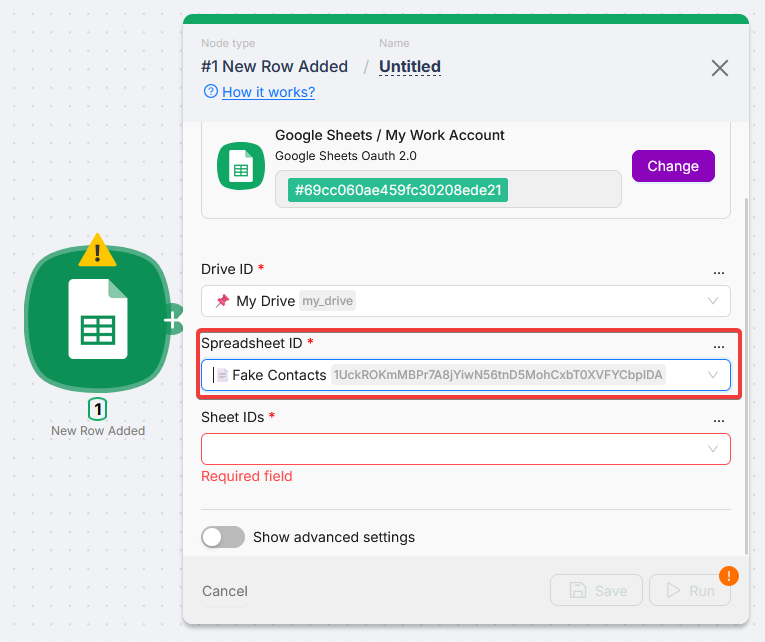
Spreadsheet ID
After the drive, choose the spreadsheet from Spreadsheet ID. The list loads spreadsheets from that drive.
Sheet ID or Sheet Name
Most modules also need a worksheet (tab). After you pick a spreadsheet, the sheet field loads available tabs.
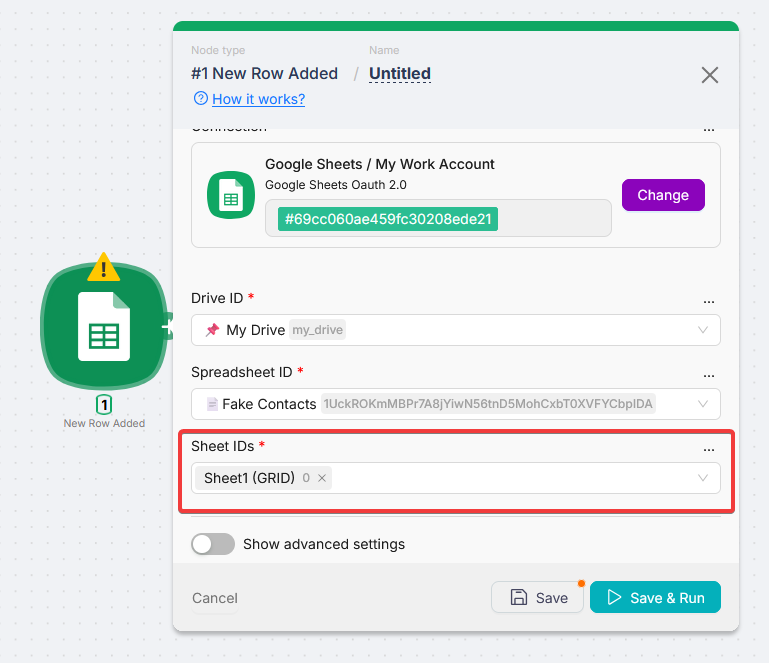
Some modules use Sheet ID (dropdown, stores the numeric id so renames do not break the node). Others use Sheet Name (text you can type or map from a previous node).
Drive ID, Spreadsheet ID, and the sheet field are required in almost every Google Sheets module.
Triggers
Triggers start your scenario when something changes in a spreadsheet.
- Polling - Latenode checks the spreadsheet on a schedule. Interval depends on your plan; see Triggers on the pricing page.
- Instant - The scenario runs as soon as the event happens.
In every trigger, set Connection first so Drive ID, Spreadsheet ID, and sheet fields can populate. Switch any of those fields to Map when another node supplies the ids.
Actions
Use actions to read, write, and manage sheets from the middle of a scenario. Open a panel below to see fields for that method.
Choose Connection, then Drive ID and Spreadsheet ID (dropdowns load after the account is set). Use Map on ids, ranges, or cell values when they should come from scenario data.
Rows
Cells
Spreadsheets and worksheets
Troubleshooting
Error: insufficient permissions or access denied
The connection was created, but a node fails with a permissions error. Often the OAuth screen had some scopes unchecked. Google lets users remove individual scopes; if Sheets or Drive was unchecked, the token may be too limited.
Delete the connection and create it again. On the Google permissions screen, leave all requested permissions enabled, then click Allow.
Error: connection expired (Personal App only)
OAuth apps in Testing in Google Cloud can expire tokens after about seven days.
Reauthorize every seven days, or move the project to In production for longer-lived tokens. For setup steps, use Google Services (Personal Account).
Google Forms
Trigger Latenode scenarios when a new response is submitted to a Google Form.
RSS
Read and parse RSS feeds inside Latenode scenarios.
Need Help? Ask the community
If something on this page is missing or unclear, post on the Latenode community forum. Our team and other users usually reply quickly.