
WhatsApp Business Cloud
WhatsApp Business Cloud nodes send messages, templates, and media through the WhatsApp Cloud API (Meta) using a saved Connection.
Business Cloud vs personal WhatsApp
This integration is the Business Cloud API (Meta developer app). Personal WhatsApp in the catalog is a different node: see WhatsApp Personal Account.
Connection
Create WhatsApp Business Cloud Connection on the node or in Authorizations. Credentials and Meta setup (with screenshots): WhatsApp Business Cloud (authorization).
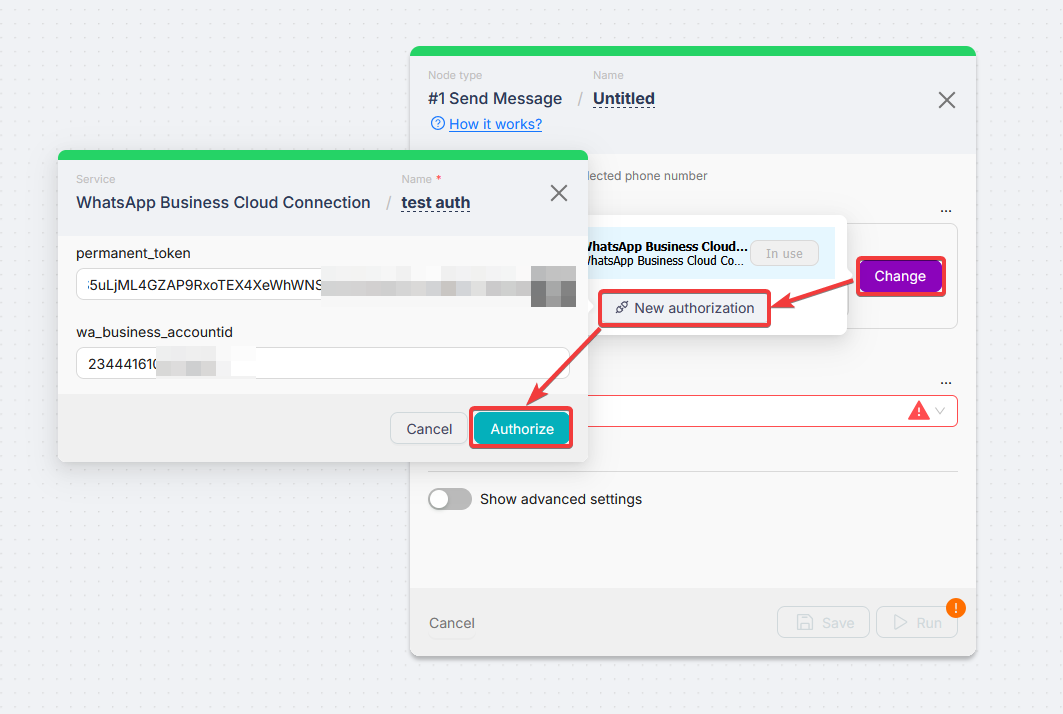
Open authorization
On the node, open Connection → Create an authorization (or pick an existing connection).
Enter credentials
Fill WhatsApp Business Cloud Connection using the labels on the form and the ids/tokens from Meta.
Save and select
Save, then select this connection in Connection on every WhatsApp Business Cloud node.
Triggers (webhook)
WhatsApp does not ship a dedicated instant trigger node in the catalog for this integration. You receive inbound events through Meta webhooks wired to a Webhook trigger in your scenario.
Template scenario (duplicate and adapt): WhatsApp webhook setup
Webhook trigger and Webhook Response
Connect your Webhook trigger to a Webhook Response node.
Callback URL in Meta
Copy the Webhook URL from the trigger. In your Meta Facebook Developer account, open the Edit Callback URL dialog for WhatsApp. Paste the URL into Callback URL. In Verify token, enter any token you choose (you will use the same value where the platform asks for it). Click Verify and Save.
First run
Run the scenario once so the Webhook Response node can complete the verification handshake.
Confirm verification
Check that the Webhook Response node received the expected response.
Add processing branch
Connect the same Webhook trigger to a JavaScript node (or your processing chain). Disconnect the trigger from the Webhook Response node so normal traffic is handled on the new branch.
Go live
Deploy and Activate the scenario. Wait for real WhatsApp events to hit the webhook.
Webhook callback details also appear under Webhook (Callback URL) on the authorization page.
Actions
Use Select for dropdowns and Map when values come from another node. Required fields marked * in the builder are required on the node.
Related
Telegram Bot
Send and receive Telegram messages, manage chats, and automate bots you create with BotFather.
Creating a dynamic form for a scenario of the Nodul type
Developing dynamic forms for custom automation workflows.
Need Help? Ask the community
If something on this page is missing or unclear, post on the Latenode community forum. Our team and other users usually reply quickly.