
Speaknode

SpeakNode is a platform for building advanced voice AI agents for business automation. Agents handle inbound and outbound calls in natural language, then take action in your stack: update CRM records, book appointments, route leads, and trigger workflows across hundreds of integrations. On Latenode, SpeakNode nodes are how you wire those agents into scenarios without code.
Before you use SpeakNode nodes in Latenode, create an account at speaknode.com. After sign-up, connect your account here to create agents, dispatch sessions, pull recordings, and start scenarios when a conversation starts or completes.
Connecting to Latenode
Speaknode uses OAuth 2.0. One saved Connection works for every Speaknode trigger and action in the scenario.
Open authorization
On any Speaknode module, click Create an authorization or Choose next to Connection. A sign-in popup opens (see the arrow in the screenshot).
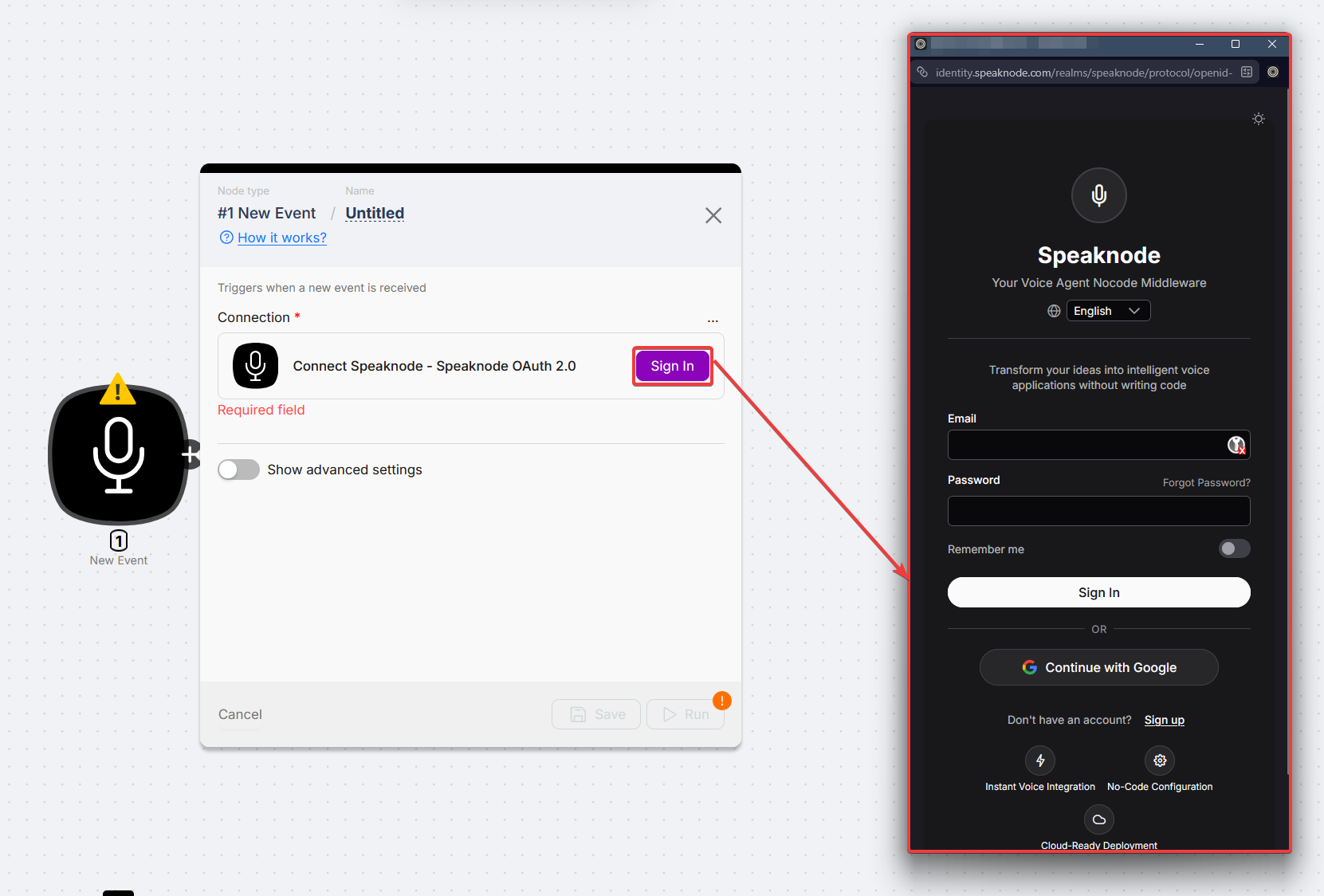
Sign in with Speaknode
In the popup, sign in with OAuth or with email and password, then approve access for Latenode.
Save the connection
Name the connection if prompted, then click Save. On any other Speaknode node, open Connection and pick the saved connection from the list (no need to authorize again).
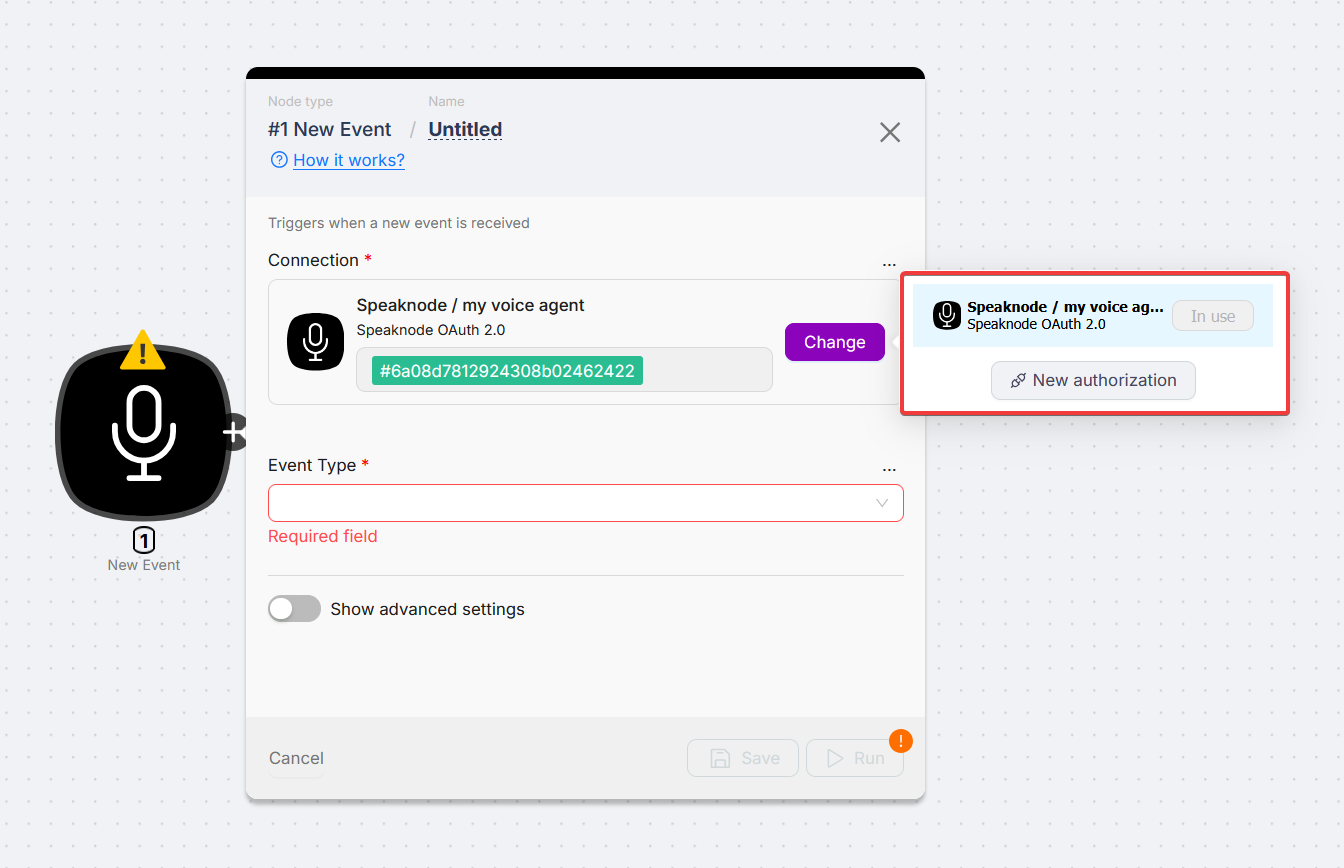
Allow popups
If nothing opens after you click authorize, allow popups for the Latenode app in your browser and try again.
Triggers
Connection is always your Speaknode Connection from the dropdown. Create one first if the list is empty.
New Event
Fires when something happens on a Speaknode agent conversation. Open Event Type and pick when the trigger should run.
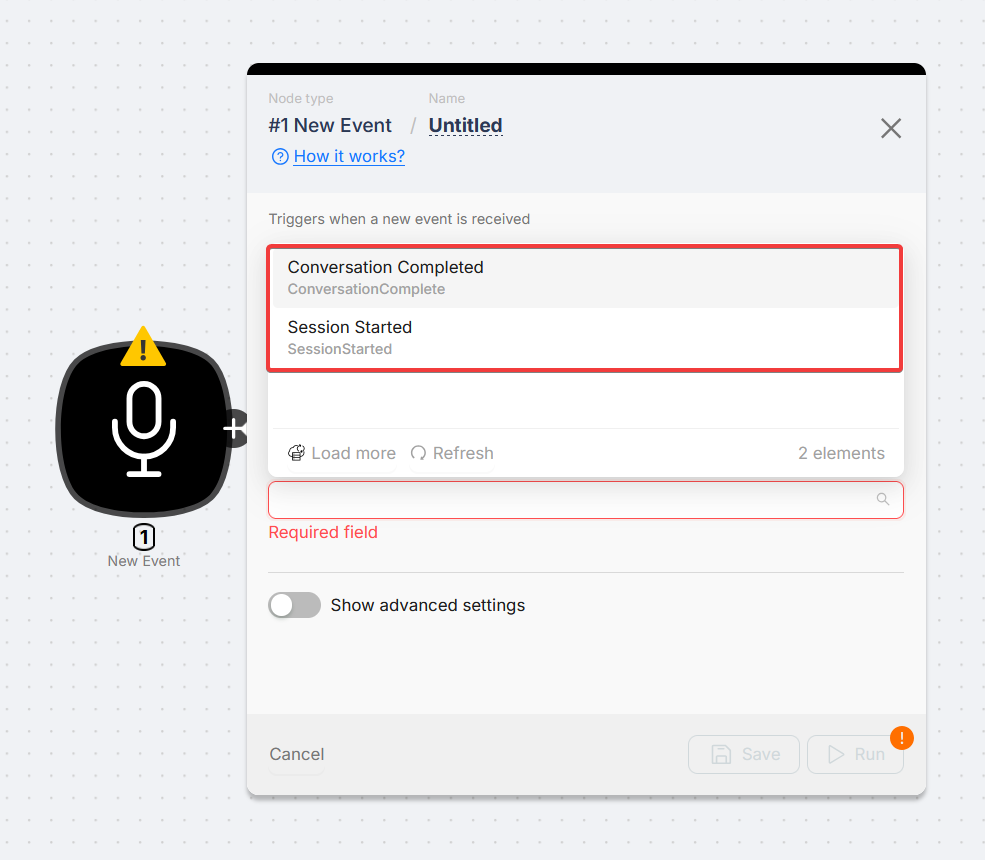
| Field | Description |
|---|---|
| Connection | Pick your Speaknode Connection from the dropdown. |
| Event Type | Conversation Complete: fires when the dialog with the agent has finished. Session Start: fires when the dialog with the agent has started. |
Turn the trigger Active and deploy the scenario so live events are delivered. Use Run once to test and inspect output before going to production.
Actions
All actions need Connection. Agent ID and Session ID support Select (dropdown) or Map (value from a prior node).
Troubleshooting
Authorization popup does not open
Allow popups for Latenode, disable strict blockers for the OAuth window, and retry Create an authorization.
Agent ID dropdown is empty
Make sure you already created at least one agent in SpeakNode (for example with Create Agent in a scenario or in the SpeakNode UI). Open the SpeakNode dashboard and confirm the agent appears there. Then save Connection on the node and try Agent ID again. You can also run List Agents in Latenode to see whether agents load for this connection.
List Sessions returns no rows
Confirm Agent ID matches the agent you expect. Try another Status or remove filters. For the next page, pass both Cursor Created at and Cursor ID from the previous response.
Pagination on List Sessions
Provide Cursor Created at and Cursor ID together, using both values from the previous page of results.
RSS
Read and parse RSS feeds inside Latenode scenarios.
Telegram Bot
Send and receive Telegram messages, manage chats, and automate bots you create with BotFather.
Need Help? Ask the community
If something on this page is missing or unclear, post on the Latenode community forum. Our team and other users usually reply quickly.