
Gmail
Gmail nodes send and receive email, work with drafts and labels, and start runs when something happens in Gmail or Google Workspace.
Connection
Every Gmail module needs a Google connection. Create it once and reuse it.
First-time setup
When Connection is empty:
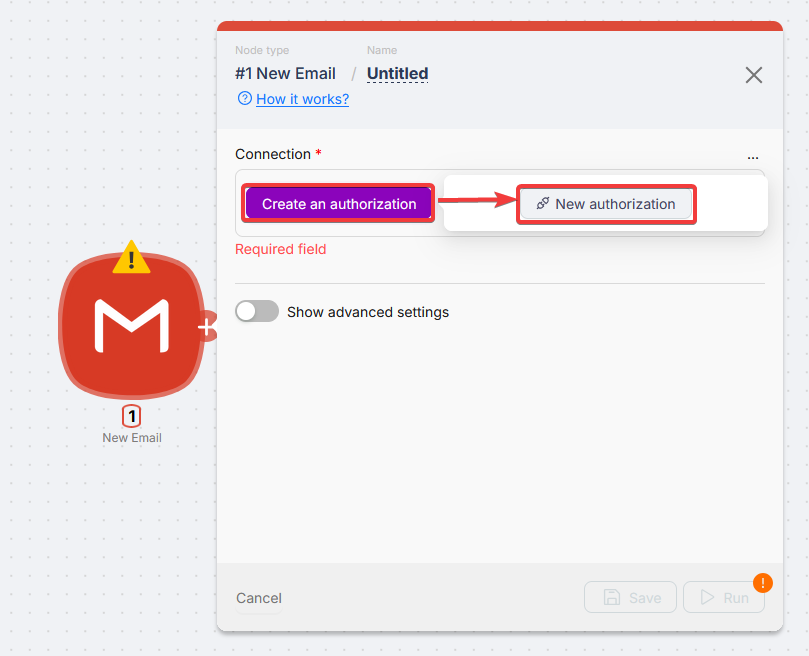
Click Create an authorization and pick a type.
Connection types
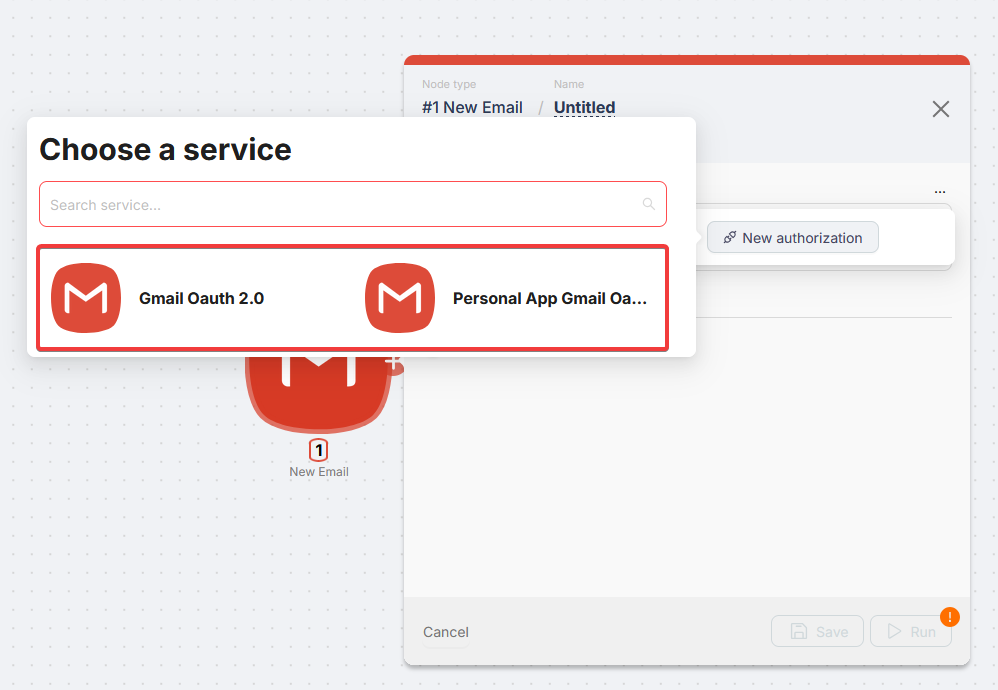
- Gmail OAuth 2.0 - Sign in with Google. Default for most cases.
- Personal App Gmail - Your Google Cloud OAuth client (Client ID / Secret). Use for your own quotas or policies.
Personal App in Google Cloud
Step-by-step: Google Services (Personal Account).
Authorization
Choose Gmail OAuth 2.0
Select Gmail OAuth 2.0 in the dialog.
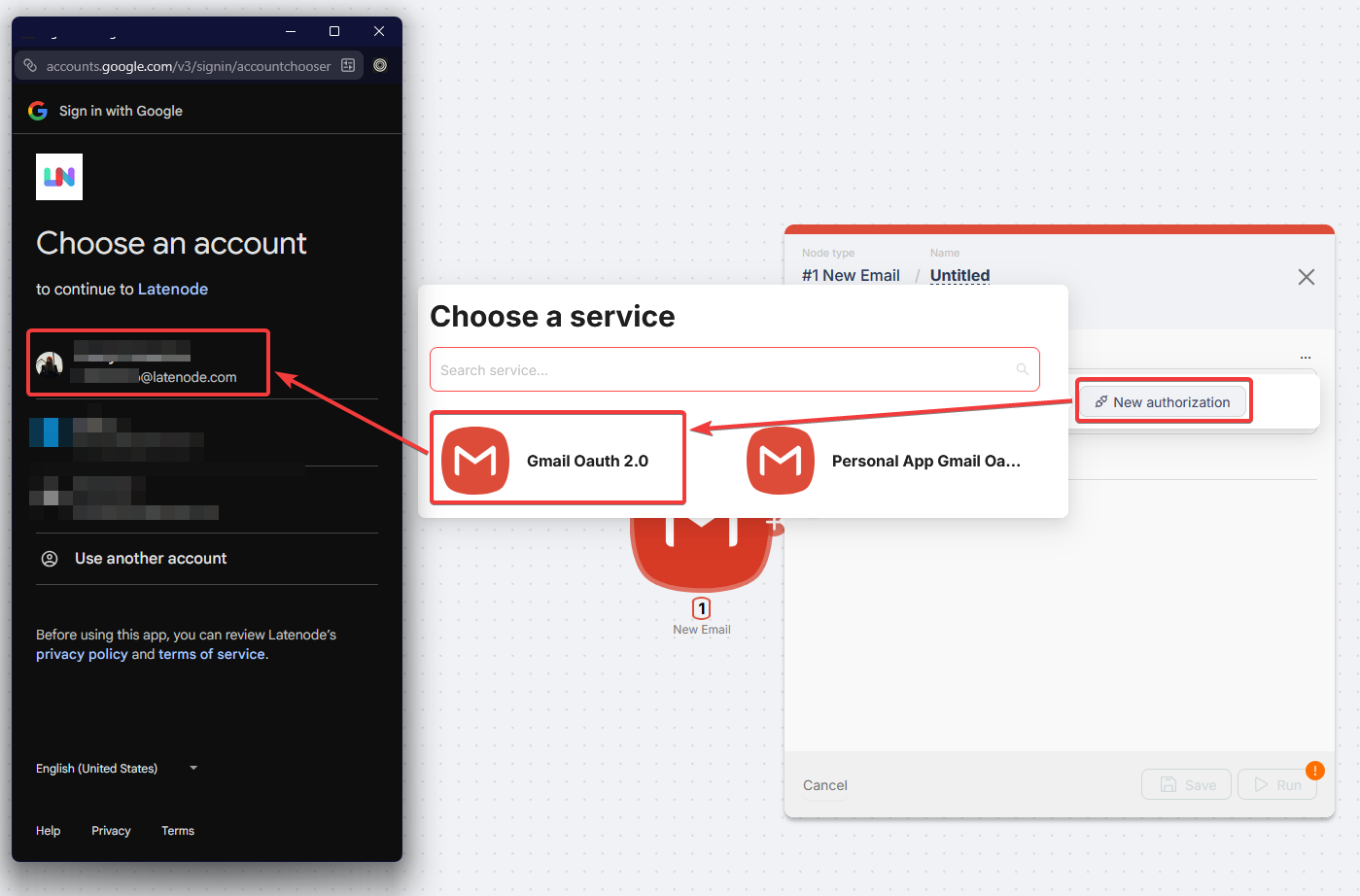
Sign in and allow
Pick the account and grant all requested permissions.
Confirm in the node
When the window closes, the connection appears in Connection.
Reusing a connection
Open Connection, click Use on an existing one, or New authorization to add another.
Triggers
In the tables below, Connection is the Gmail account dropdown. Other fields are usually plain text or multi-select; switch any field to Map when the value should come from an earlier node (search text, label names, limits).
Actions
Same pattern: choose Connection, then fill To, subject, body, ids, and attachments by hand or use Map for dynamic recipients, Message ID, Label ID, and attachment URLs from the scenario.
Troubleshooting
Built-in Gmail OAuth 2.0 uses Latenode's Google project and should work without extra setup.
Insufficient permissions / access denied
OAuth succeeded but nodes fail: some scopes were unchecked on Google's screen. Delete the connection, reconnect, and leave all requested permissions enabled before Allow.
Error 400: Connection expired (Personal App)
Testing apps in Google Cloud get short-lived tokens (about 7 days). Reauthorize weekly or move the project to In production (may require verification).
For Personal App setup: Google Services (Personal Account).
Error 403: Access denied right after auth
Add your Google account under OAuth consent screen → Test users in Google Cloud.
Error 403: Gmail API not configured
Enable Gmail API in Google Cloud → APIs & Services.
Discord
Send messages, manage channels and roles, and react to Discord events from Latenode scenarios.
Google Calendar
Create, read, and manage Google Calendar events in Latenode scenarios.
Need Help? Ask the community
If something on this page is missing or unclear, post on the Latenode community forum. Our team and other users usually reply quickly.