
Google Services (Personal Account)
This guide helps you connect Google services (Gmail, Drive, Sheets, and others) through a personal OAuth app in Google Cloud. Use it when standard authorization is not enough, or when you need full control over permissions. Below are all steps from project creation to authorization in Latenode.
For some Google services, creating a personal app with this guide is not enough. For example, Google Business Profile requires an API access request and approval from Google first; only after approval will the required scopes become available for selection in your OAuth app.
For other services, check their docs on Google for Developers.
Step 1: Create a project in Google Cloud
- Open Google Cloud Console.
- Click Create or select a project -> New project.
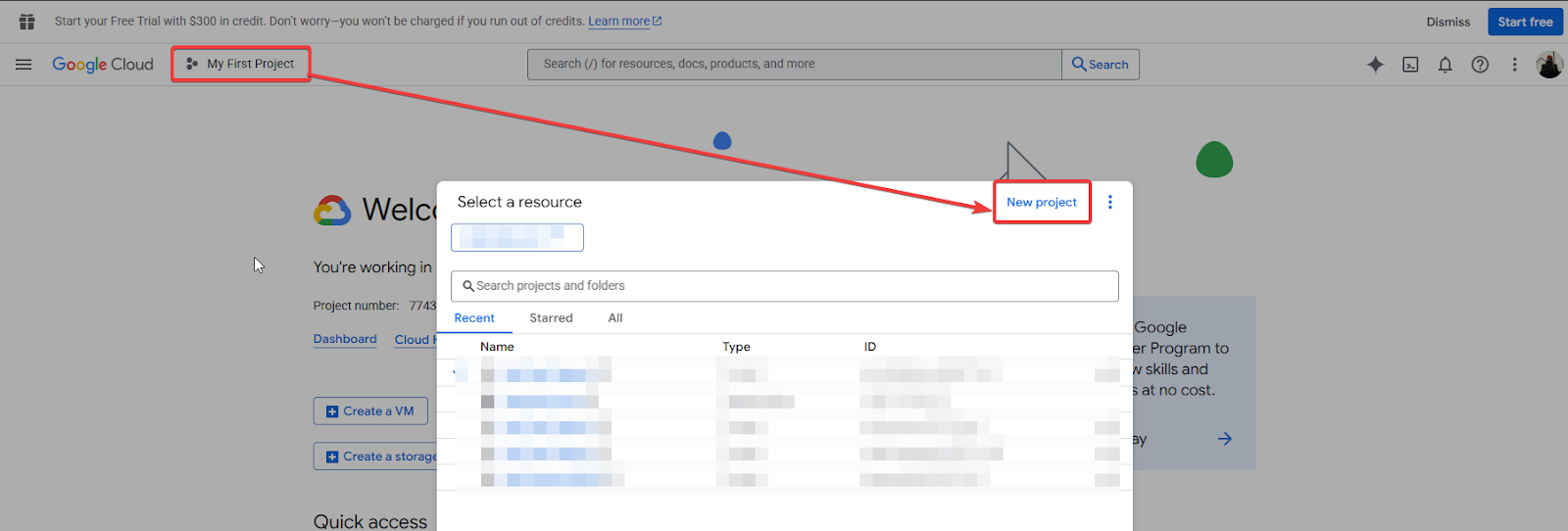
- Enter a project name, keep default values, and click Create.
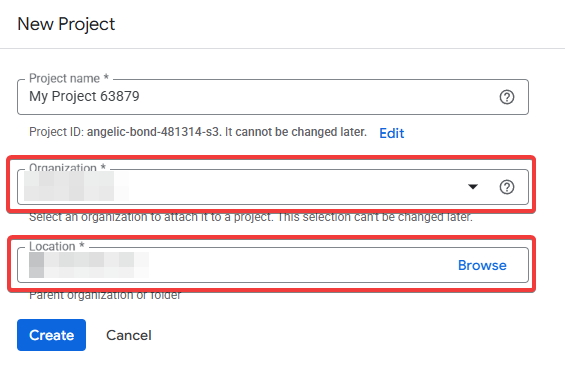
Use a clear project name like Latenode Gmail so it is easier to find later.
Make sure the new project is selected in the top menu.
Step 2: Enable the required API
- In the left menu, open APIs & Services -> Library.
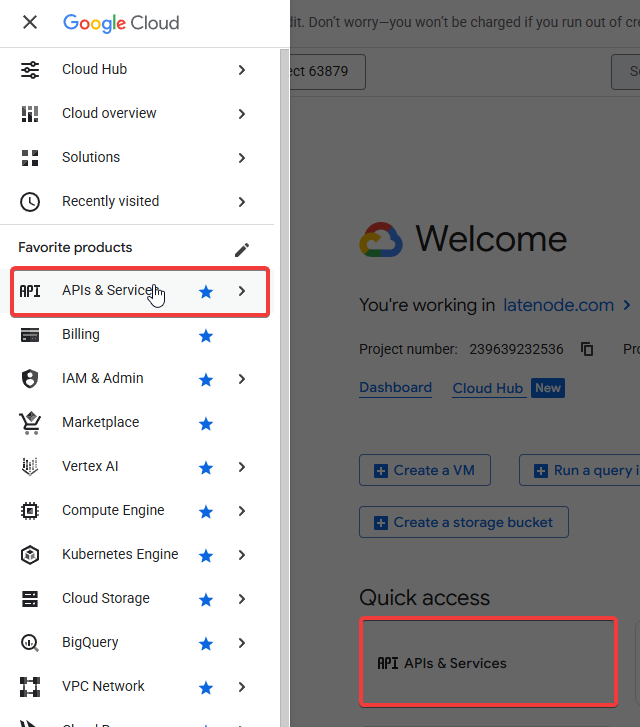
- In the top search field, find Gmail API or any other Google service API you plan to use.
- To add an API quickly, type its name in search and select it from the list.
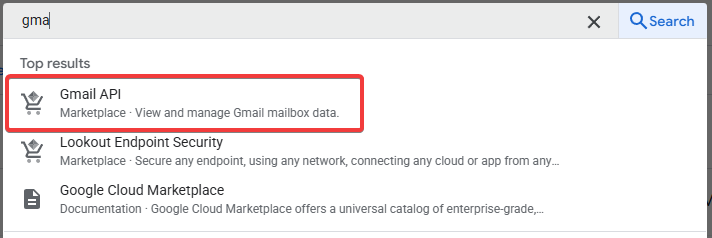
- Open the selected API and click Enable.
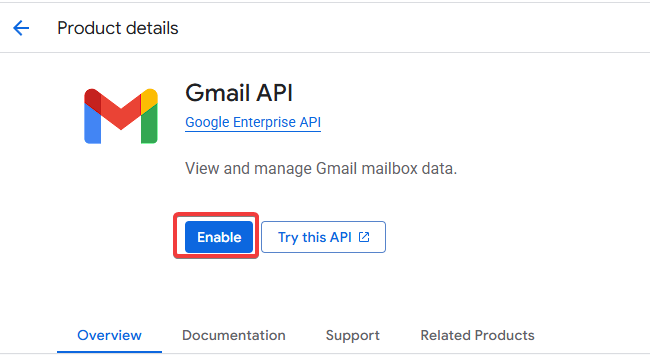
- As a default set, it is recommended to enable Google Drive API, Gmail API, Google Sheets API, and Google Docs API.
If you see Manage instead of Enable, the API is already enabled and you can continue.
Google Docs API is especially important because many Google integrations rely on document-level access.
Step 3: Configure the OAuth consent screen
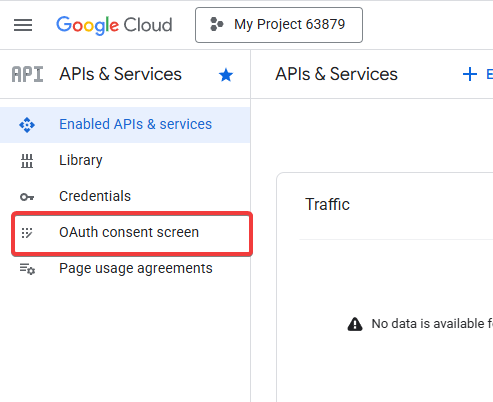
- In the left menu, click OAuth consent screen.
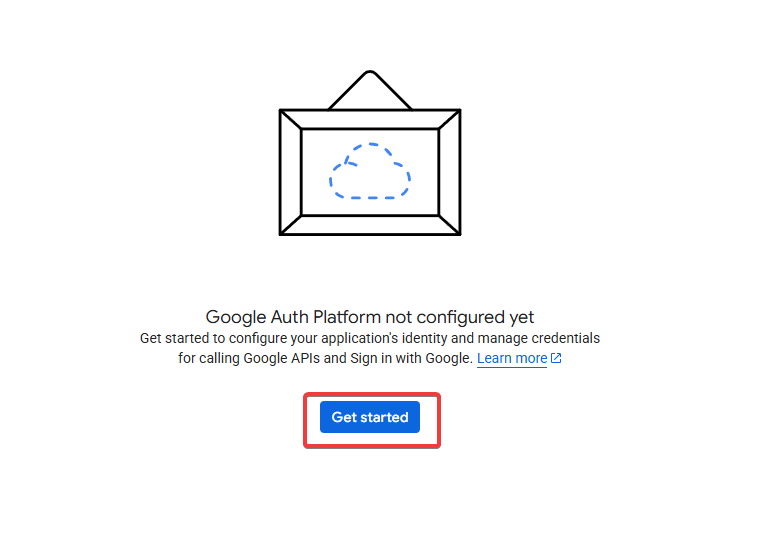
- Click Get Started.
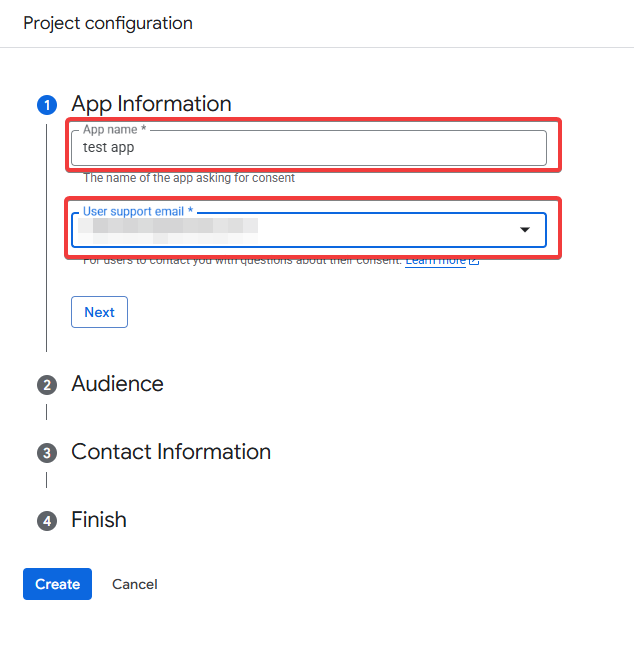
- Enter an app name, for example
Latenode Gmail.
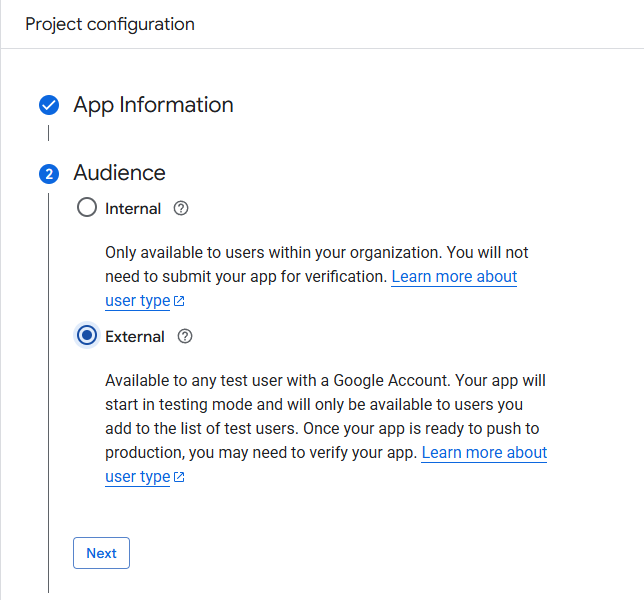
- In Audience, select External.
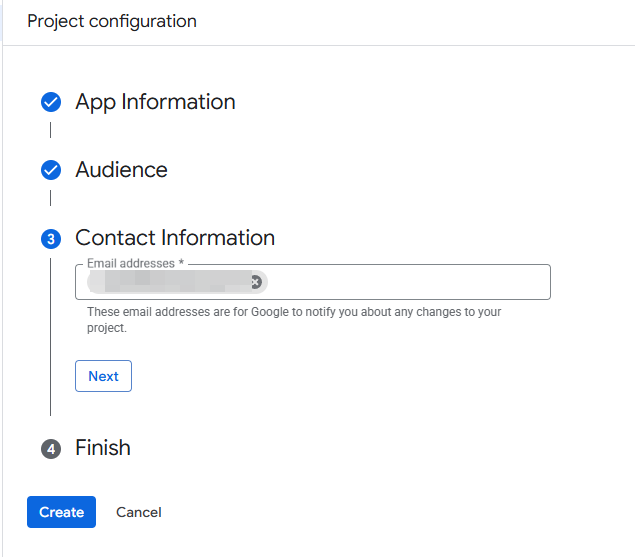
- Add your email to contact information and complete the remaining setup screens.
- In Audience, click Publish app so authorization becomes available.
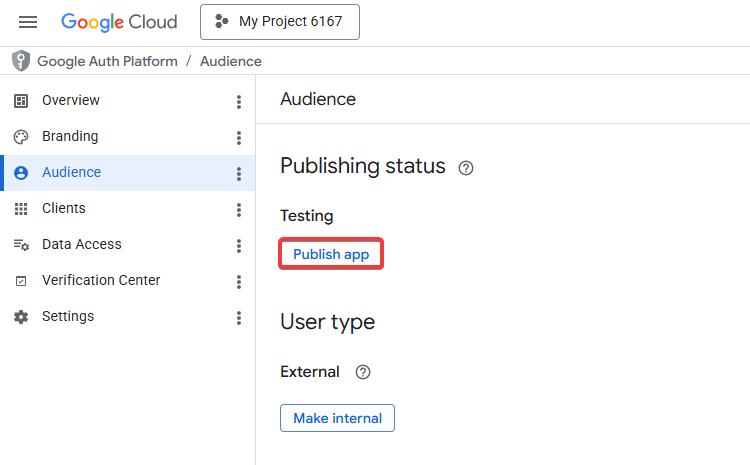
While the app is in testing mode, access is usually limited to test users. Add your account to Test users if needed.
Step 4: Create an OAuth client
- In the menu, open Clients.
- Click + Create Client.
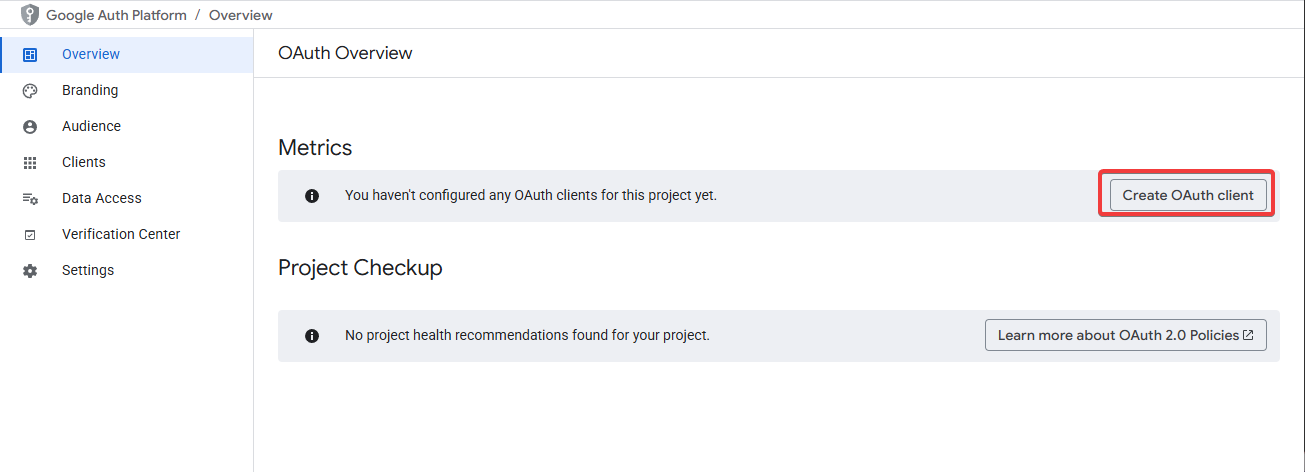
- Select Web application.
- In Authorized redirect URIs, add:
https://auth-endpoint.com/redirected/index.htmlhttps://app.latenode.com/redirected/index.html
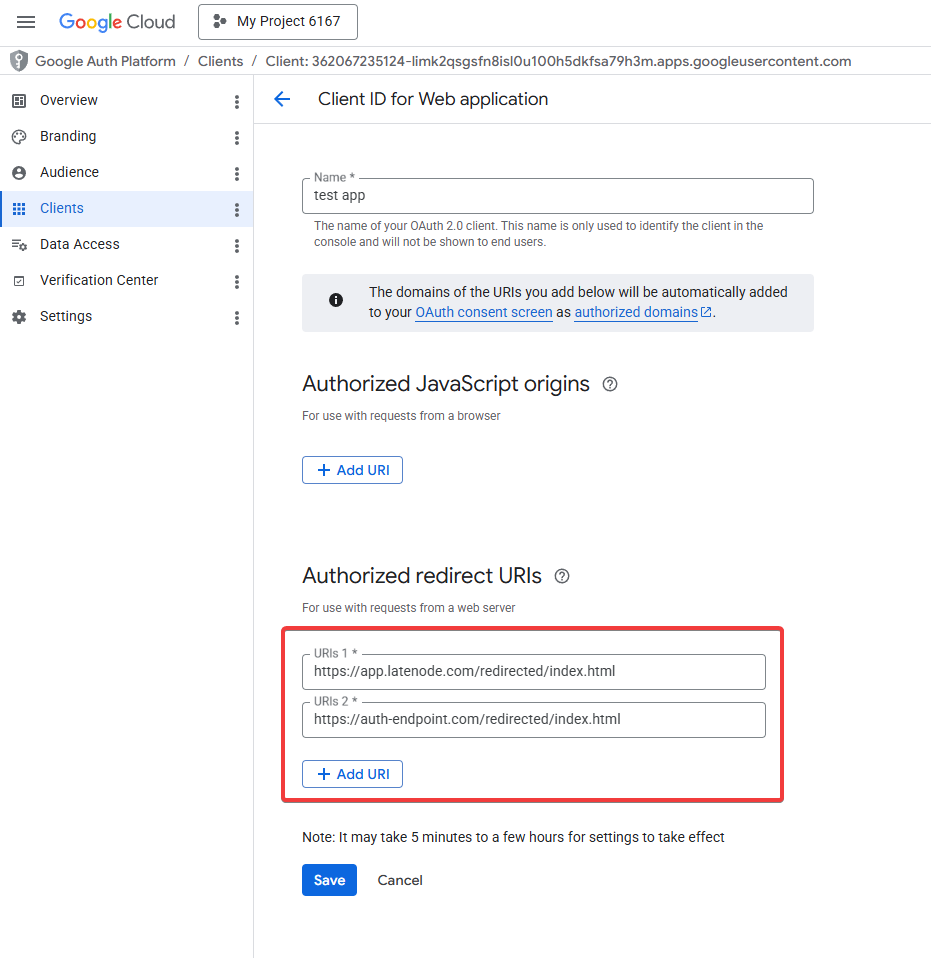
- Click Save or Create. You will see a popup that confirms the OAuth app was created successfully.
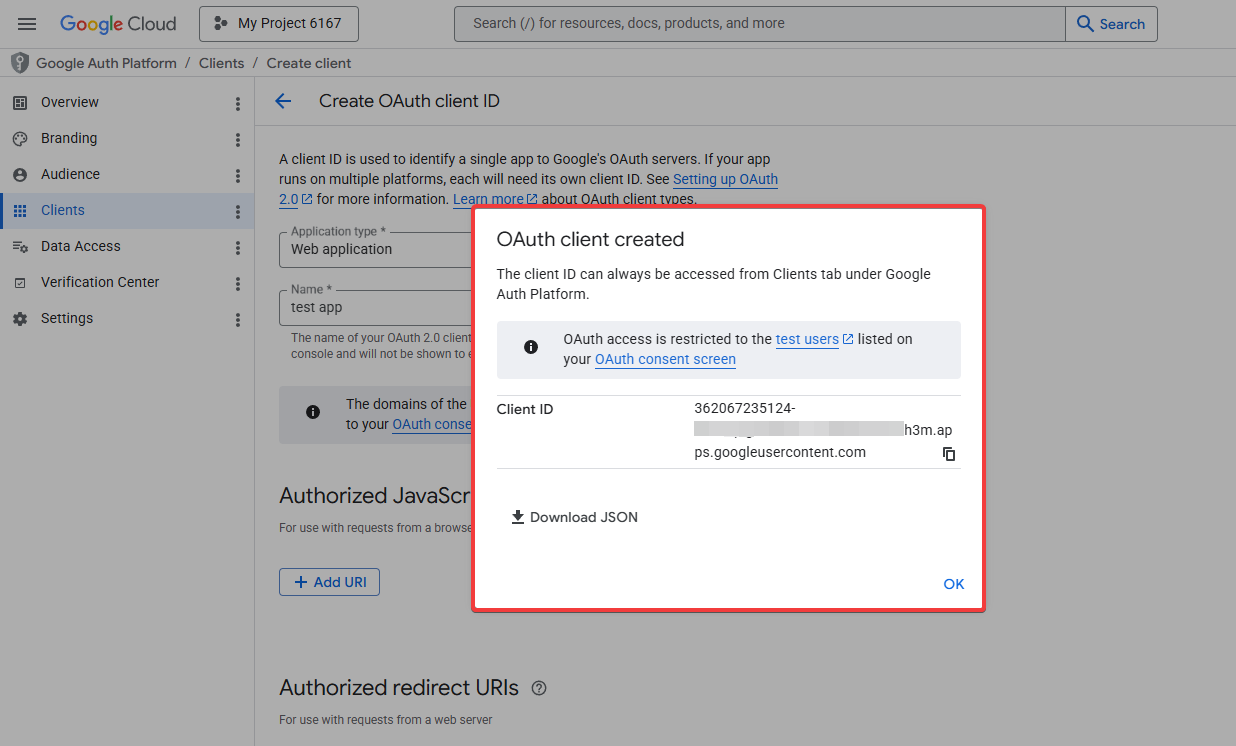
- Copy Client ID and Client secret. Then continue with authorization in Latenode.
Never share your Client ID or Client secret.
Step 5: Connect authorization in Latenode
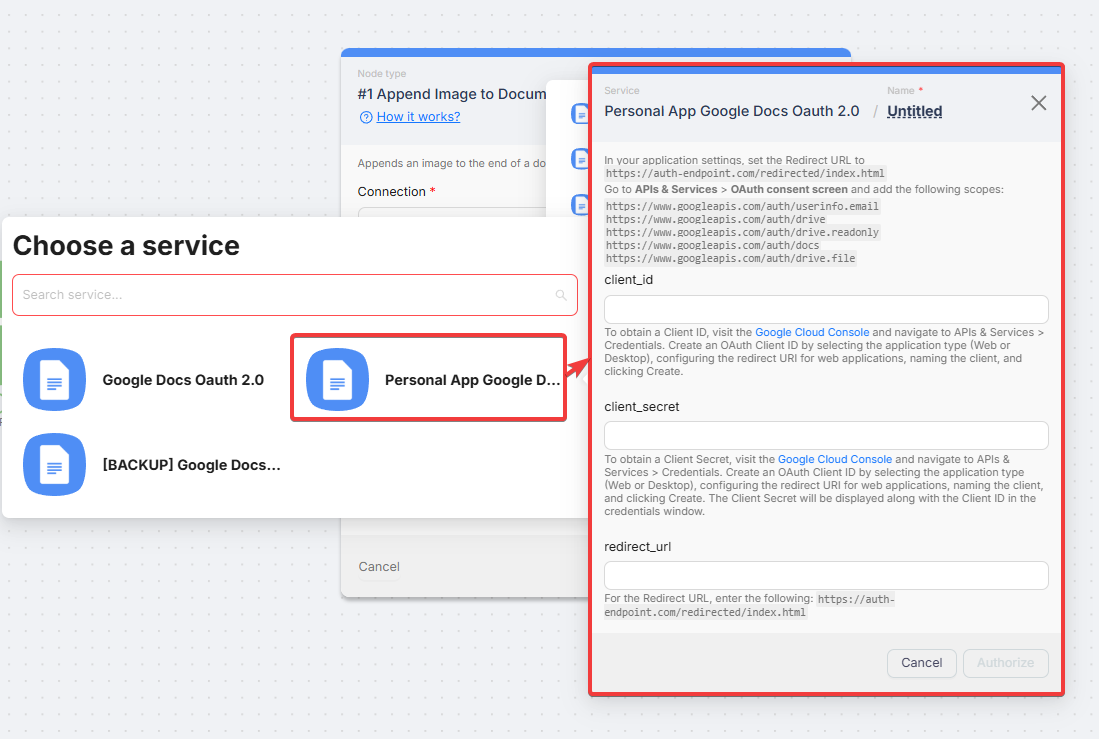
- In Latenode, open Gmail authorization creation.
- If you see multiple options, choose the personal connection type: Personal App.
- In the opened form, enter Client ID and Client secret.
- In some nodes, you may also need to fill in Redirect URL manually. Use:
https://auth-endpoint.com/redirected/index.html - Click Sign in with Google.
- Grant access to your account.
Bulk scope addition
If you want to grant your app all required permissions at once, use bulk scope addition. Scopes are the permissions your personal app requests for Google data access. In Data Access, you can paste a full list of scopes instead of adding them one by one.
Bulk scope addition is useful when you connect multiple Google nodes and want to grant all required permissions upfront.
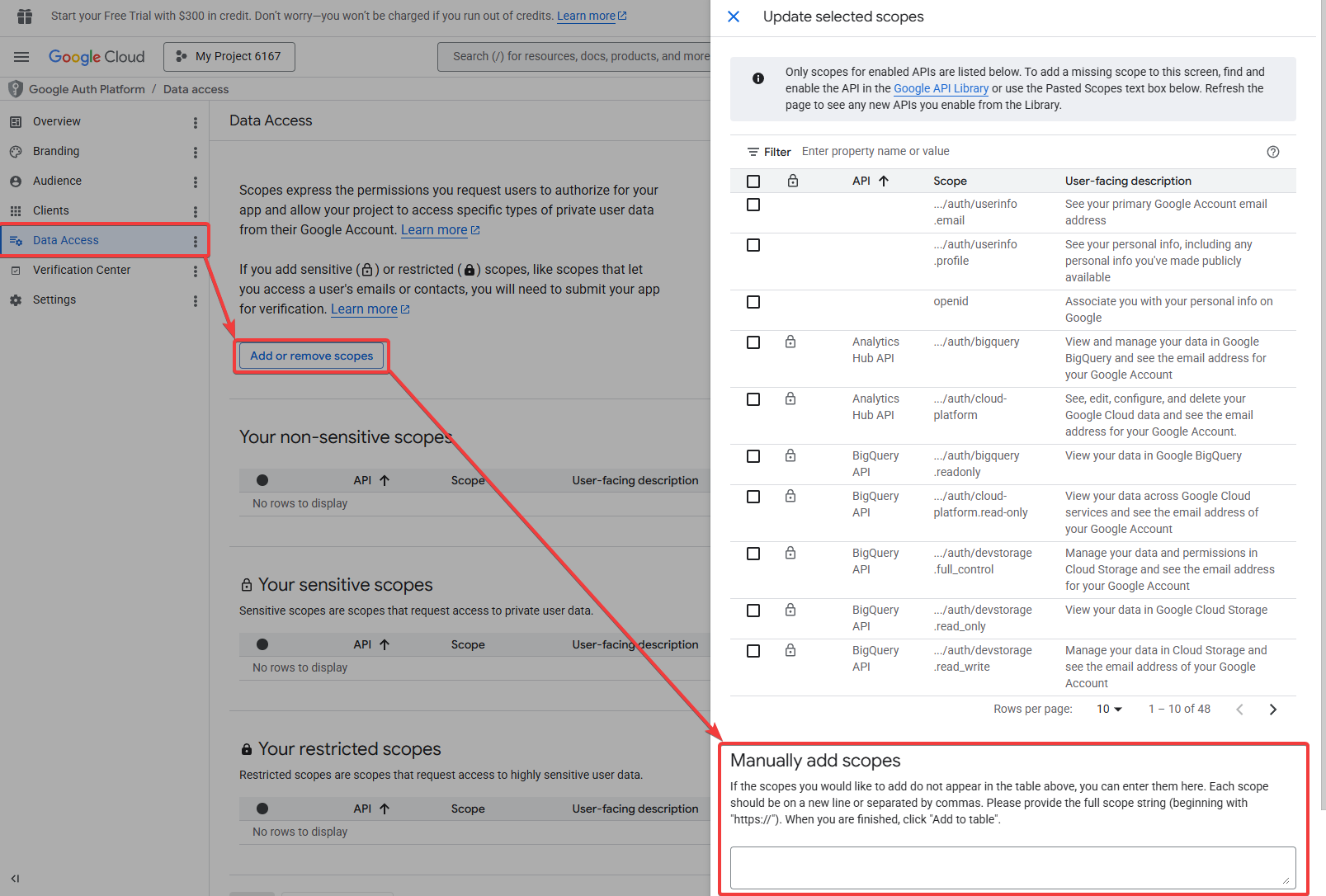
Reference scope list by service:
Table of all available scopes for Google services
| Google OAuth | Scopes |
|---|---|
| Gmail | https://www.googleapis.com/auth/userinfo.email https://mail.google.com/ |
| Google Calendar | https://www.googleapis.com/auth/userinfo.email https://www.googleapis.com/auth/calendar https://www.googleapis.com/auth/calendar.readonly https://www.googleapis.com/auth/calendar.events.owned https://www.googleapis.com/auth/calendar.settings.readonly |
| Google Analytics | https://www.googleapis.com/auth/userinfo.email https://www.googleapis.com/auth/cloud-platform https://www.googleapis.com/auth/cloud-platform.read-only https://www.googleapis.com/auth/analytics https://www.googleapis.com/auth/analytics.edit https://www.googleapis.com/auth/analytics.manage.users https://www.googleapis.com/auth/analytics.manage.users.readonly https://www.googleapis.com/auth/analytics.provision https://www.googleapis.com/auth/analytics.readonly https://www.googleapis.com/auth/analytics.user.deletion |
| Google Ads | https://www.googleapis.com/auth/userinfo.email https://www.googleapis.com/auth/adwords |
| Google BigQuery | https://www.googleapis.com/auth/userinfo.email https://www.googleapis.com/auth/bigquery https://www.googleapis.com/auth/bigquery.insertdata https://www.googleapis.com/auth/bigquery.readonly https://www.googleapis.com/auth/cloud-platform https://www.googleapis.com/auth/cloud-platform.read-only |
| Google Cloud Dialogflow | https://www.googleapis.com/auth/cloud-platform.read-only https://www.googleapis.com/auth/cloud-platform https://www.googleapis.com/auth/dialogflow |
| Google Cloud Firestore | https://www.googleapis.com/auth/userinfo.email https://www.googleapis.com/auth/cloud-platform https://www.googleapis.com/auth/datastore |
| Google Cloud Speech-to-Text/Text-to-Speech | https://www.googleapis.com/auth/userinfo.email https://www.googleapis.com/auth/cloud-platform |
| Google Cloud Translate | https://www.googleapis.com/auth/userinfo.email https://www.googleapis.com/auth/cloud-translation https://www.googleapis.com/auth/cloud-platform |
| Google Contacts | https://www.googleapis.com/auth/contacts.other.readonly https://www.googleapis.com/auth/contacts.readonly https://www.googleapis.com/auth/contacts openid https://www.googleapis.com/auth/userinfo.profile https://www.googleapis.com/auth/userinfo.email |
| Google Docs | https://www.googleapis.com/auth/userinfo.email https://www.googleapis.com/auth/drive https://www.googleapis.com/auth/drive.readonly https://www.googleapis.com/auth/docs https://www.googleapis.com/auth/drive.file |
| Google Drive | https://www.googleapis.com/auth/userinfo.email https://www.googleapis.com/auth/drive https://www.googleapis.com/auth/drive.readonly |
| Google Forms | https://www.googleapis.com/auth/forms.body https://www.googleapis.com/auth/forms.body.readonly https://www.googleapis.com/auth/forms.responses.readonly https://www.googleapis.com/auth/userinfo.email https://www.googleapis.com/auth/drive |
| Google Groups | https://www.googleapis.com/auth/userinfo.email https://www.googleapis.com/auth/admin.directory.group https://www.googleapis.com/auth/admin.directory.domain |
| Google Business Profile | email https://www.googleapis.com/auth/business.manage |
| Google Sheets | https://www.googleapis.com/auth/drive https://www.googleapis.com/auth/drive.readonly https://www.googleapis.com/auth/spreadsheets https://www.googleapis.com/auth/user.emails.read https://www.googleapis.com/auth/userinfo.email https://www.googleapis.com/auth/userinfo.profile |
| Google Slides | https://www.googleapis.com/auth/userinfo.email https://www.googleapis.com/auth/drive https://www.googleapis.com/auth/drive.file https://www.googleapis.com/auth/drive.readonly https://www.googleapis.com/auth/presentations https://www.googleapis.com/auth/presentations.readonly https://www.googleapis.com/auth/spreadsheets https://www.googleapis.com/auth/spreadsheets.readonly |
| Google Tasks | https://www.googleapis.com/auth/userinfo.email https://www.googleapis.com/auth/tasks https://www.googleapis.com/auth/tasks.readonly |
Common issues and fixes
App is not verified
Add your email under Test users in OAuth settings. Wait a few minutes for status updates.
Redirect does not work
Check that the Redirect URI is correct. Also confirm that your domain is listed under Authorized domains.
Not enough permissions
Check that required scopes are added. Also verify that Gmail API is enabled in your project.
Authorization troubleshooting
What to do when the OAuth window closes with an error or authorization does not complete.
Instagram for Business (Personal Account)
Connecting and authorizing Instagram Business for automation.
Need Help? Ask the community
If something on this page is missing or unclear, post on the Latenode community forum. Our team and other users usually reply quickly.