
Google Cloud Storage and Google Cloud Pub/Sub
To use nodes from the Google Cloud Storage and Google Cloud Pub/Sub groups, you need to obtain a key (token) and authorize access.
Obtaining a Token
To get a key (token), follow these steps:
-
Create a Google account and visit this link.
-
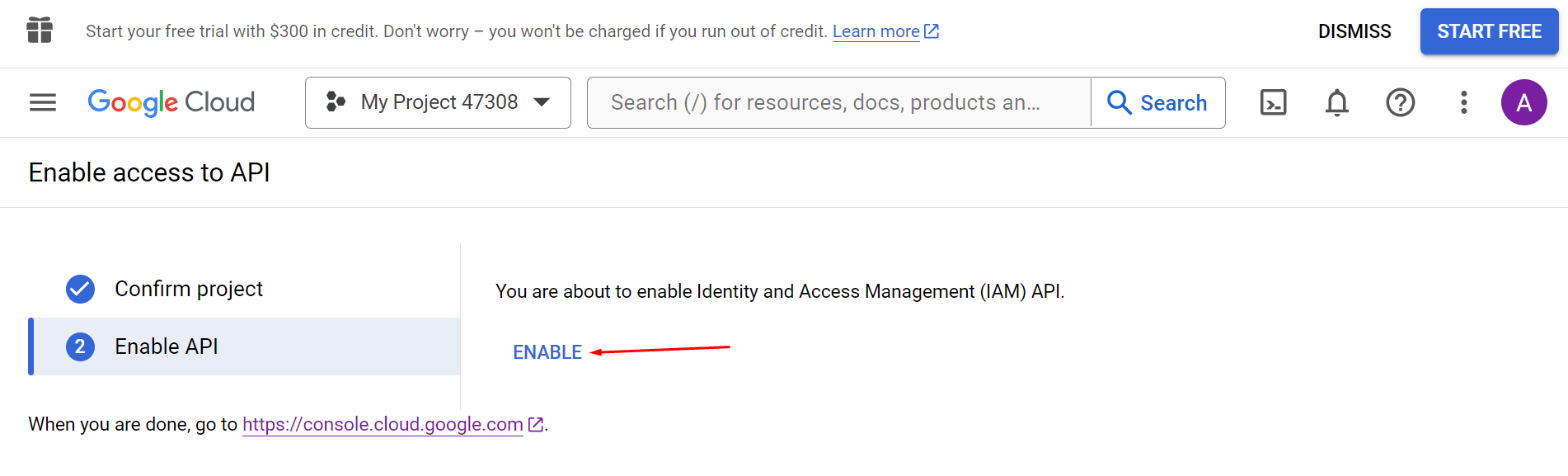
On the Create service accounts page, click Enable the API.
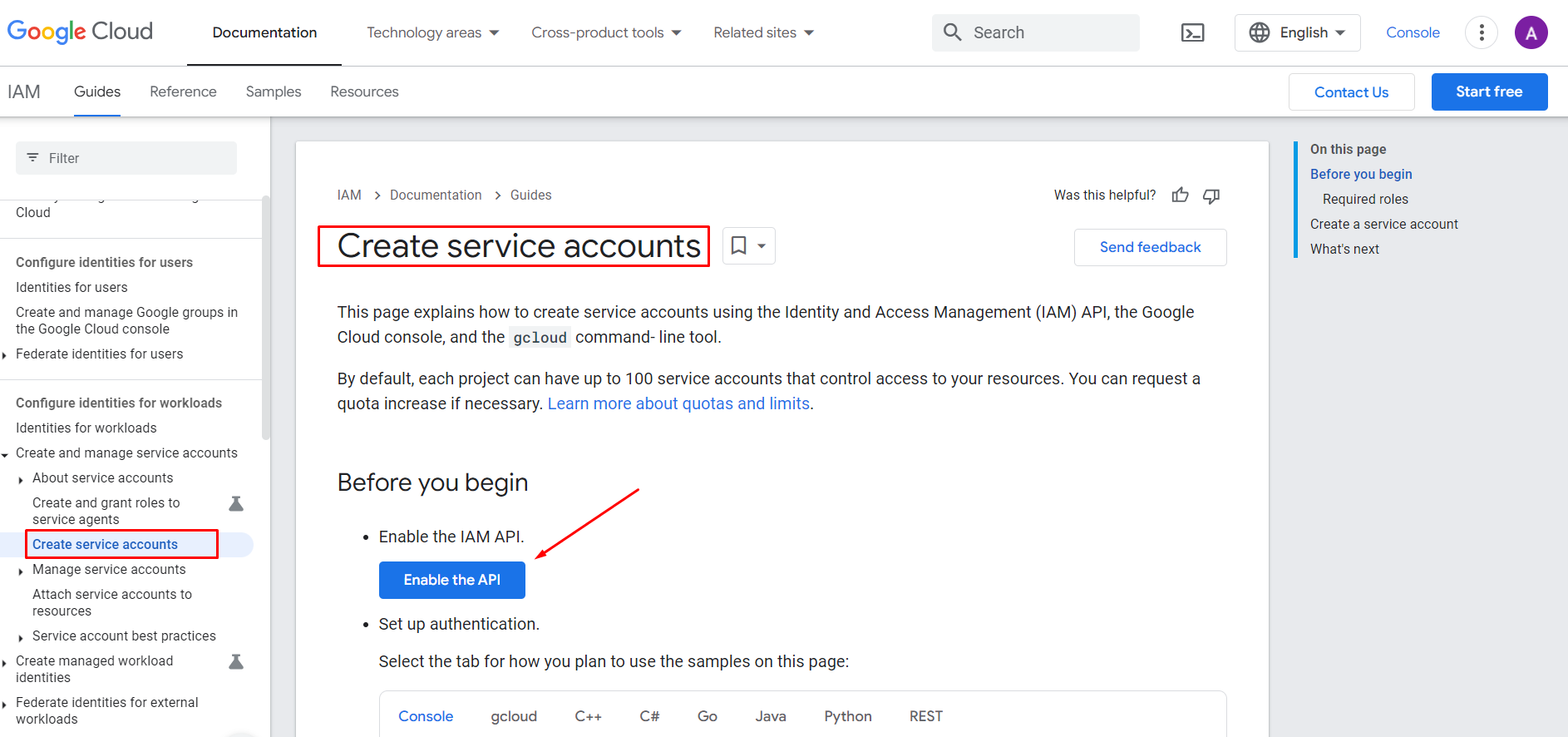
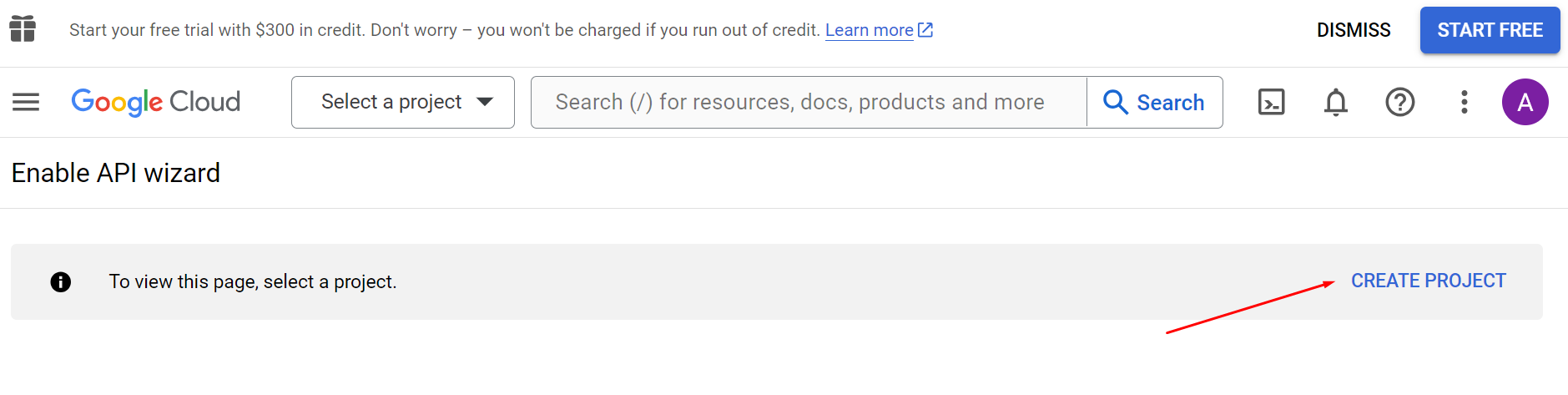
- On the Enable API wizard page, click CREATE PROJECT.
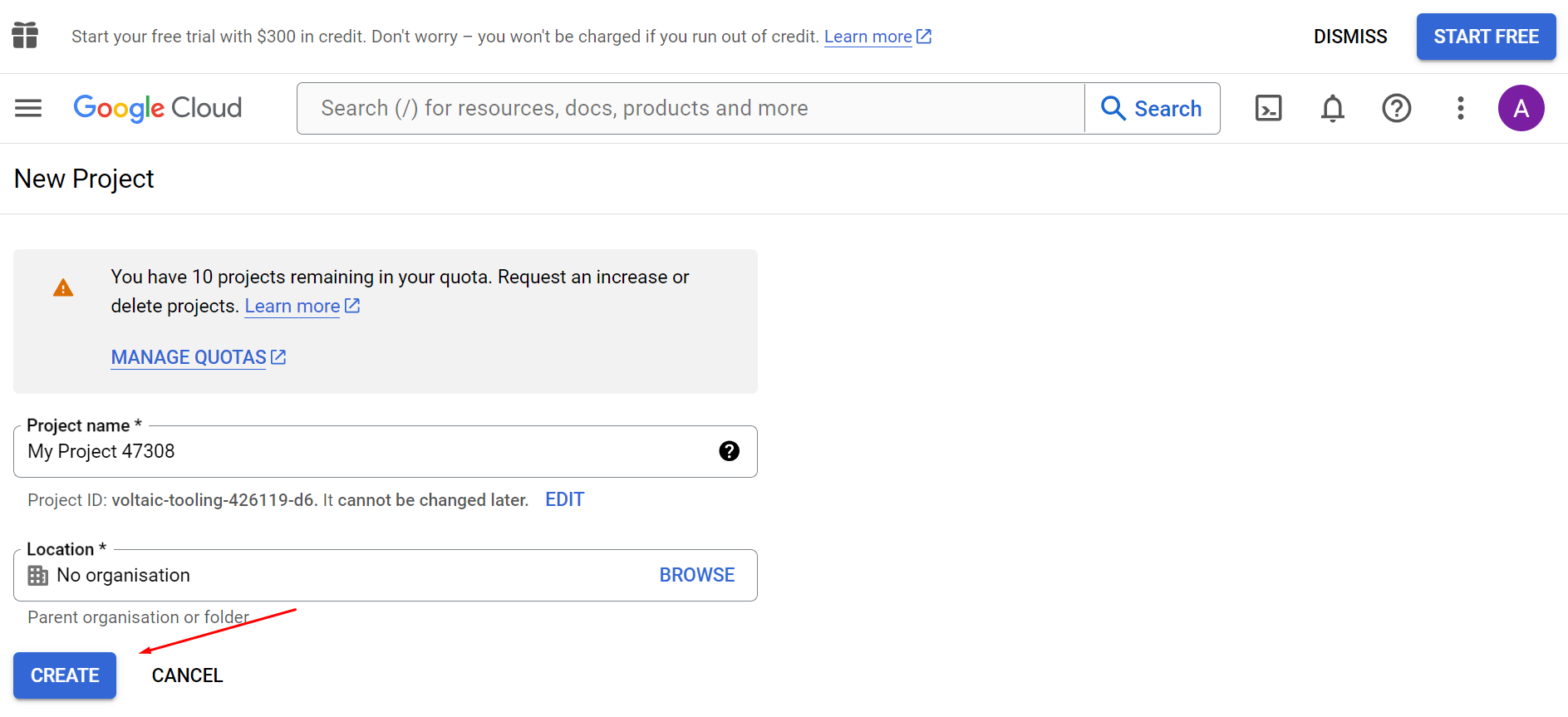
- Configure the project and click CREATE.
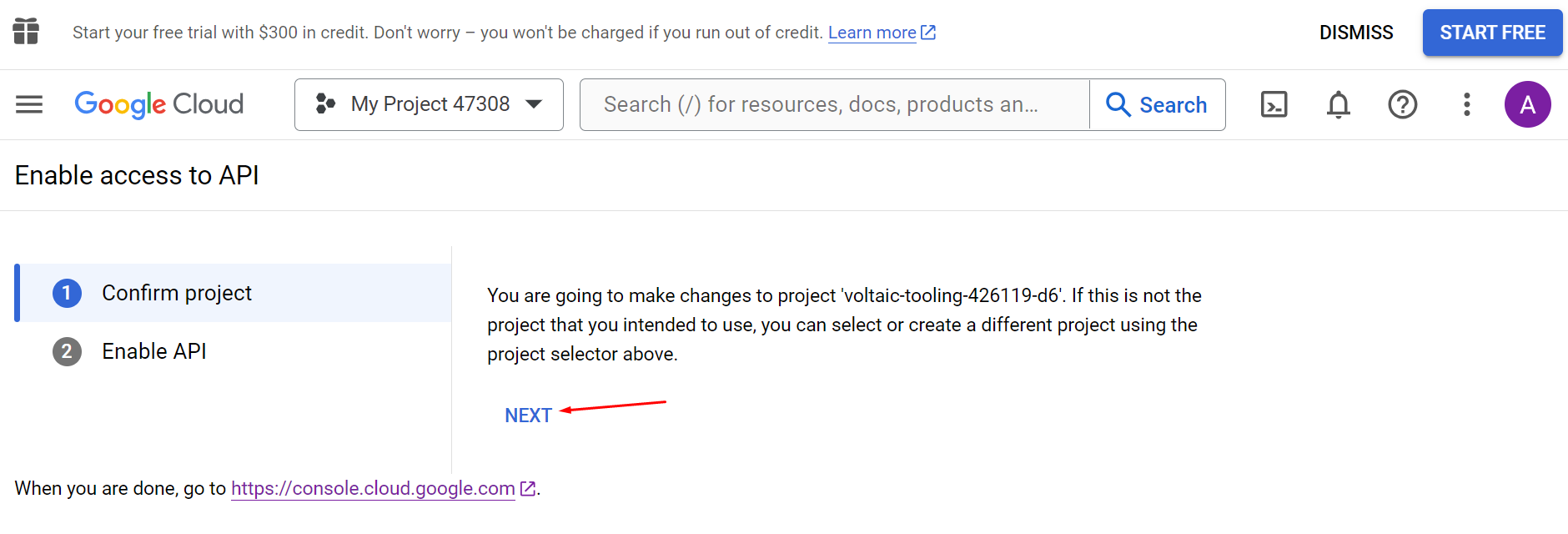
- Confirm the project and allow API usage.
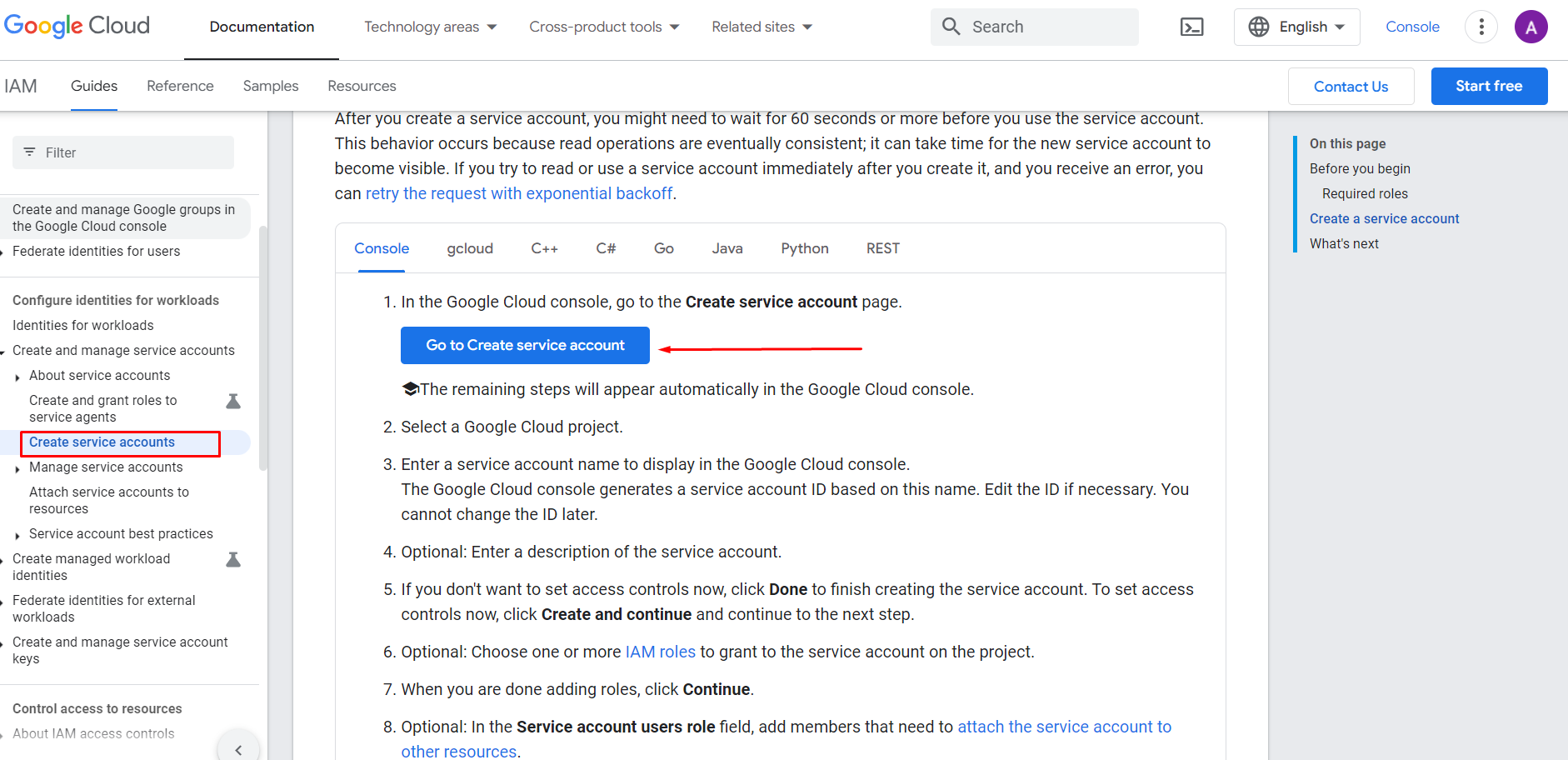
- Go to this link and scroll down. Click Go to Create a service account.
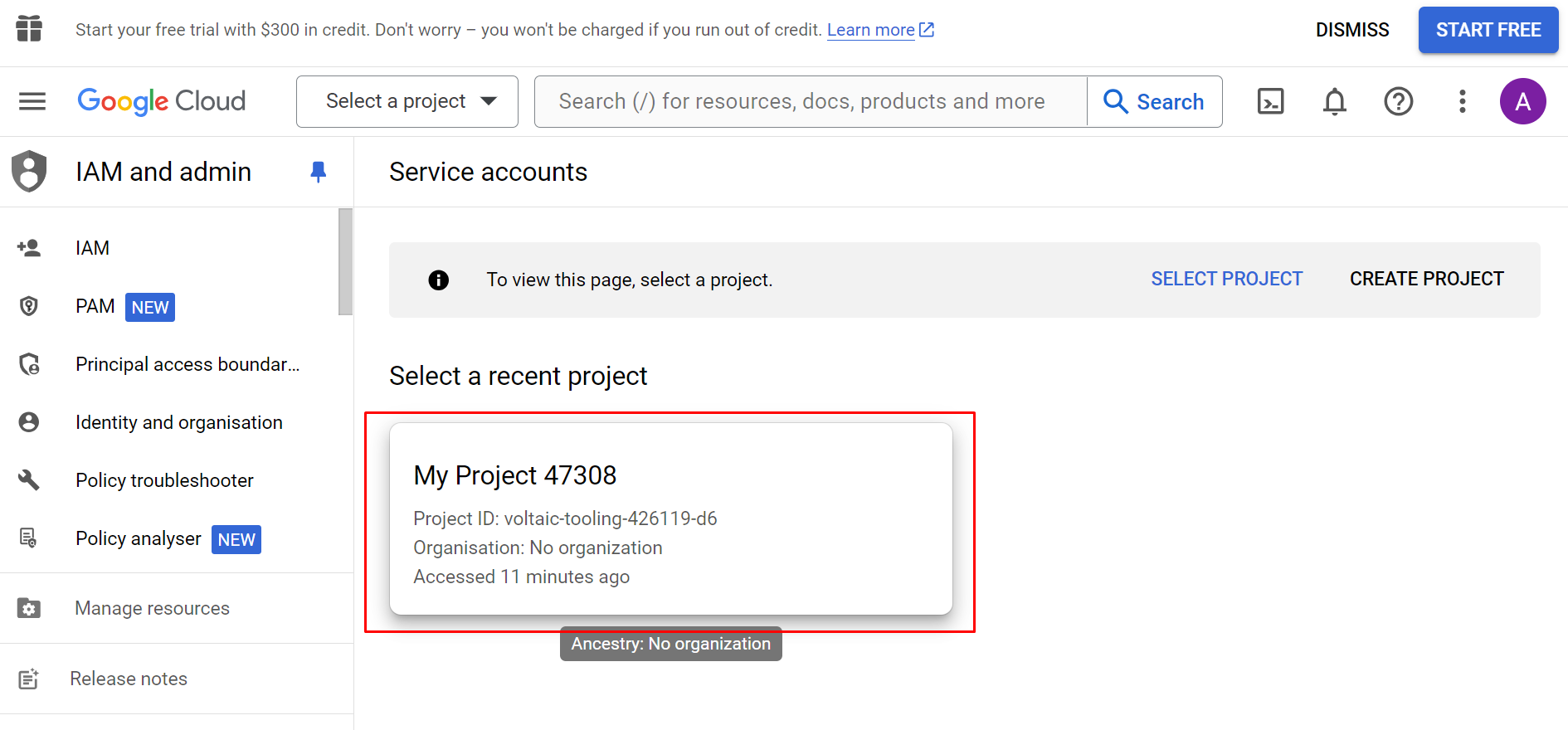
- Select the project created in step 4.
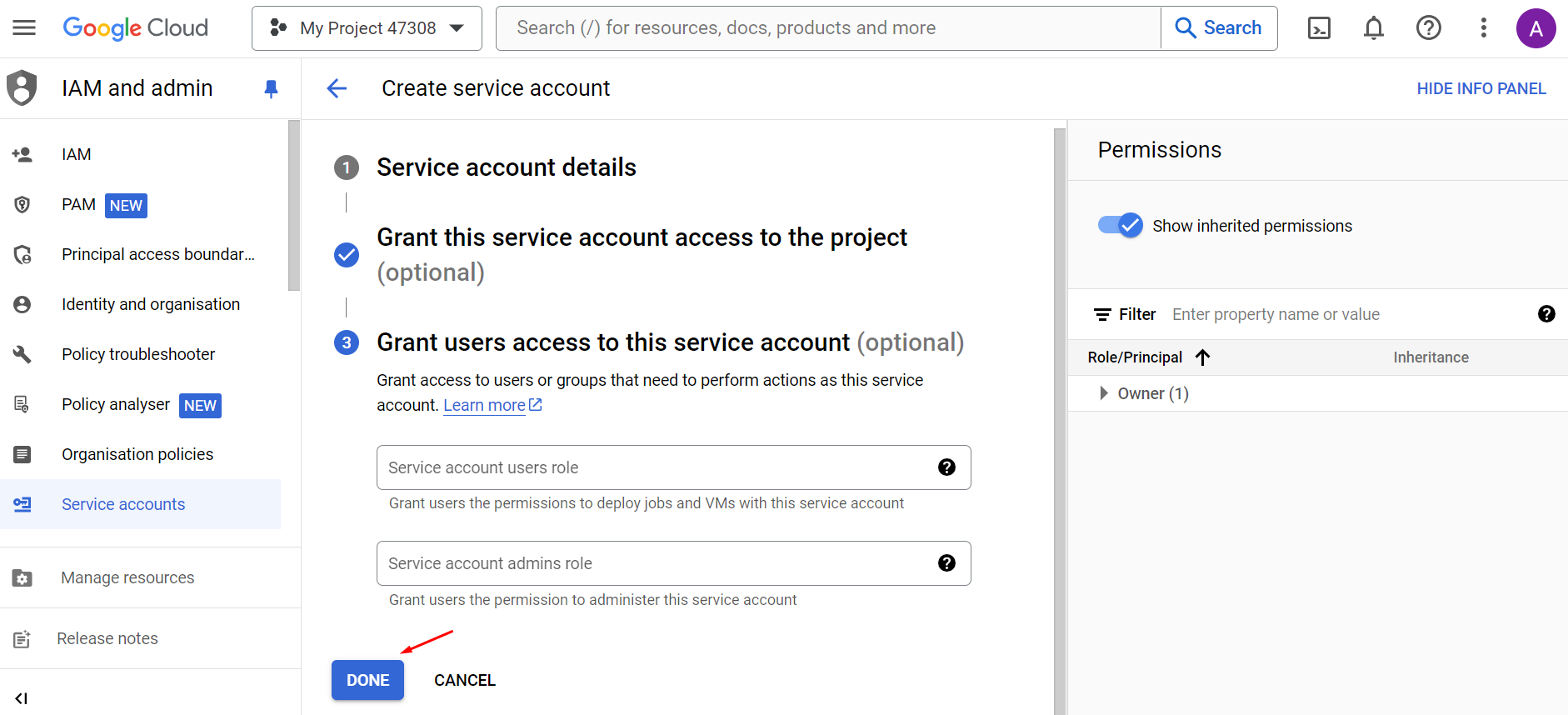
- Configure the account details (only the name is mandatory, but defining access rights is recommended) and click DONE.
- Go to this link and scroll down. Click Go to Service accounts.
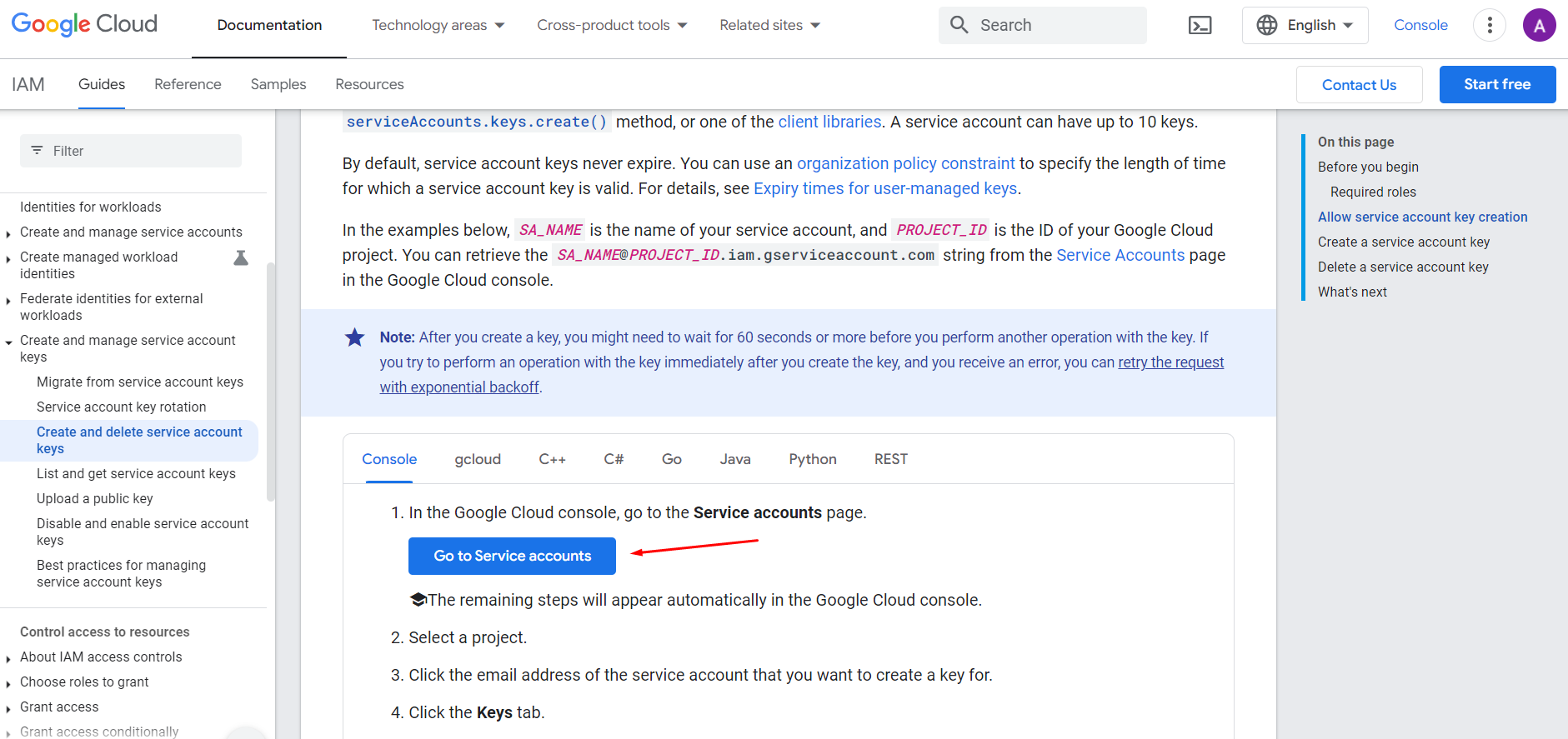
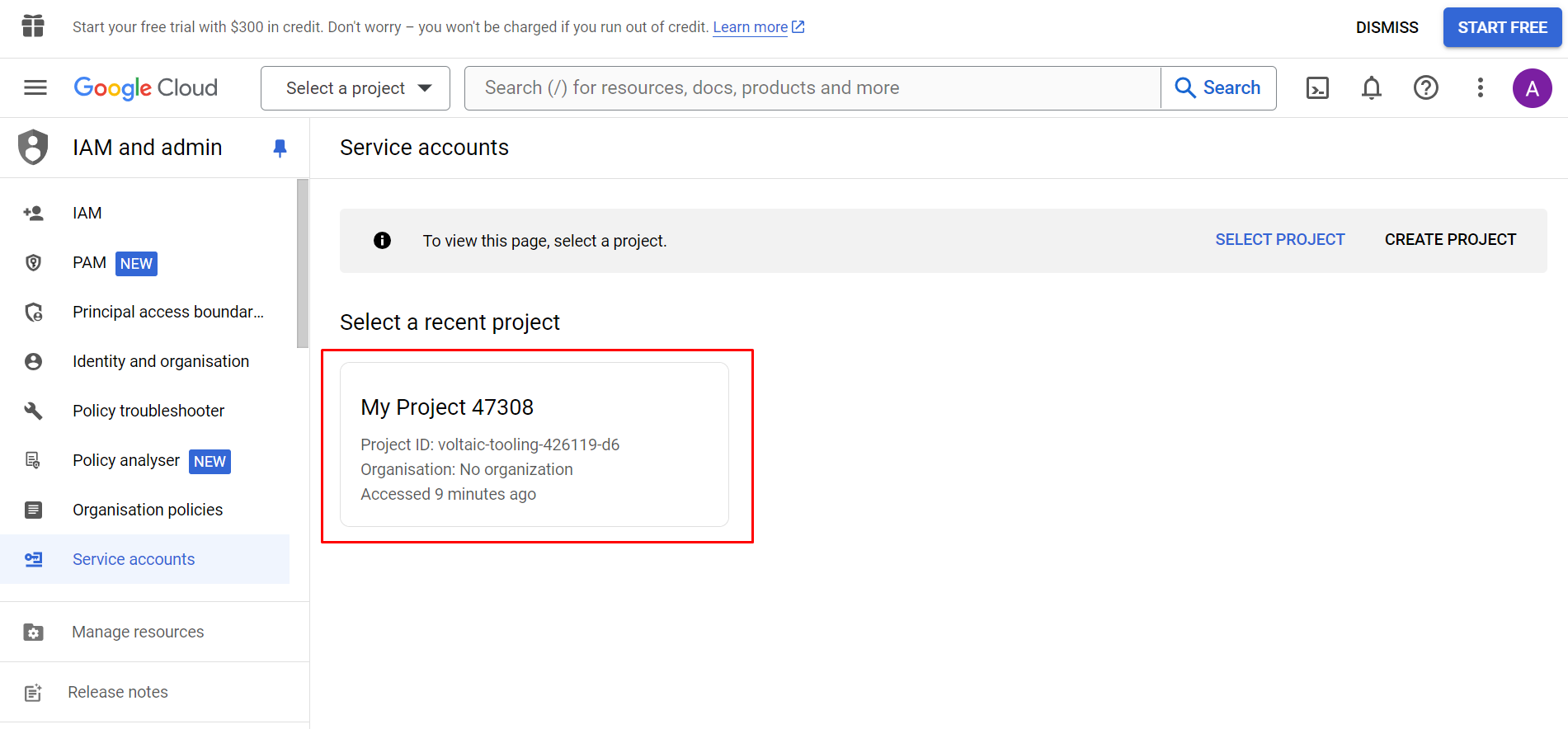
- Select the project created in step 4.
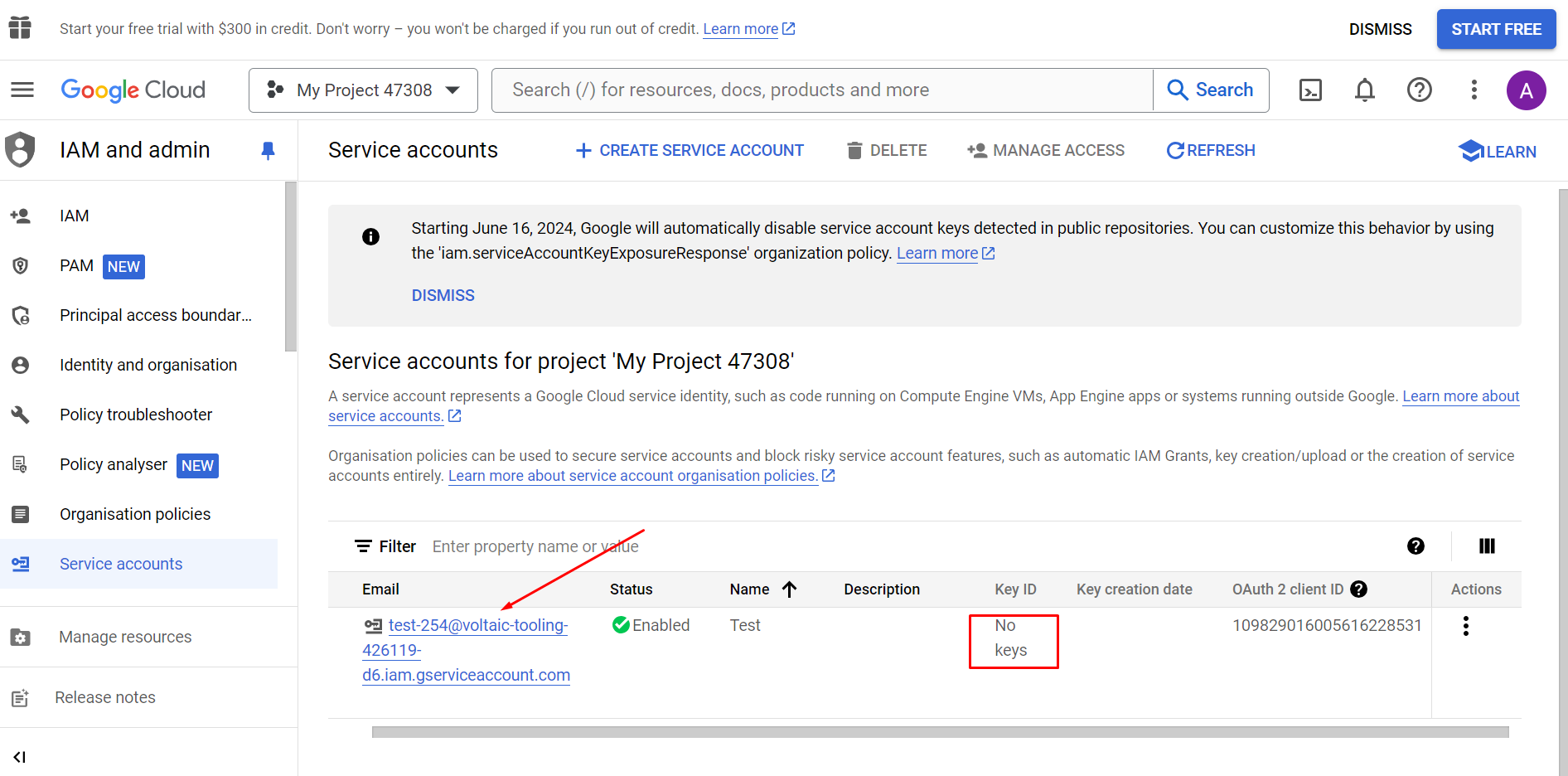
- Select the account address for which you need to create a key.
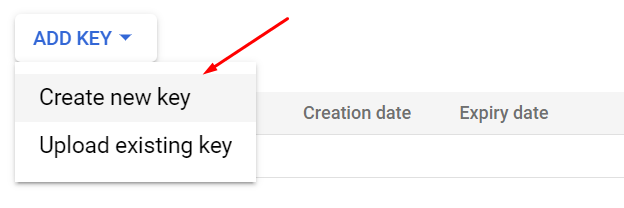
- Go to the KEYS tab and click the ADD KEY dropdown.
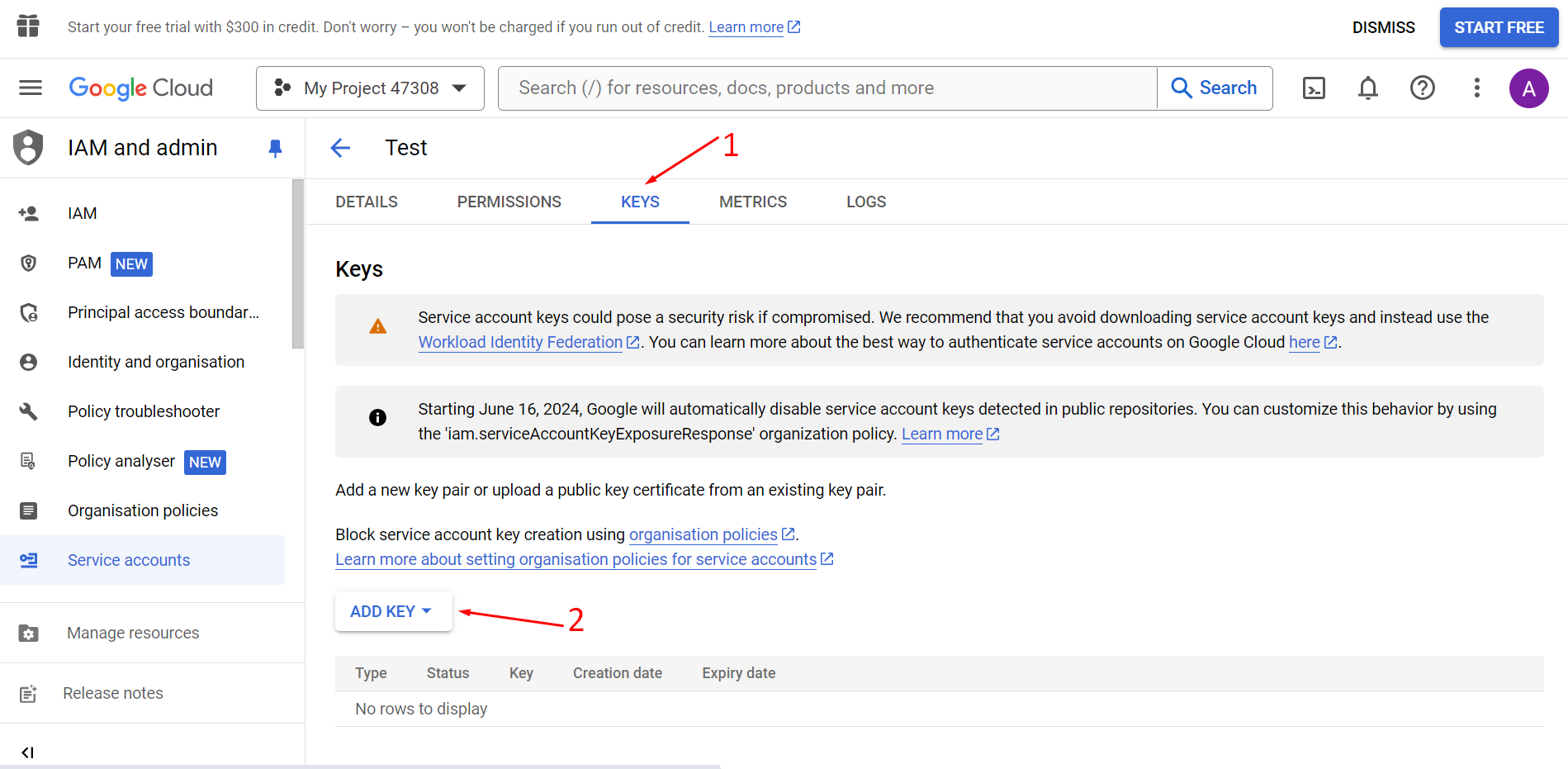
- Choose Create new key.
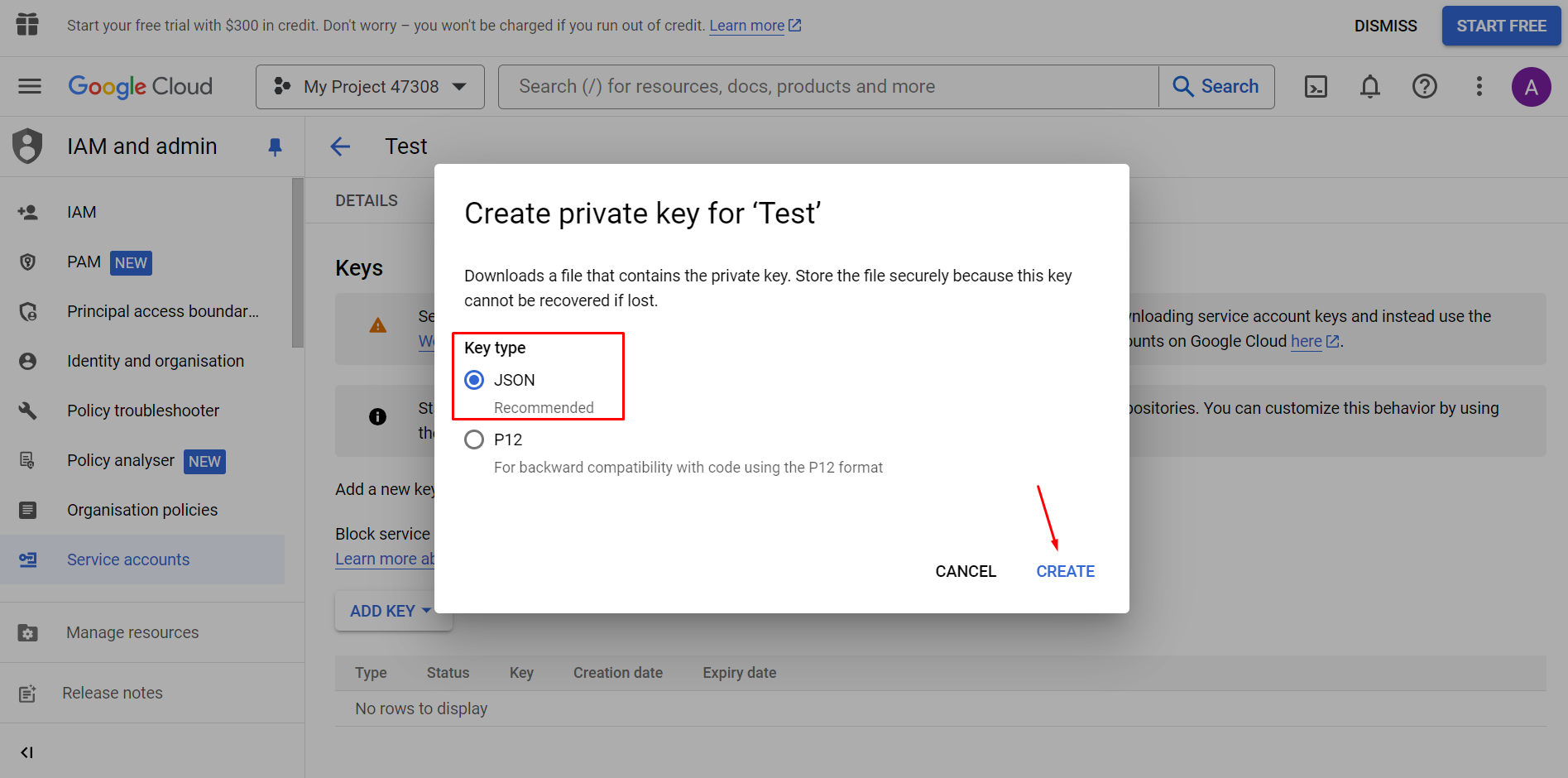
- Select the JSON key type and click CREATE.
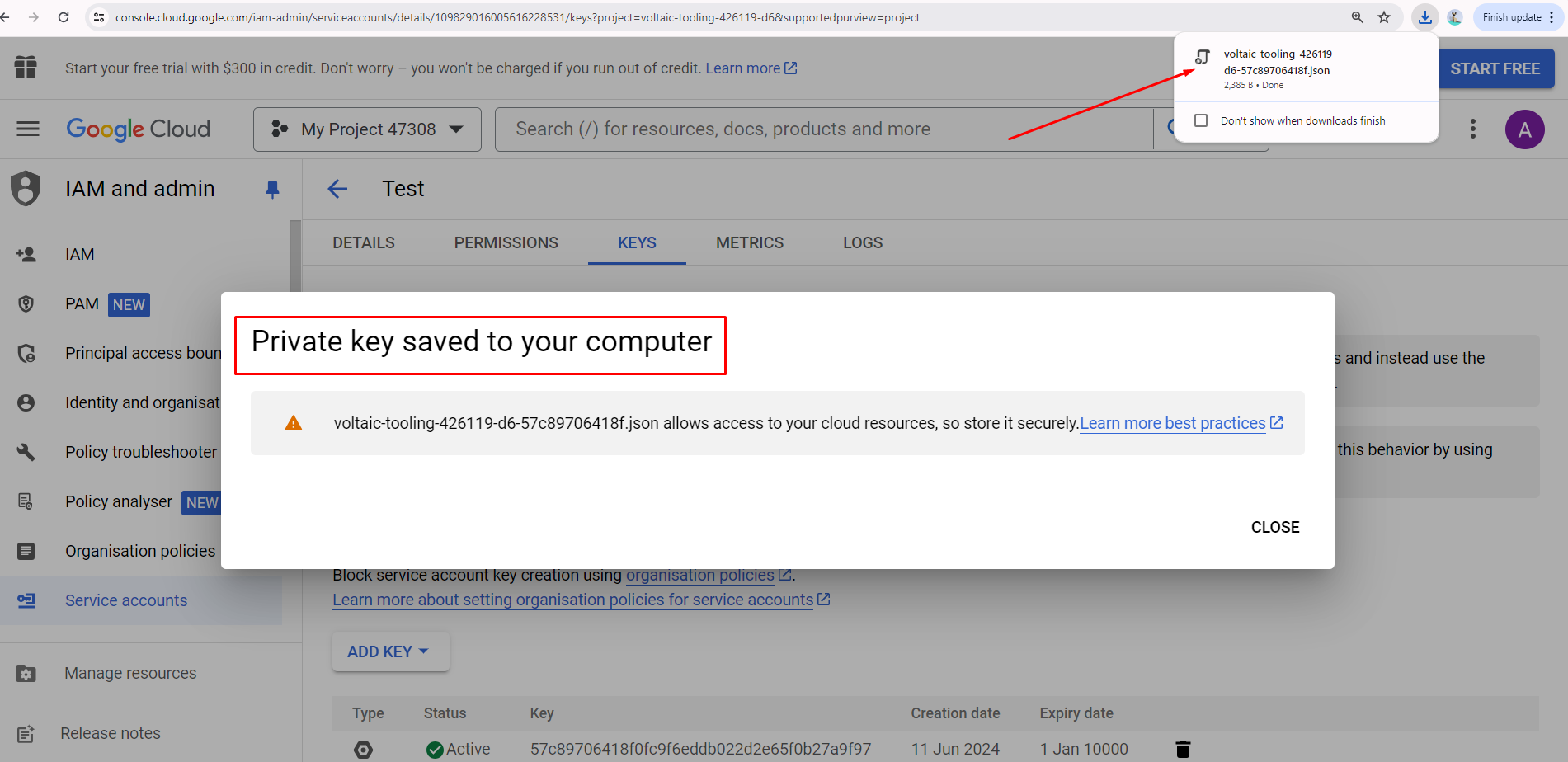
- View the downloaded key in JSON format. Open the file in any text editor and copy its contents.
- Go to this link and select the project created in step 4.
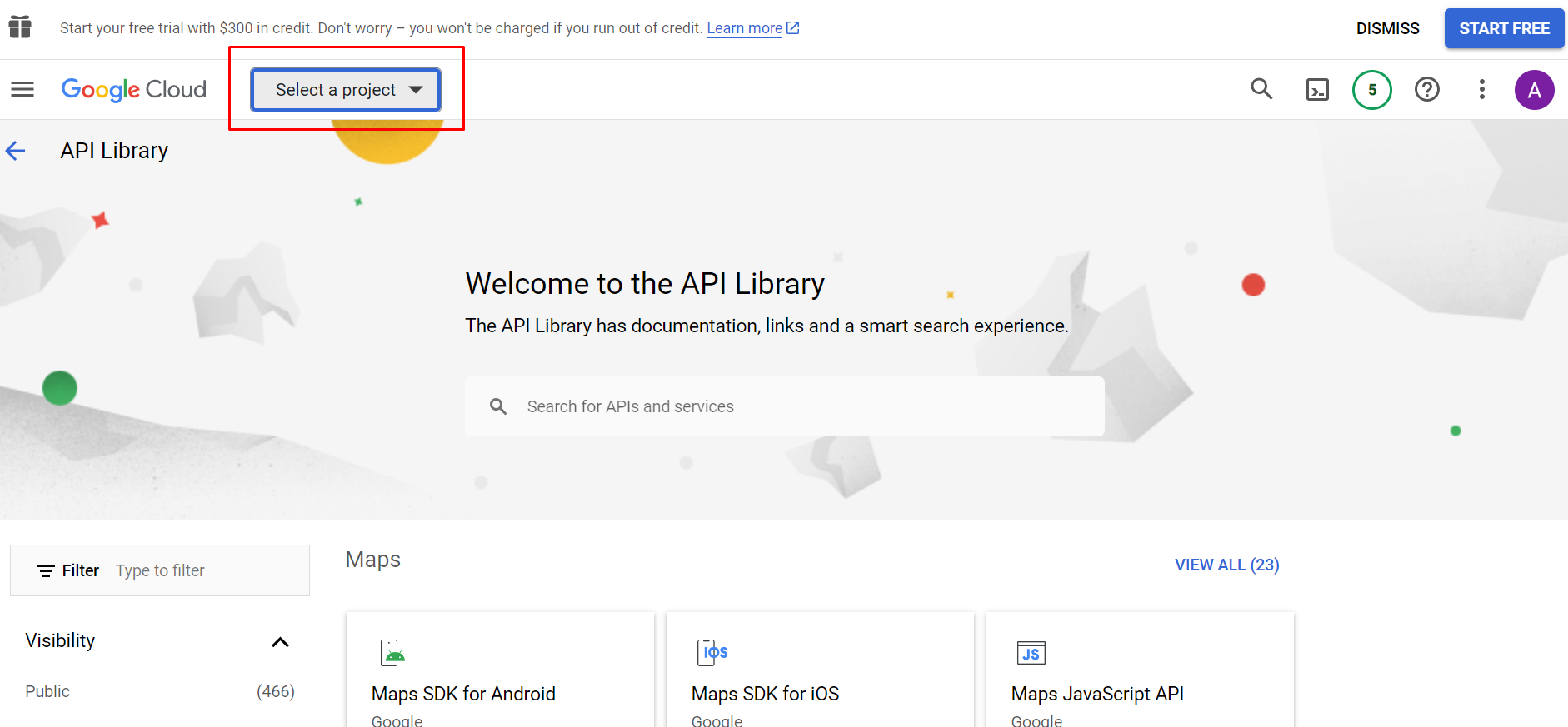
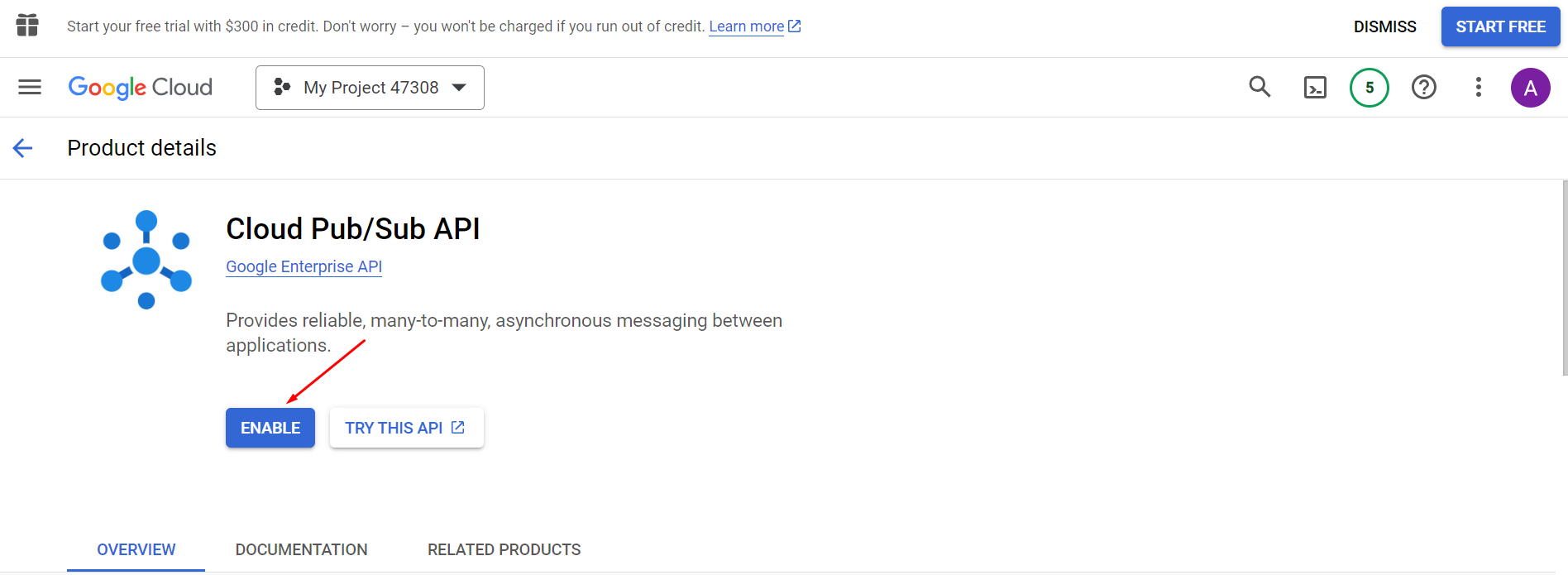
- Search for the desired API and choose either Cloud Storage API or Cloud Pub/Sub API.
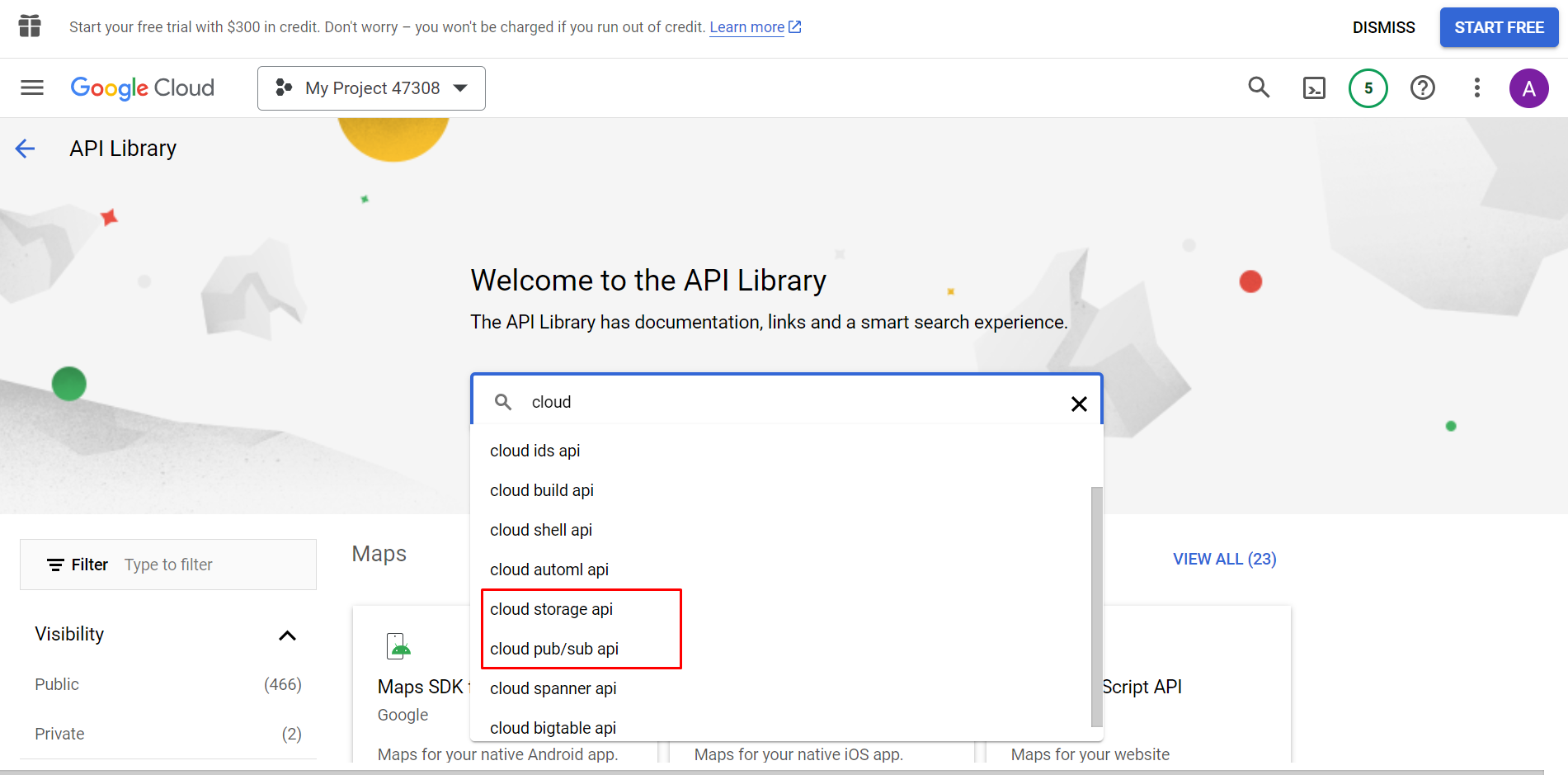
- Enable the API by clicking ENABLE.
Authorization Setup in Nodes
When configuring nodes in the Google Cloud Storage and Google Cloud Pub/Sub groups, you need to authorize access. To do this:
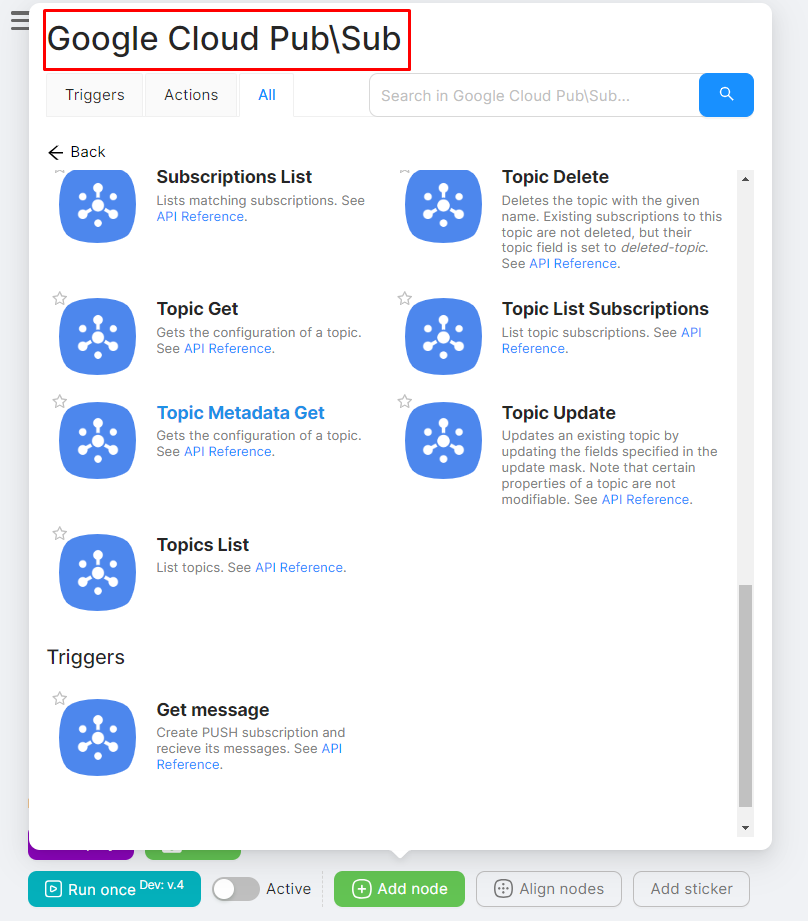
- Select the desired node, for example, from the Google Cloud Pub/Sub group.
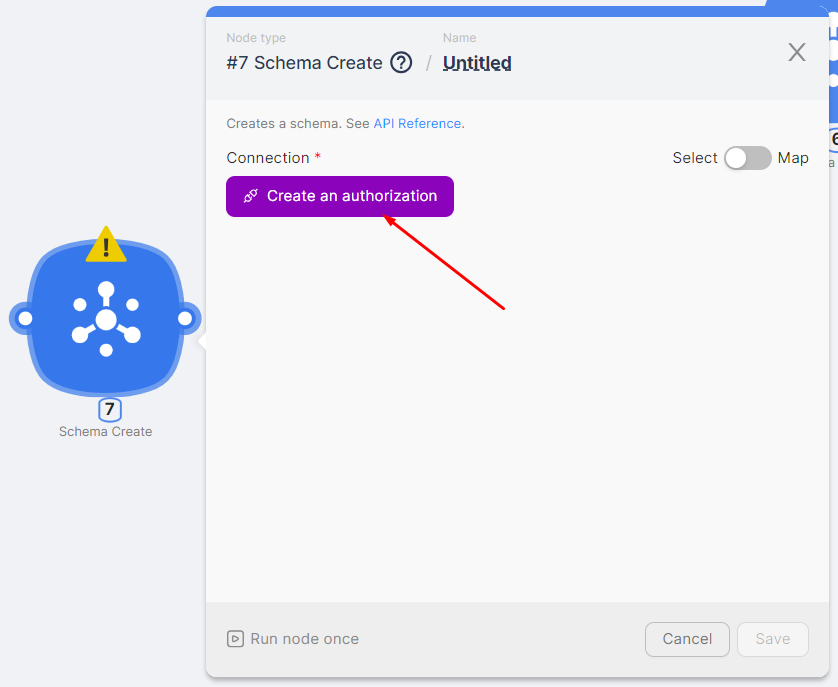
- Click the Create an authorization button.
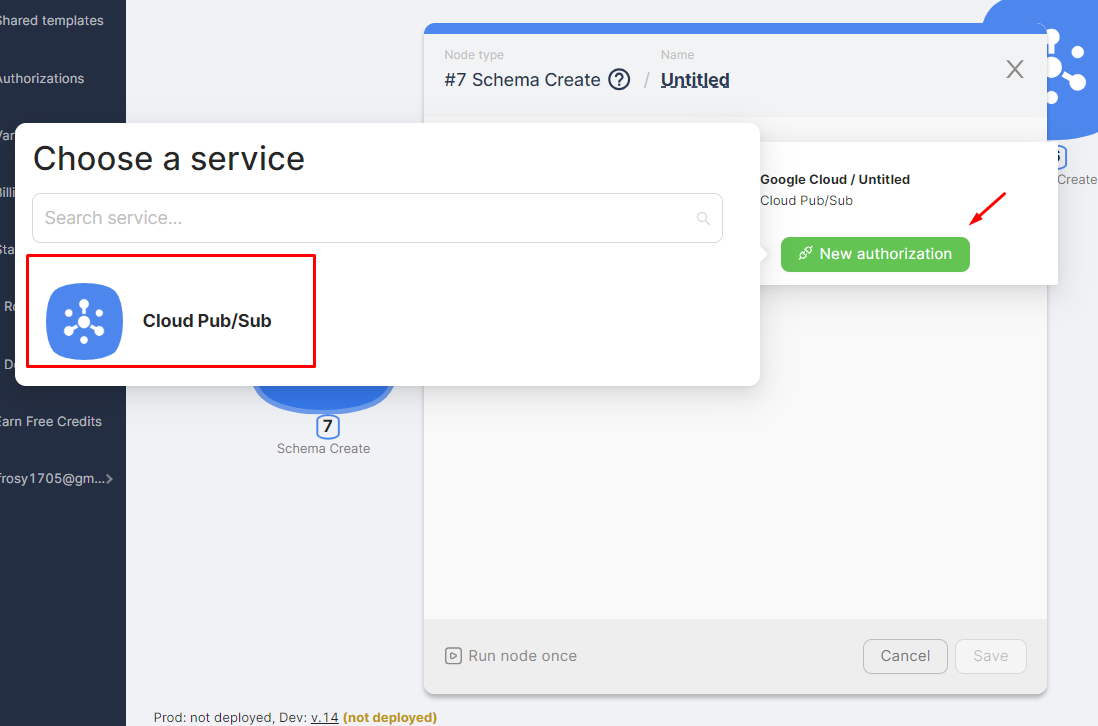
- Click New authorization and choose Cloud Pub/Sub.
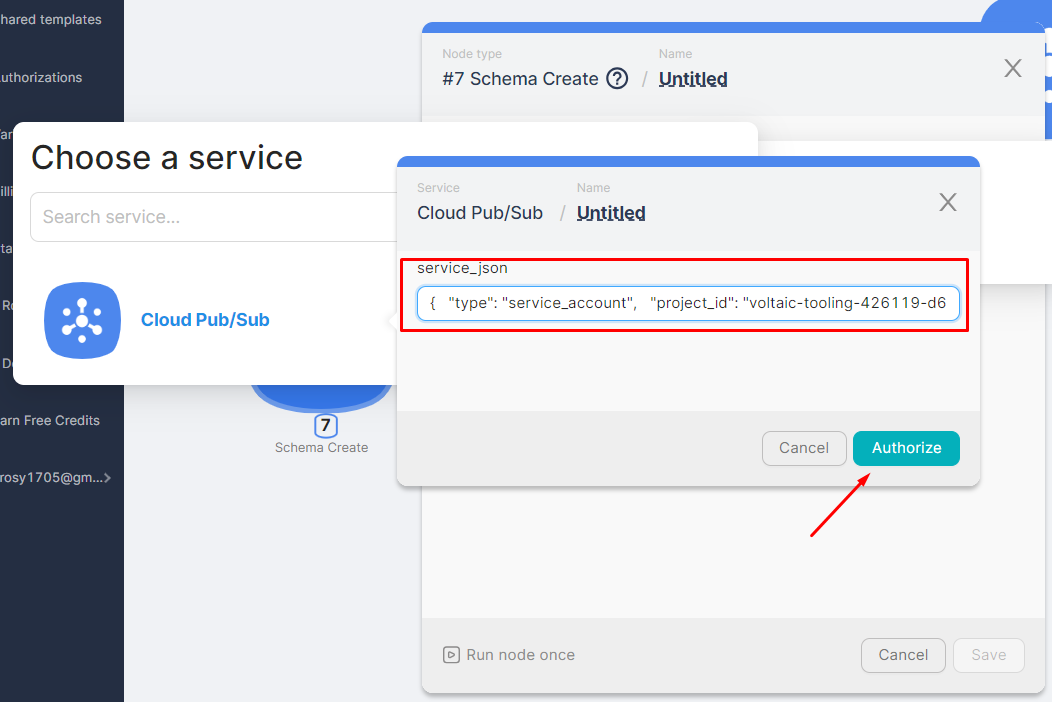
- In the service_json field, enter the previously obtained key in JSON format and click Authorize.
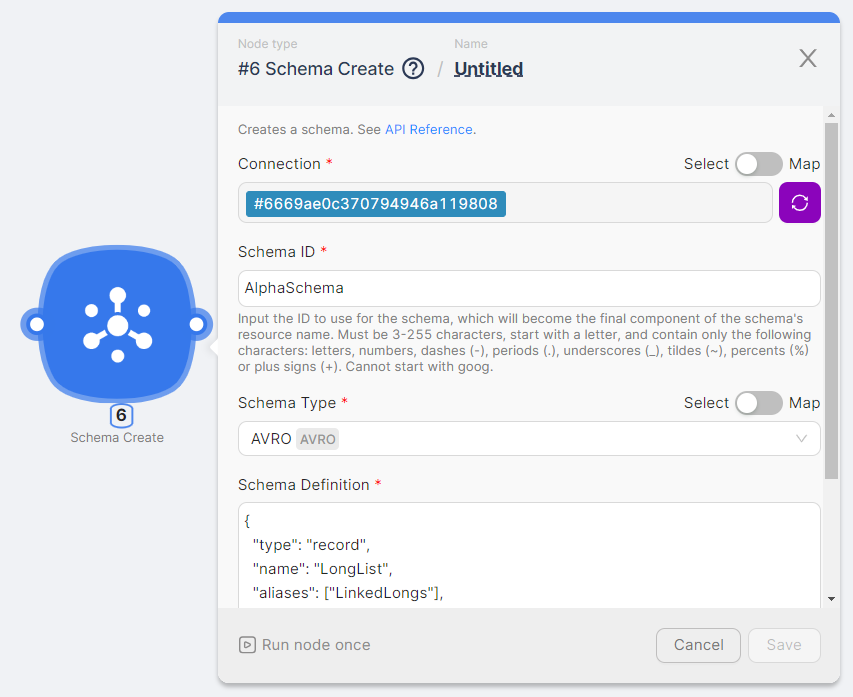
- Verify the authorization in the node and complete the remaining node configuration fields.
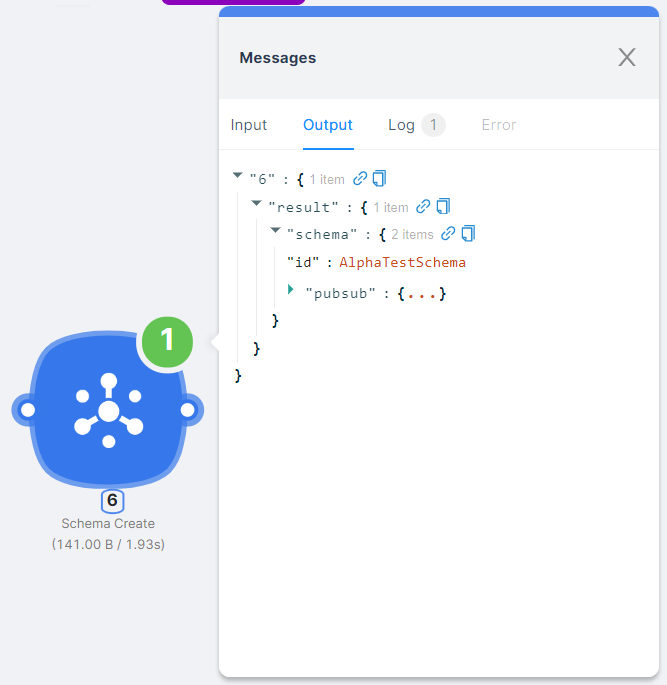
You can view the node's execution result by running the scenario or clicking the Run once button on the node.
Front
Managing incident response automation with Front app.
Intercom
Automating customer interactions using Intercom.
Need Help? Ask the community
If something on this page is missing or unclear, post on the Latenode community forum. Our team and other users usually reply quickly.