
Fauna
To use Fauna group nodes it is necessary to get a key (token) and perform authorization.
Receiving a token
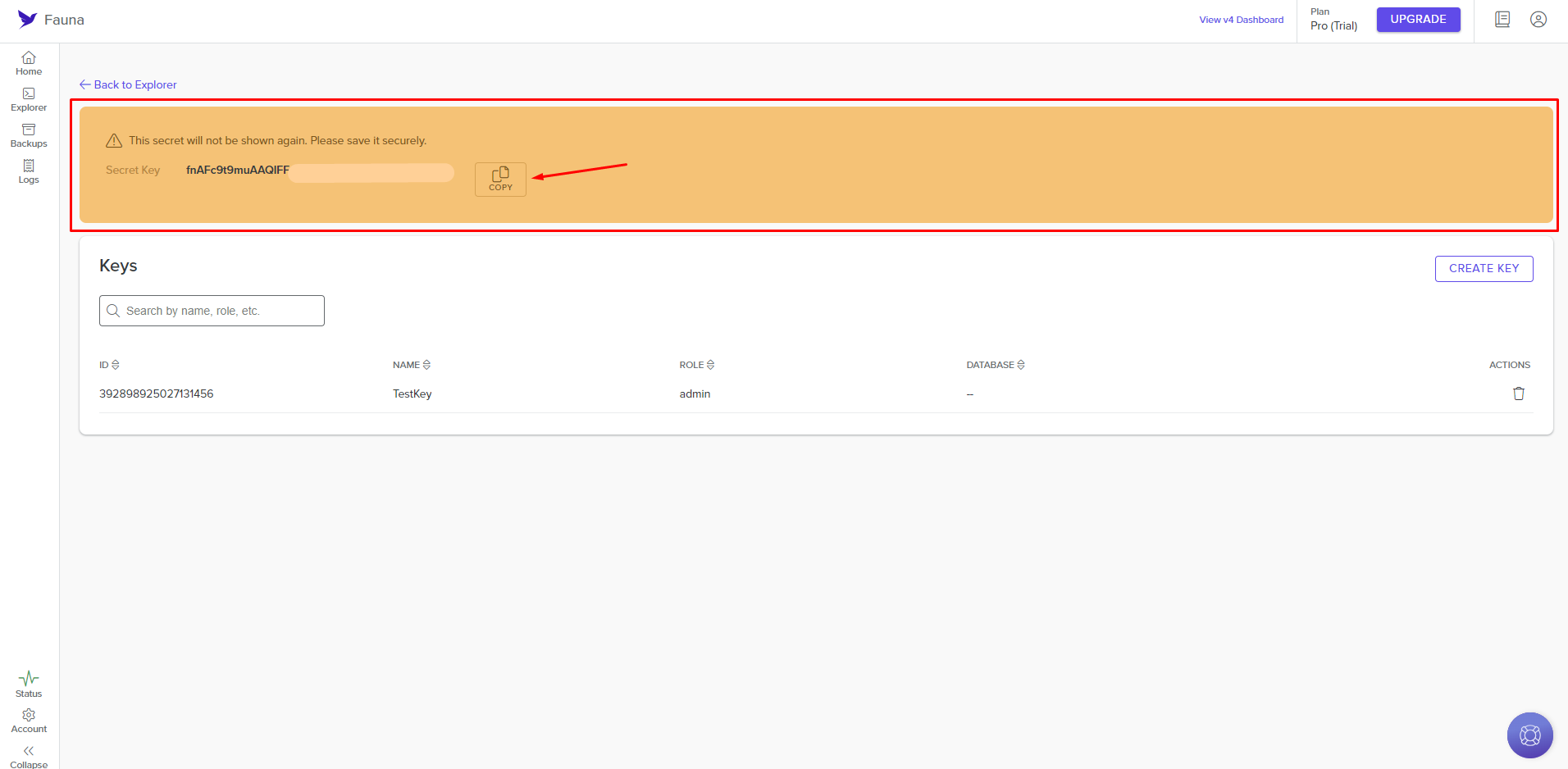
The received key (token) must be saved after copying, as it is displayed only when created.
To obtain a token you need to:
-
Register in the Fauna app and go to the main page;
-
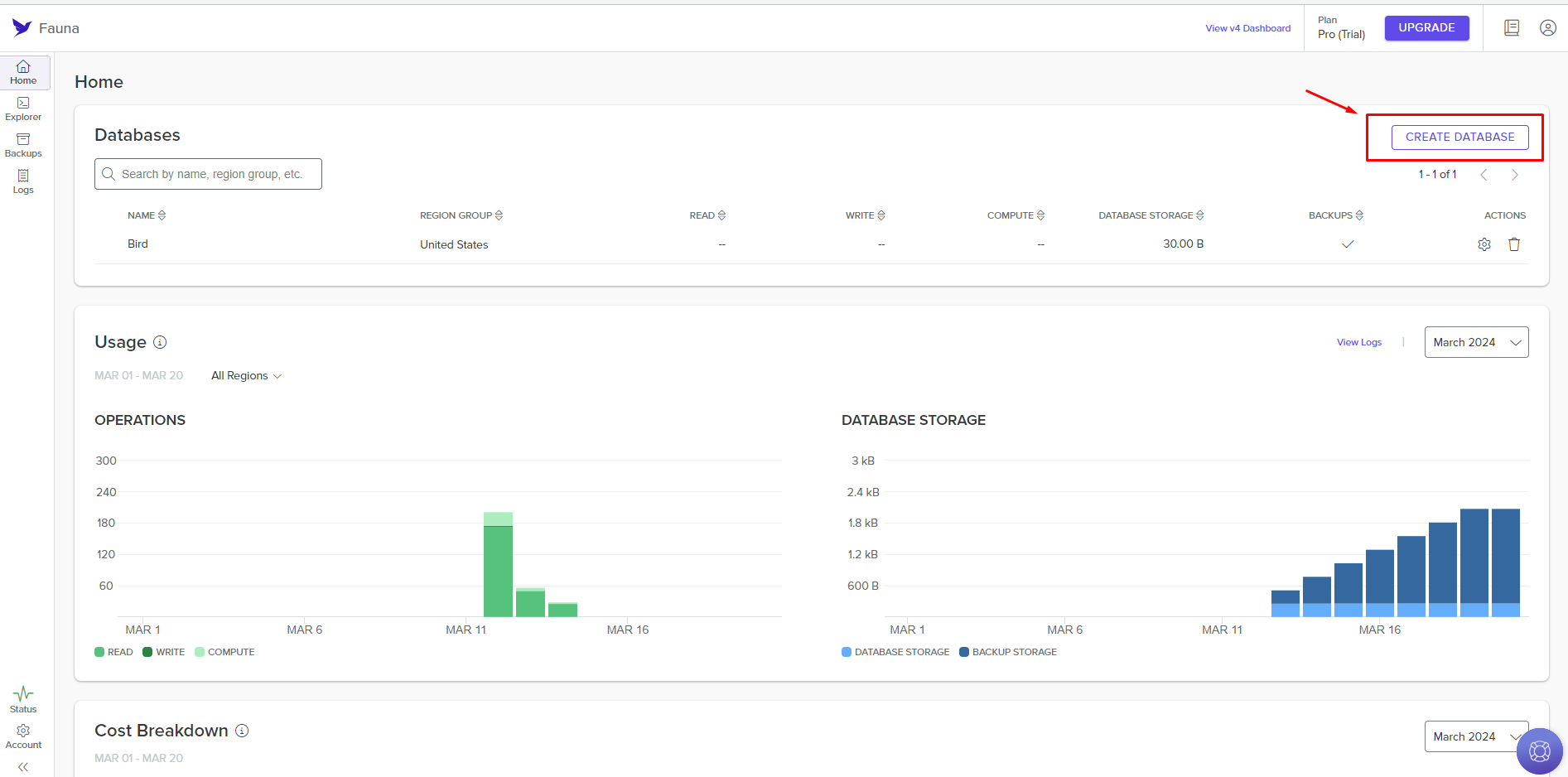
Click on the Create Database button;
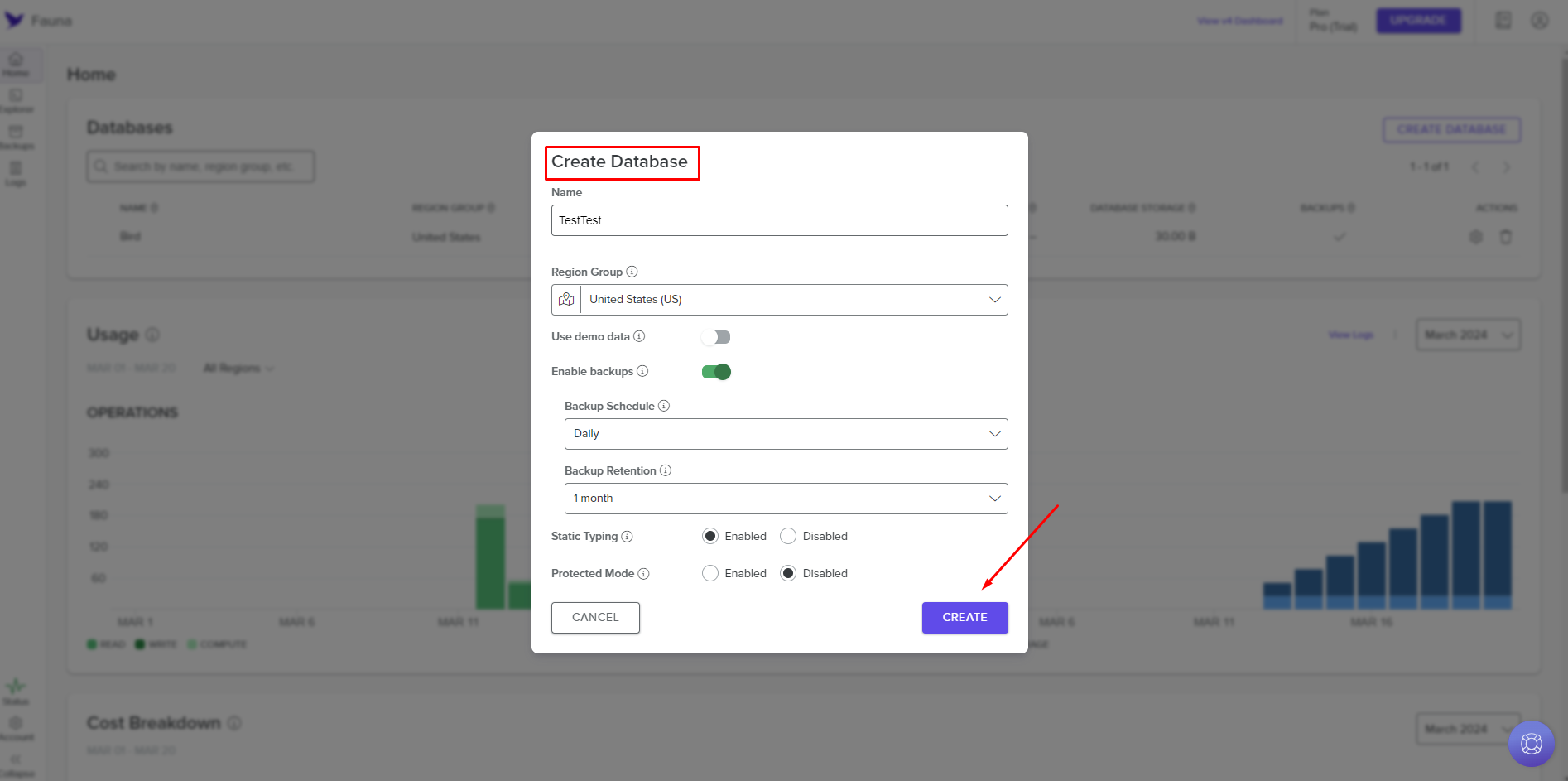
- Configure the database and click the Create button;
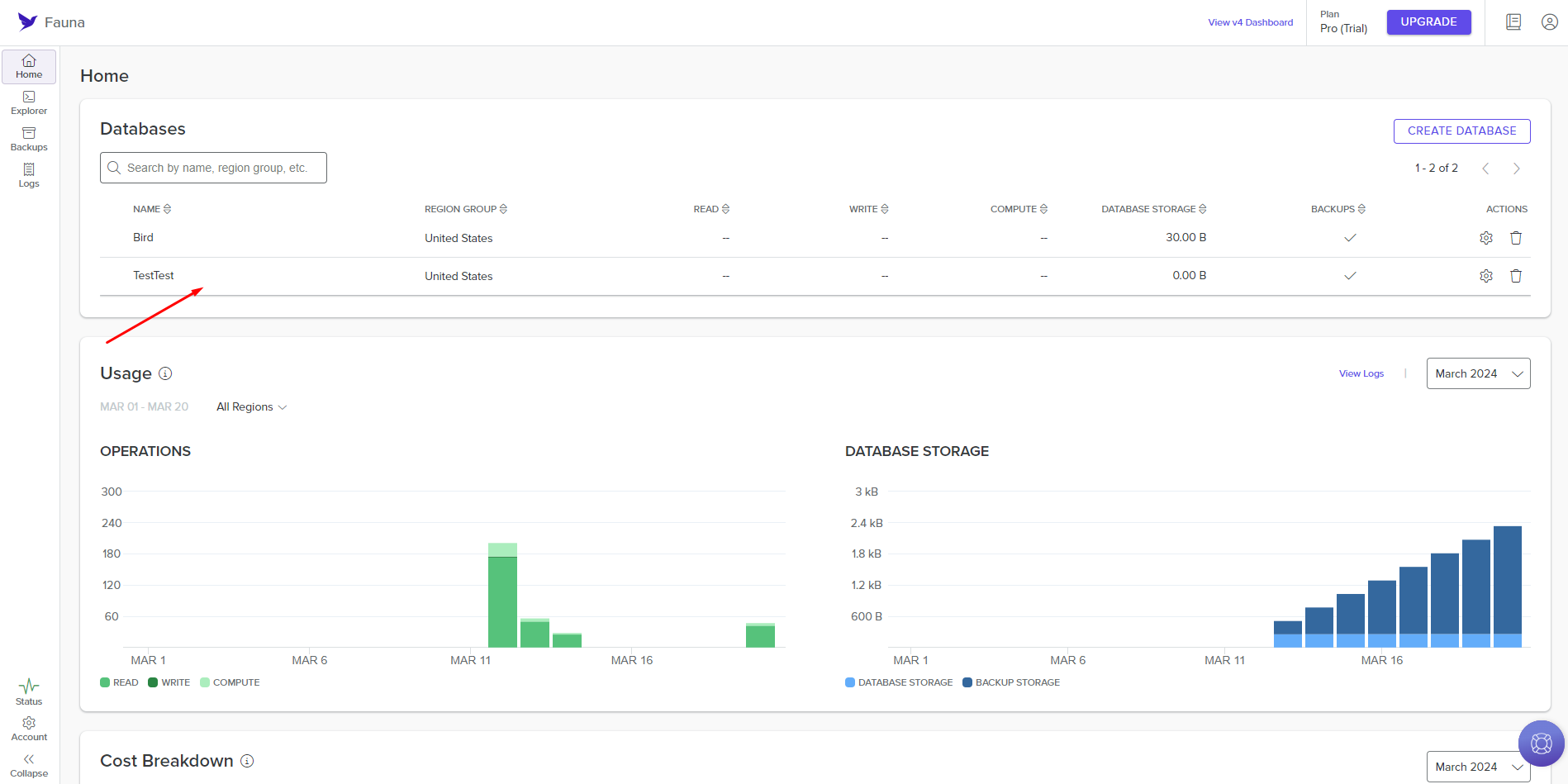
- Select the required row in the list of databases in the Databases table;
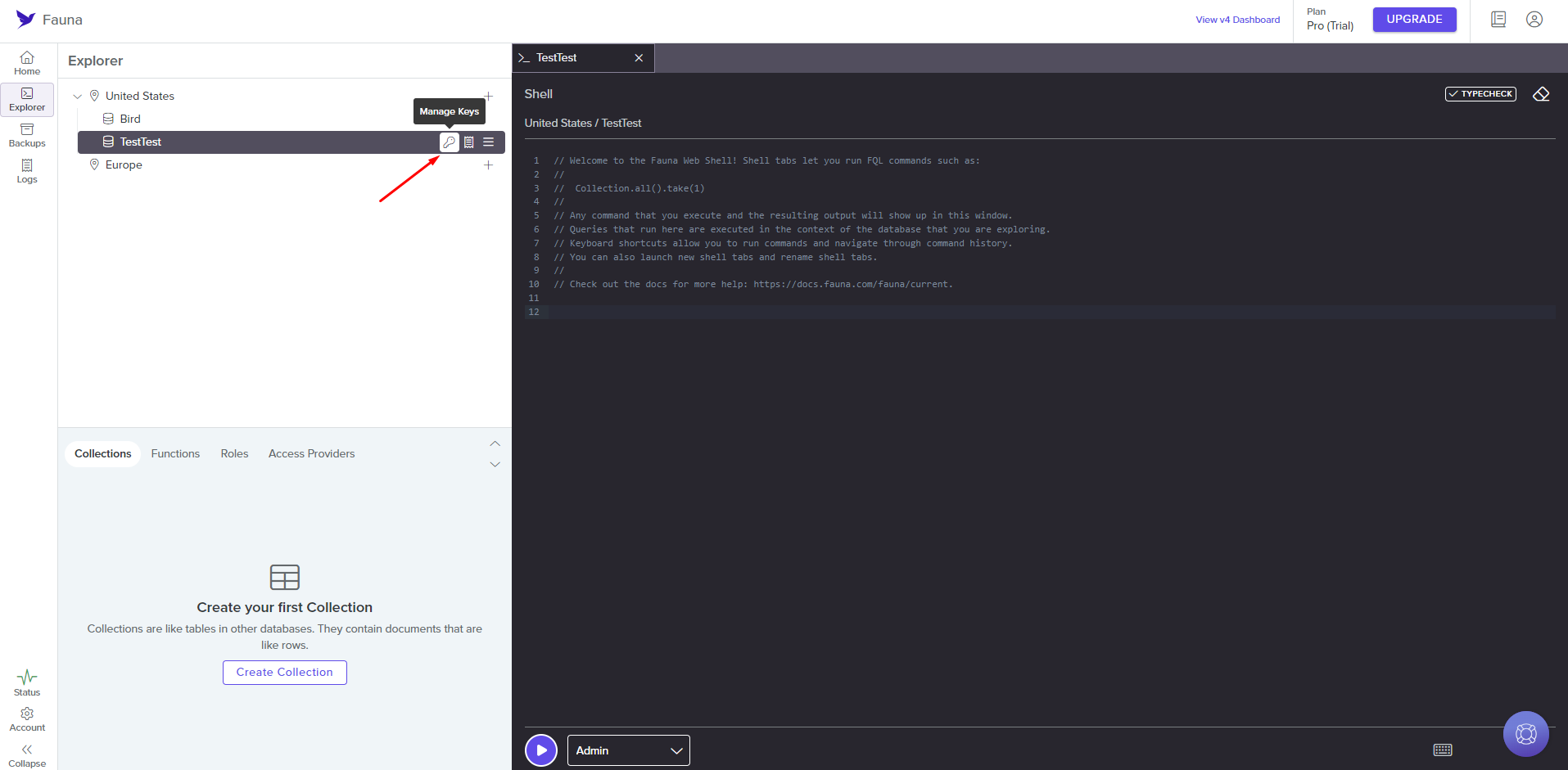
- Place the cursor over the name of the desired database and click the Manage Keys icon;
- Click the Create Key button;
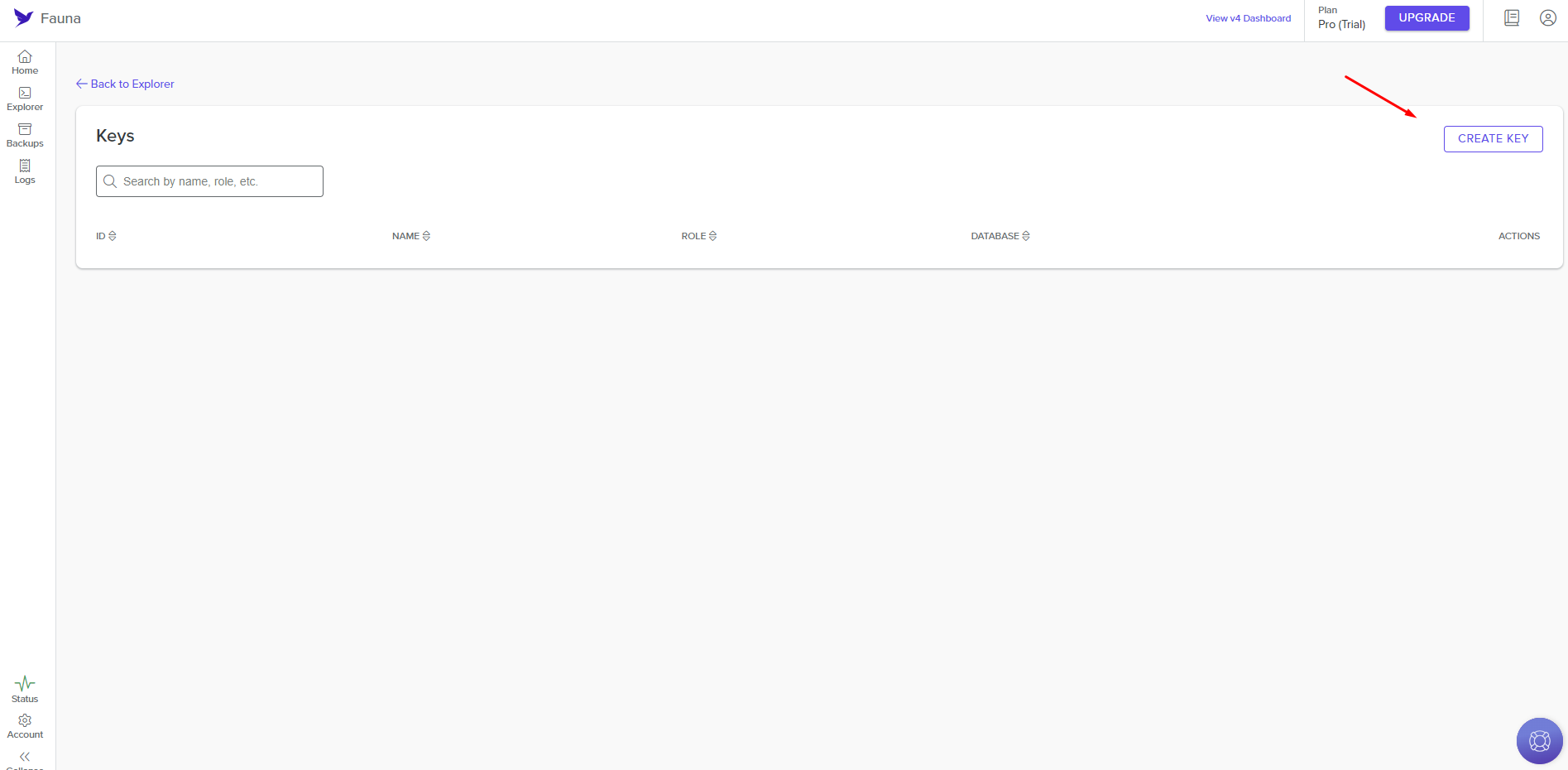
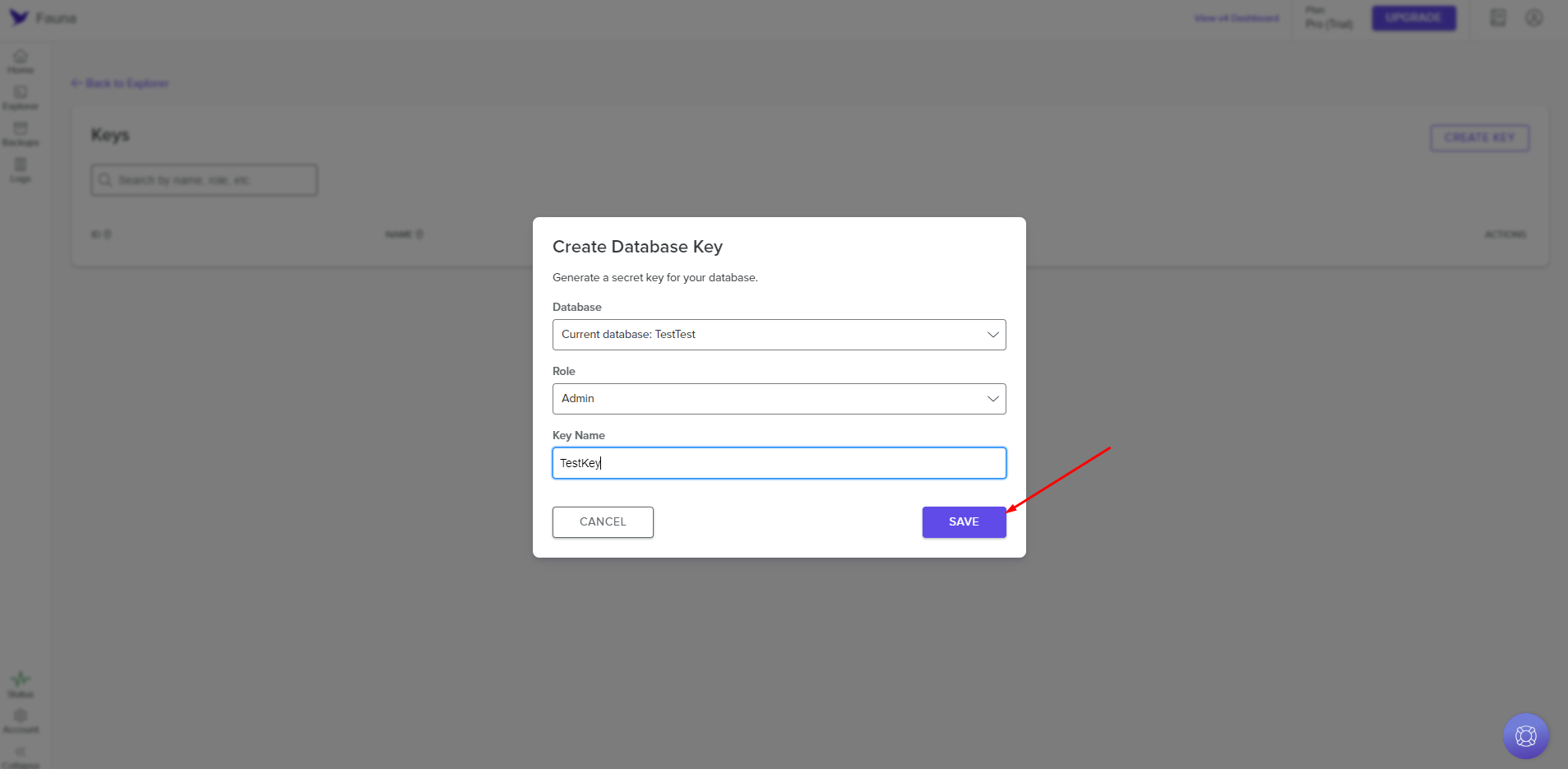
- Configure the key parameters and click the Save button;
- Copy the created key and save it.
Configuring authorization in nodes
When configuring a node in the Fauna group, authorization is required. To do this, you need to:
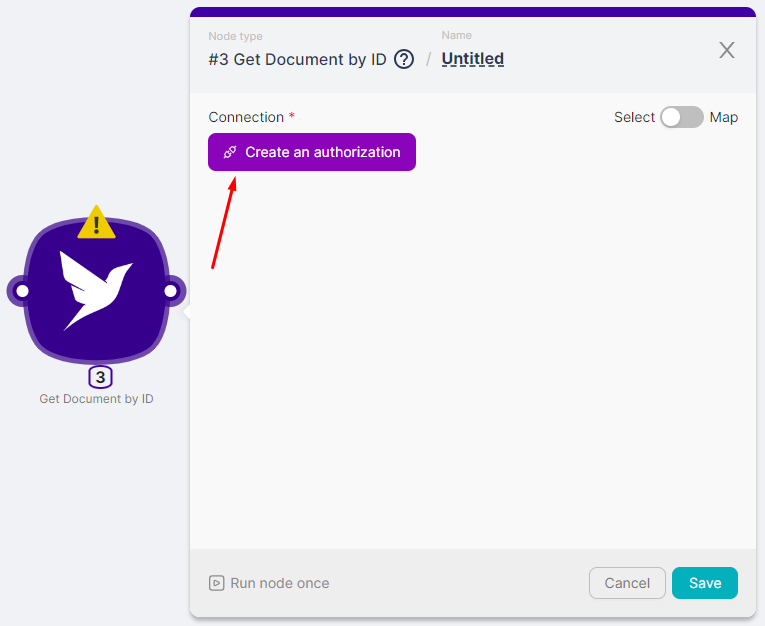
- Select the required node from the Fauna group;
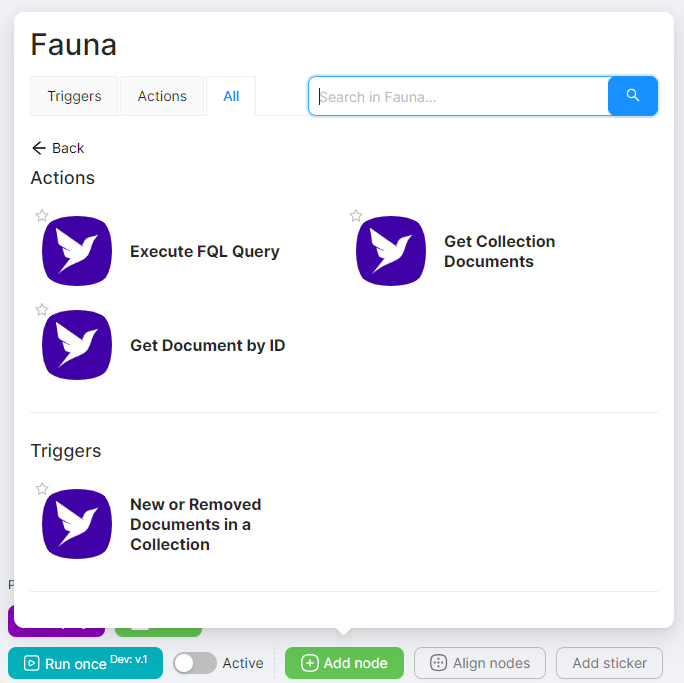
- Click the Create Authorization button;
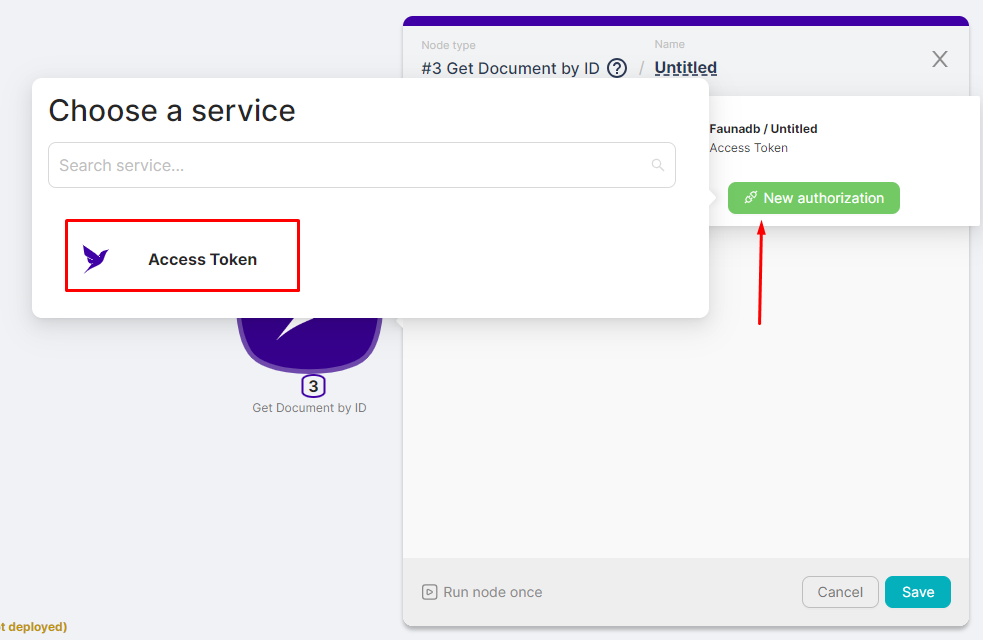
- Click the New Authorization button and select Access Token;
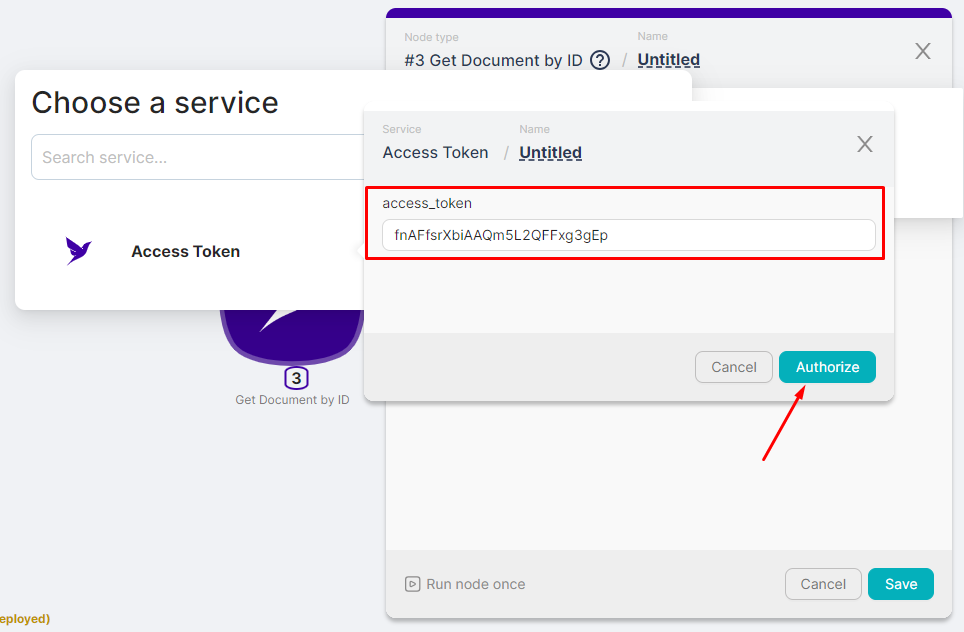
- In the access_token field enter the token you received earlier and click the Authorize button;
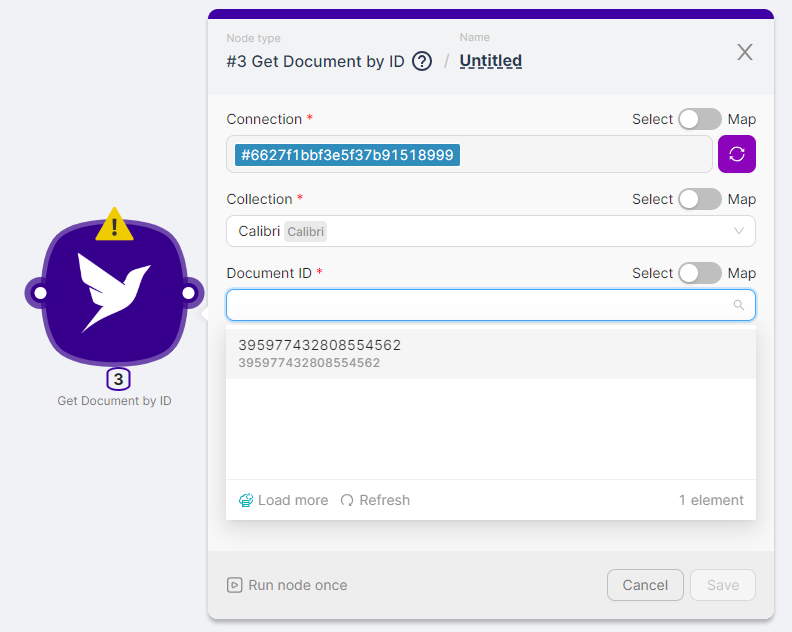
- View whether the node has authorization and fill in the remaining node configuration fields.
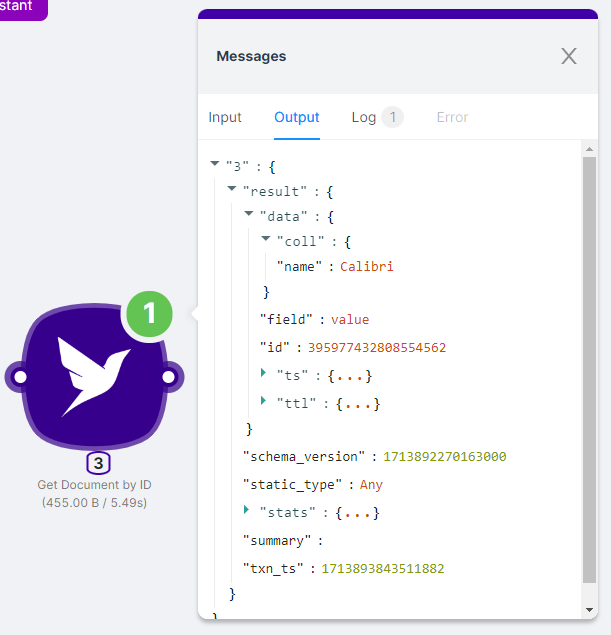
You can view the result of the node execution when you run the scenario or by clicking on the node's Run Once button.
Automating Facebook page and post management.
Fireflies.ai
Automating tasks with Fireflies.ai integration.
Need Help? Ask the community
If something on this page is missing or unclear, post on the Latenode community forum. Our team and other users usually reply quickly.