
Framer
The Latenode platform allows interaction with websites created using the Framer service. For interaction, only the Trigger on Webhook node is needed.
Let's create a scenario that records the email address entered in a website form into a Google Sheet. First, use the Framer service to create the registration form with a field for entering the email address and a confirmation button.
Creating a Framer Form
- In the Framer workspace, choose the method to add a Code element. In the Create Code File window, enter any name and select the New component option.
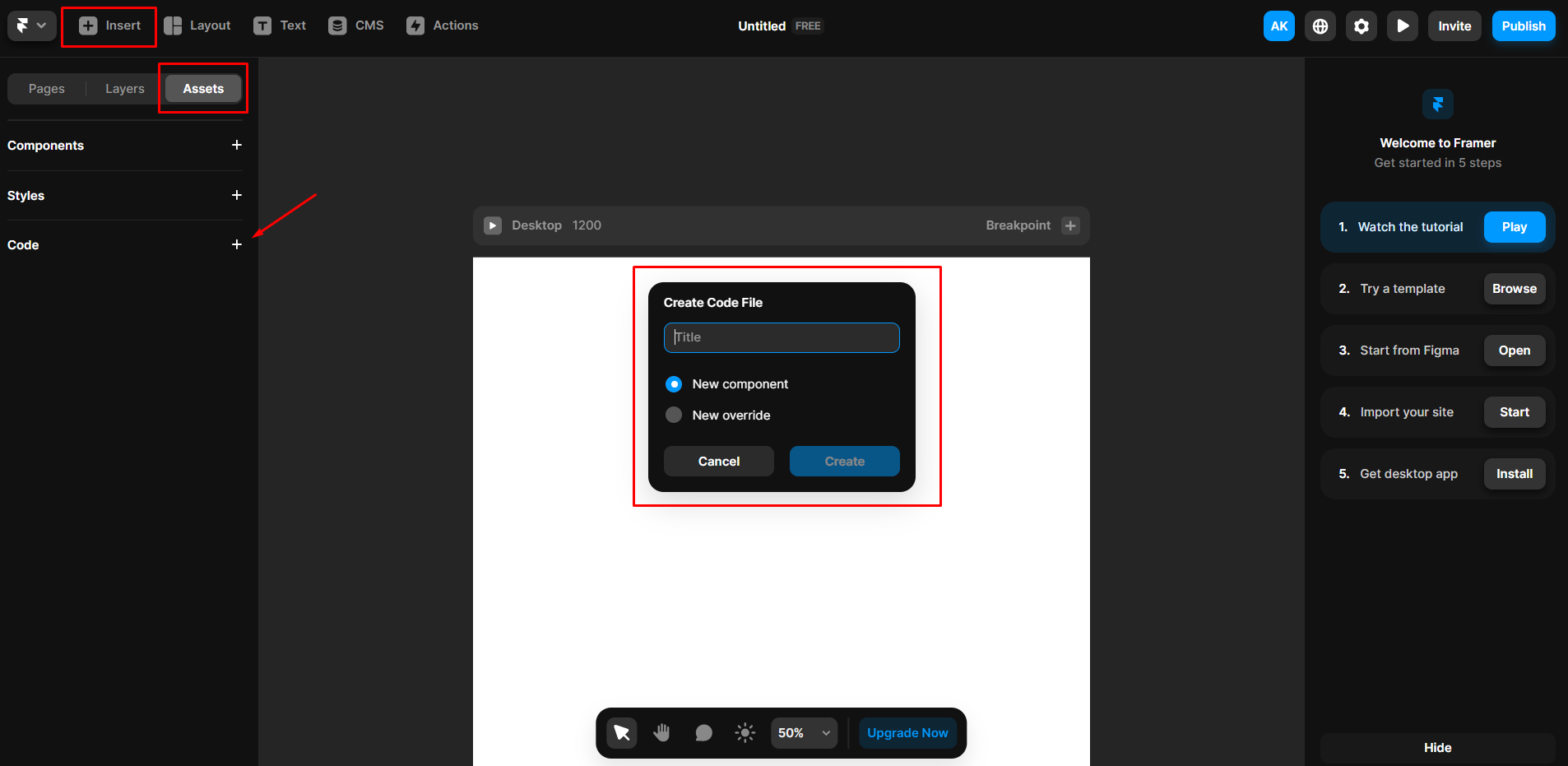
- Click the Create button.
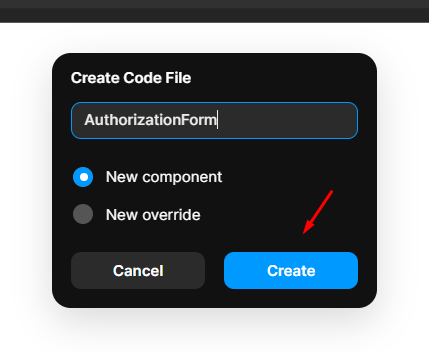
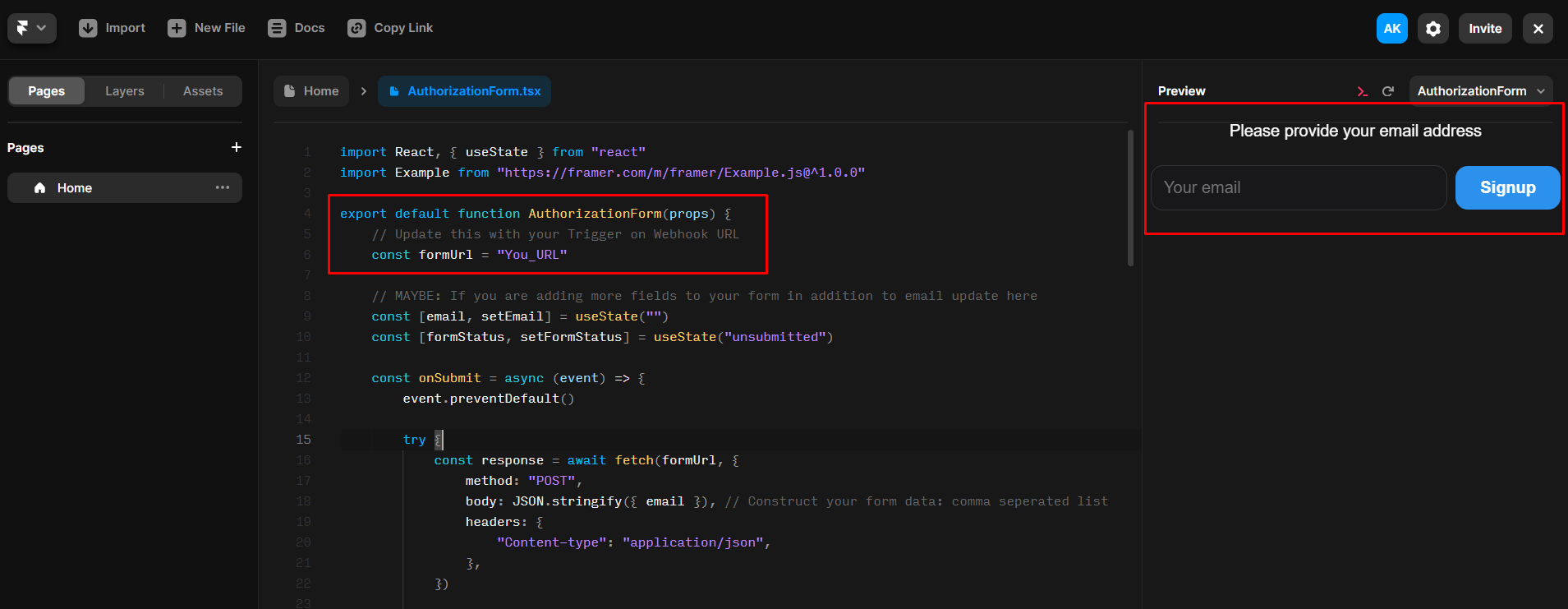
- On the opened page, add the code below and save the changes by pressing Ctrl + S. The form with an email input field and a Signup button will appear on the right side of the interface.
import React, { useState } from "react"
import Example from "https://framer.com/m/framer/Example.js@^1.0.0"

export default function AuthorizationForm(props) {
    // Update this with your Trigger on Webhook URL
    const formUrl = "Your_URL"

    const [email, setEmail] = useState("")
    const [formStatus, setFormStatus] = useState("unsubmitted")

    const onSubmit = async (event) => {
        event.preventDefault()

        try {
            const response = await fetch(formUrl, {
                method: "POST",
                body: JSON.stringify({ email }),
                headers: {
                    "Content-type": "application/json",
                },
            })

            if (!response.ok) {
                throw new Error("Network response was not ok")
            }

            setFormStatus("submitted")
        } catch (error) {
            console.error("Error during form submission: ", error)
            setFormStatus("error")
        }
    }

    const handleEmailChange = (event) => {
        setEmail(event.target.value)
    }

    if (formStatus === "submitted") {
        return (
            <div style={responseText}>
                Thank you! You have successfully registered.
            </div>
        )
    }

    if (formStatus === "error") {
        return <div>Something went wrong. Please refresh and try again!</div>
    }

    return (
        <>
            <div style={labelStyle}>Please provide your email address.</div>
            <form onSubmit={onSubmit} style={containerStyle}>
                <input
                    type="email"
                    value={email}
                    onChange={handleEmailChange}
                    placeholder="Your email"
                    required
                    style={inputStyle}
                />
                <input type="submit" value="Signup" style={submitButtonStyle} />
            </form>
        </>
    )
}

const containerStyle = {
    display: "flex",
    justifyContent: "space-between",
    alignItems: "center",
    padding: "0.5rem",
    borderRadius: "4px",
    maxWidth: "500px",
    margin: "auto",
}

const inputStyle = {
    flex: "1",
    fontSize: "16px",
    padding: "0.75rem",
    margin: "0",
    backgroundColor: "#18181B",
    border: "1px solid #333",
    borderRadius: "12px",
    color: "#FFF",
    marginRight: "0.5rem",
}

const submitButtonStyle = {
    fontSize: "16px",
    padding: "0.75rem 1.5rem",
    backgroundColor: "#2C91ED",
    color: "#FFF",
    border: "none",
    borderRadius: "12px",
    cursor: "pointer",
    fontWeight: "bold",
}

const responseText = {
    textAlign: "center",
    color: "#5FCEAE",
    fontSize: "16px",
    marginTop: "1rem",
}

const labelStyle = {
    textAlign: "center",
    color: "#FFF",
    fontSize: "16px",
    marginBottom: "1rem",
}
Setting Up the Latenode Scenario and Sending Email
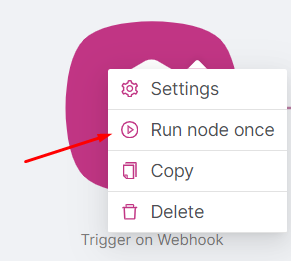
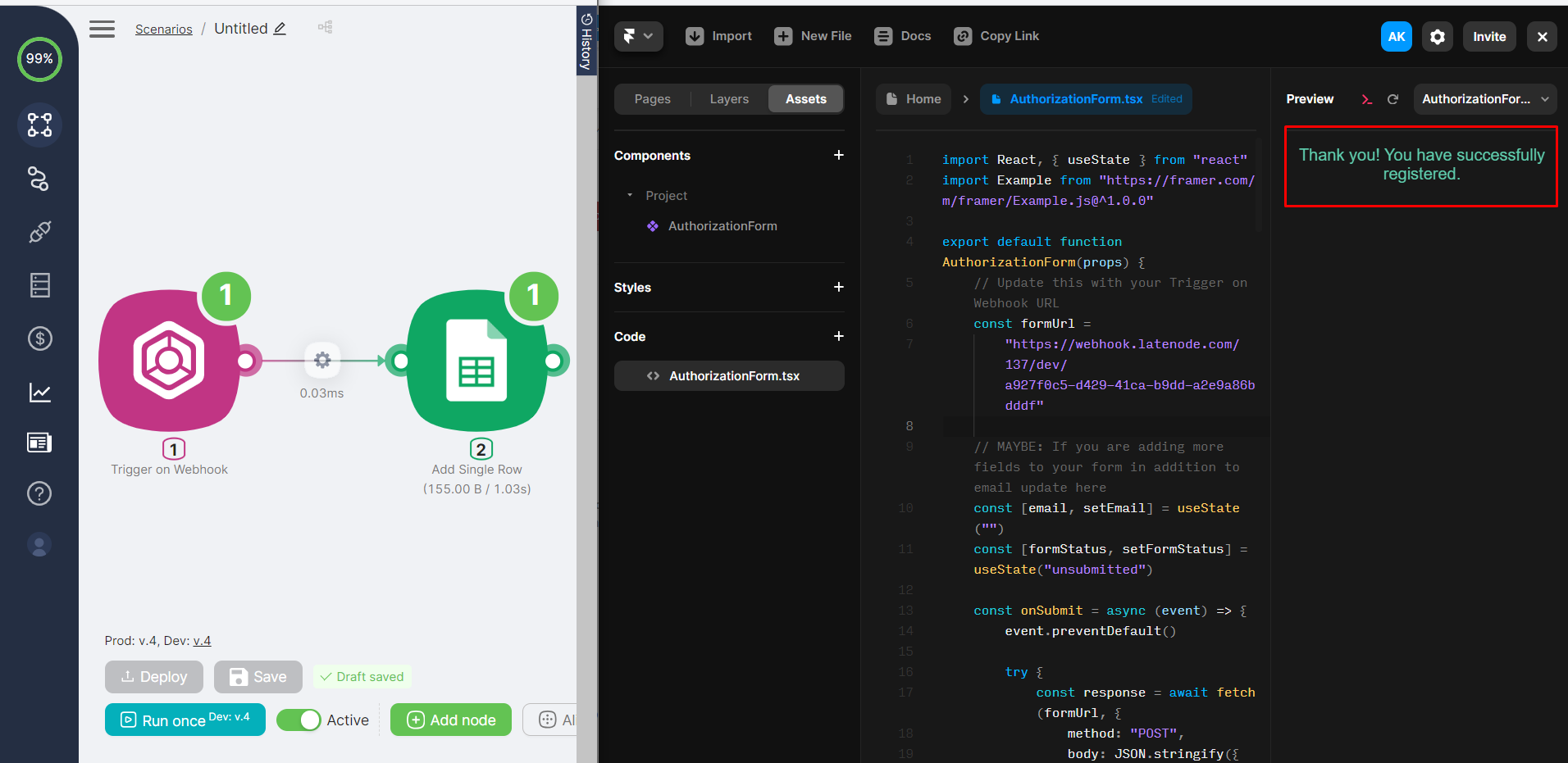
- In the scenario created on the platform, add a Trigger on Webhook node. After adding, copy the URL address. You can run the node once to view the output data.
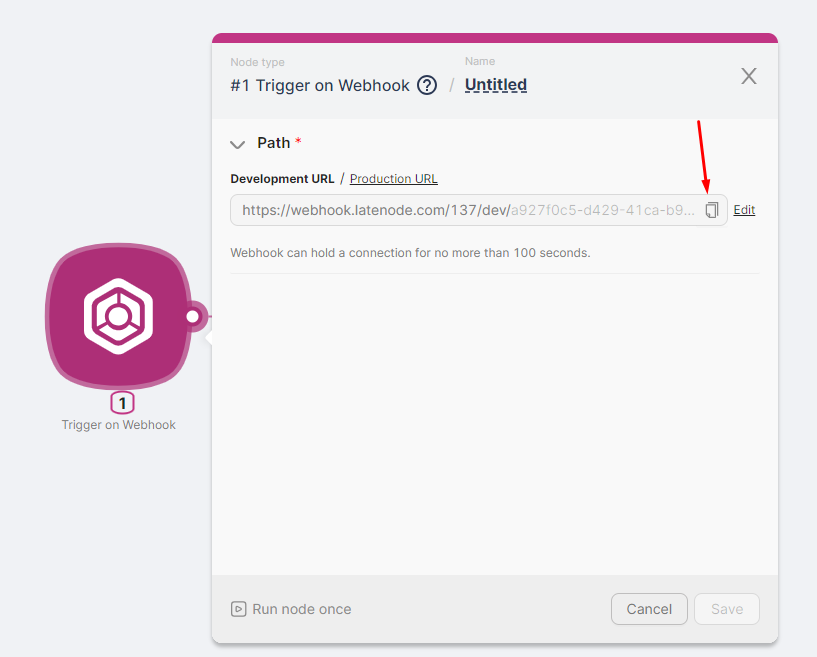
- Replace
Your_URLin the Framer form code with the URL address of the Trigger on Webhook node.
Remember, the Production-branch of the scenario is initiated by a request sent to the Production-version URL of the Trigger on Webhook node. The Development-branch of the scenario is initiated by a request sent to the Development-version URL of the Trigger on Webhook node.
- After adding the URL address, fill in the field with a test email address and click the Signup button.
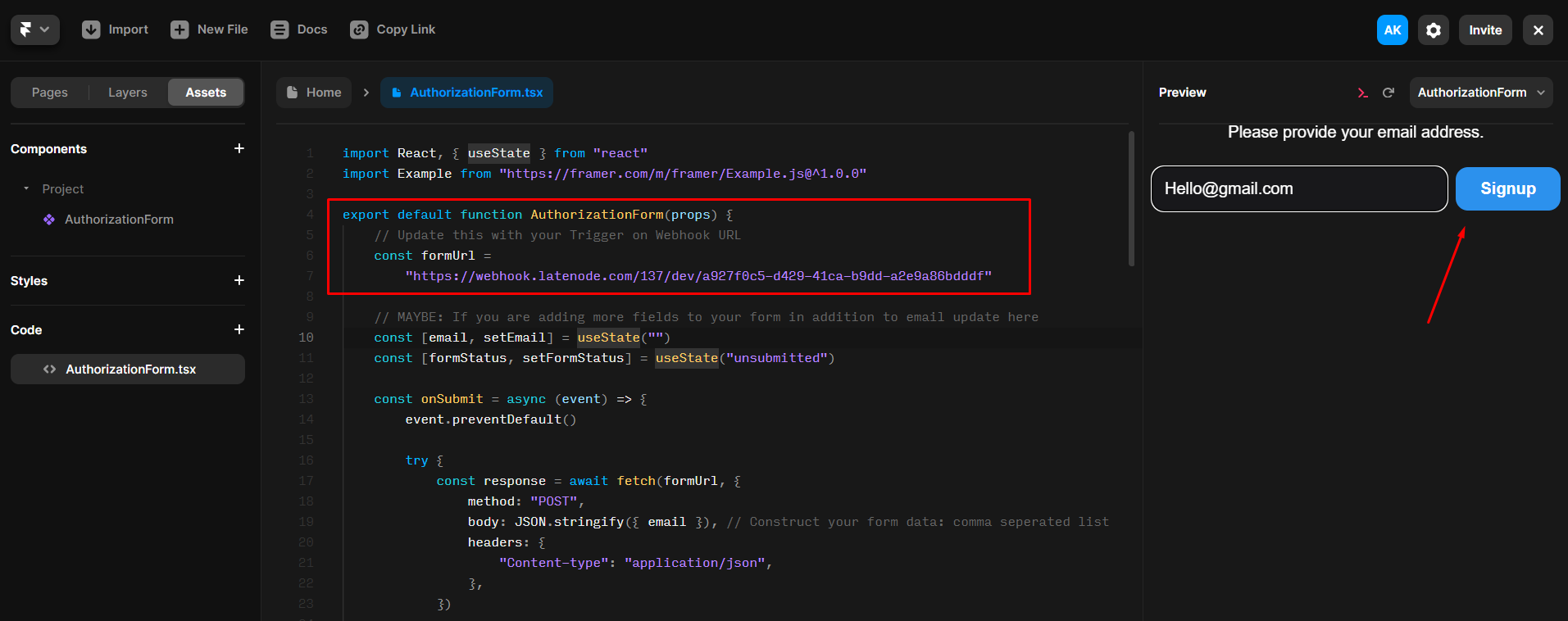
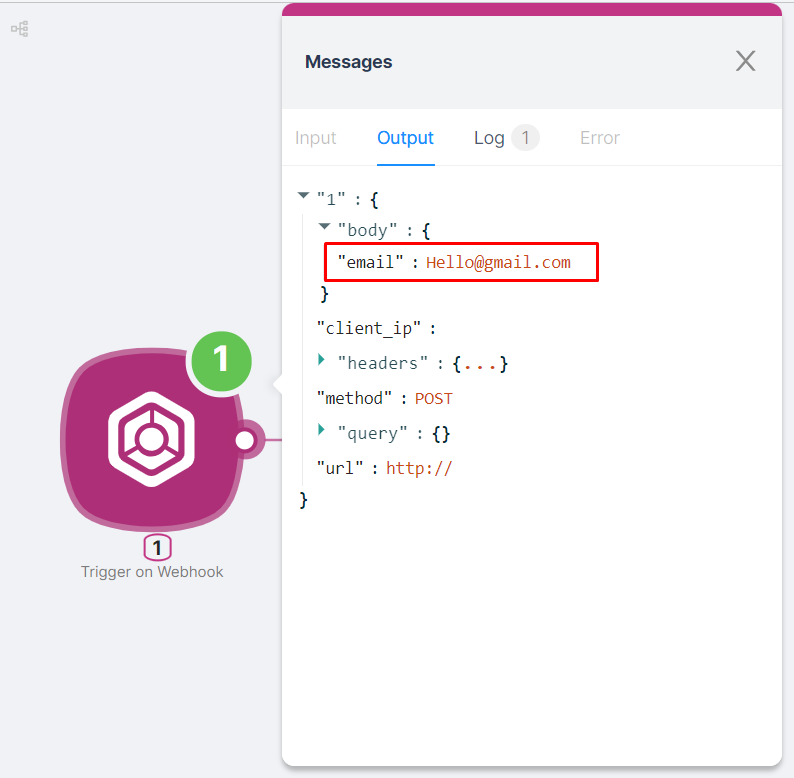
- Once you click the Signup button, the Trigger on Webhook node will execute, and the output data will include the provided email address.
- To record the received email address in a Google Sheet, add an Add Single Row node and configure it:
- Create or select an existing authorization.
- Choose the desired Google Sheet and sheet tab.
- Select the parameter from the previous node for the Values field in the auxiliary window.
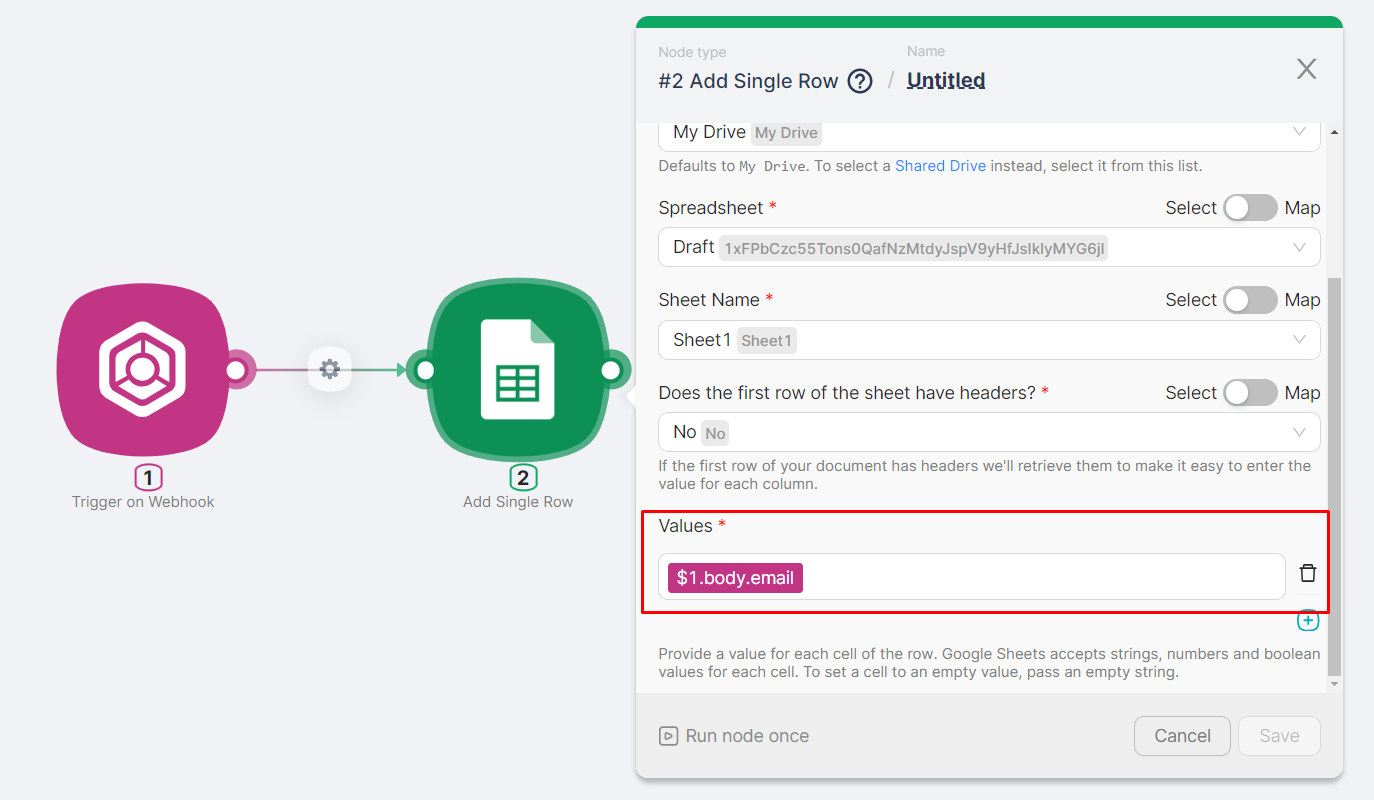
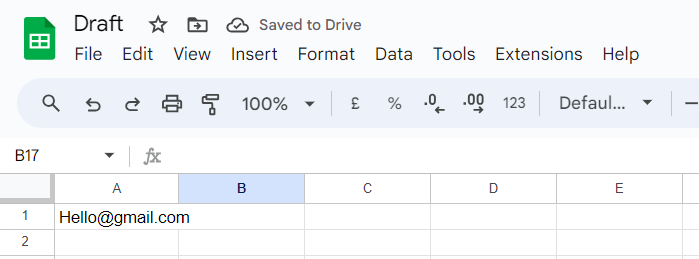
The result of the scenario execution is that the email address entered in the Framer form is recorded in a cell of the Google Sheet.
Flutterflow
Enhancing Flutterflow projects with automation.
Front
Managing incident response automation with Front app.
Need Help? Ask the community
If something on this page is missing or unclear, post on the Latenode community forum. Our team and other users usually reply quickly.