
MongoDB
To use nodes in the MongoDB group, you must obtain authorization credentials.
Obtaining credentials
To obtain a host, login credentials, and password, you must:
-
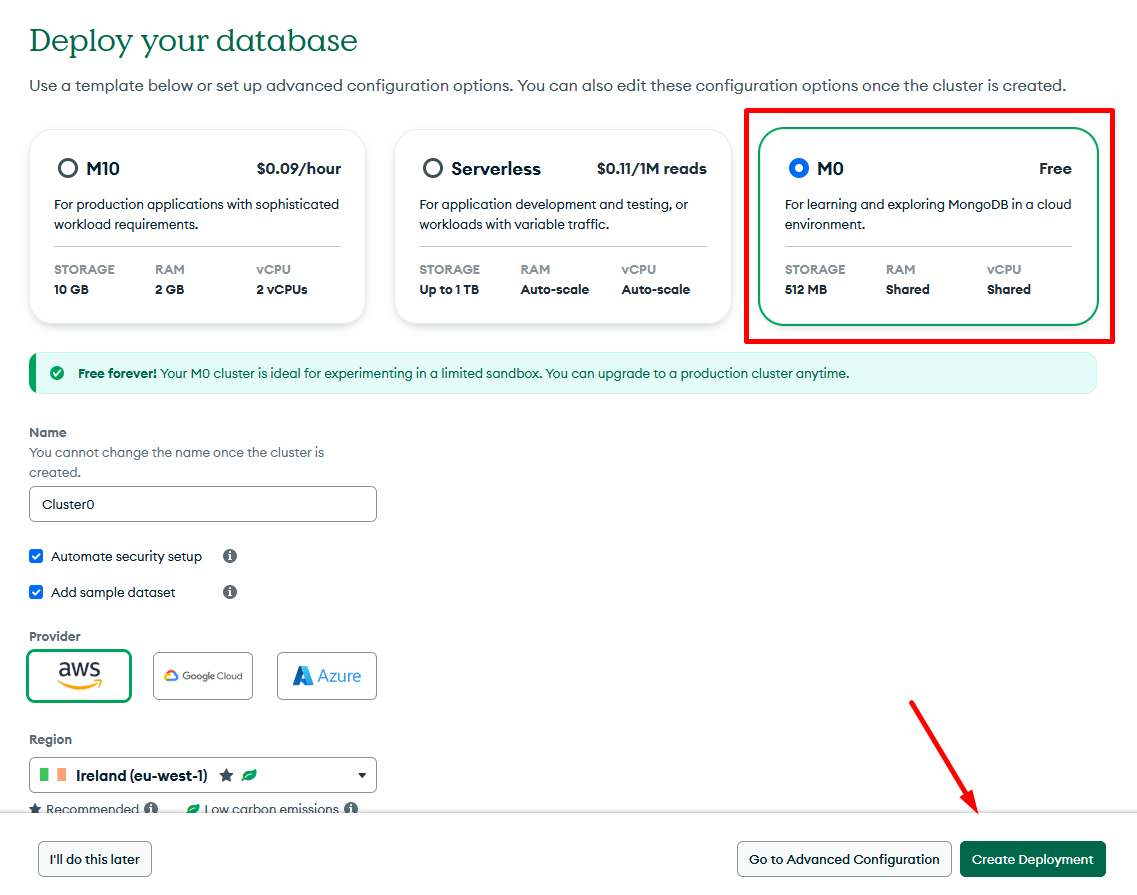
Register in the MongoDB application and start the cluster creation process. In the Deploy your database section, you can select the free plan and leave the default settings (cluster name in the Name field, etc.);
-
Click the Create Deployment button;
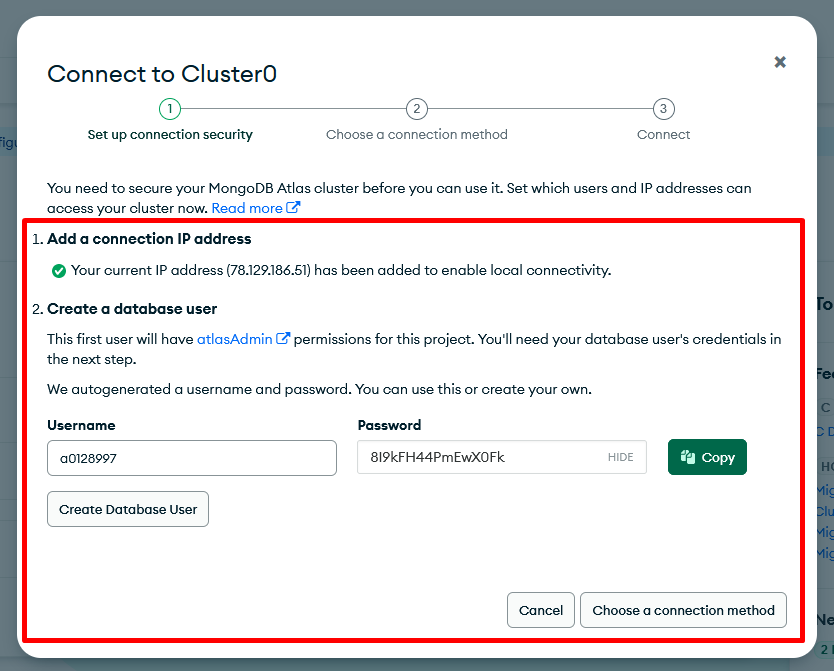
- Add a user with access to the database by defining their login (Username) and password (Password). The data can be copied;
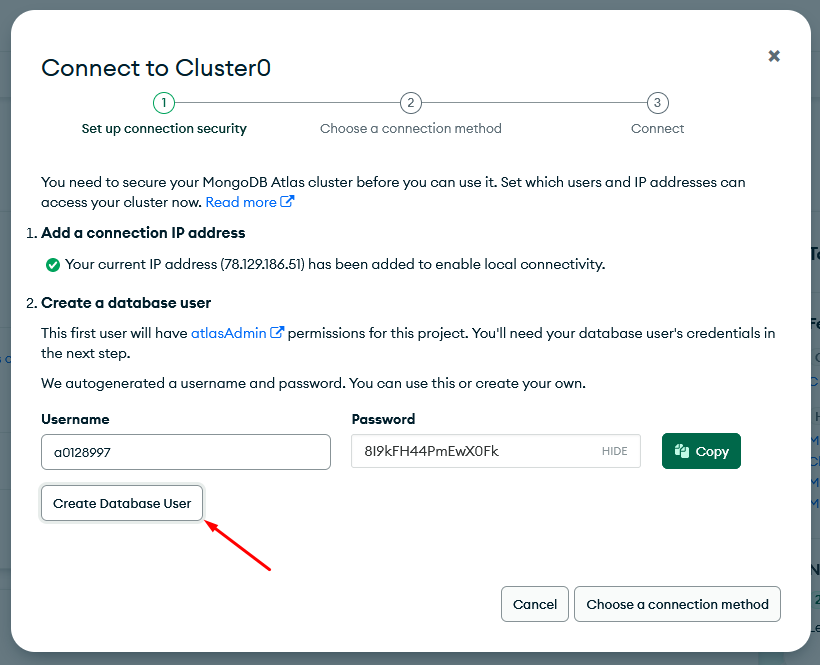
- Click the Create Database User button;
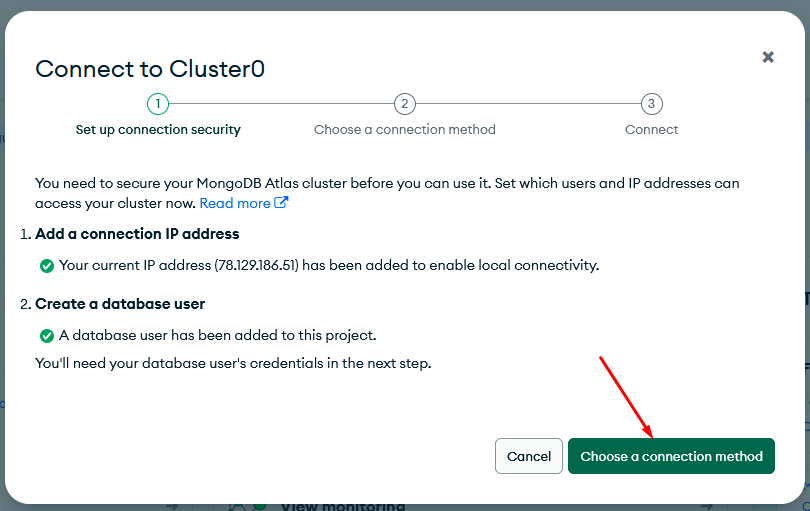
- Click the Choose a connection method button;
- Select Drivers;
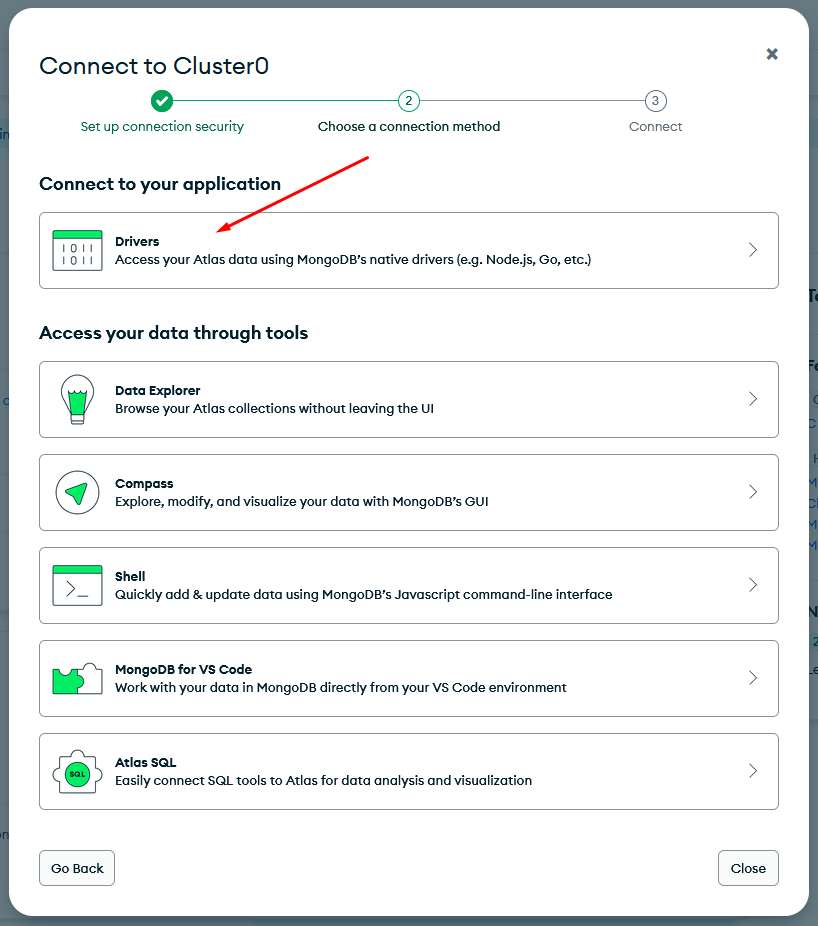
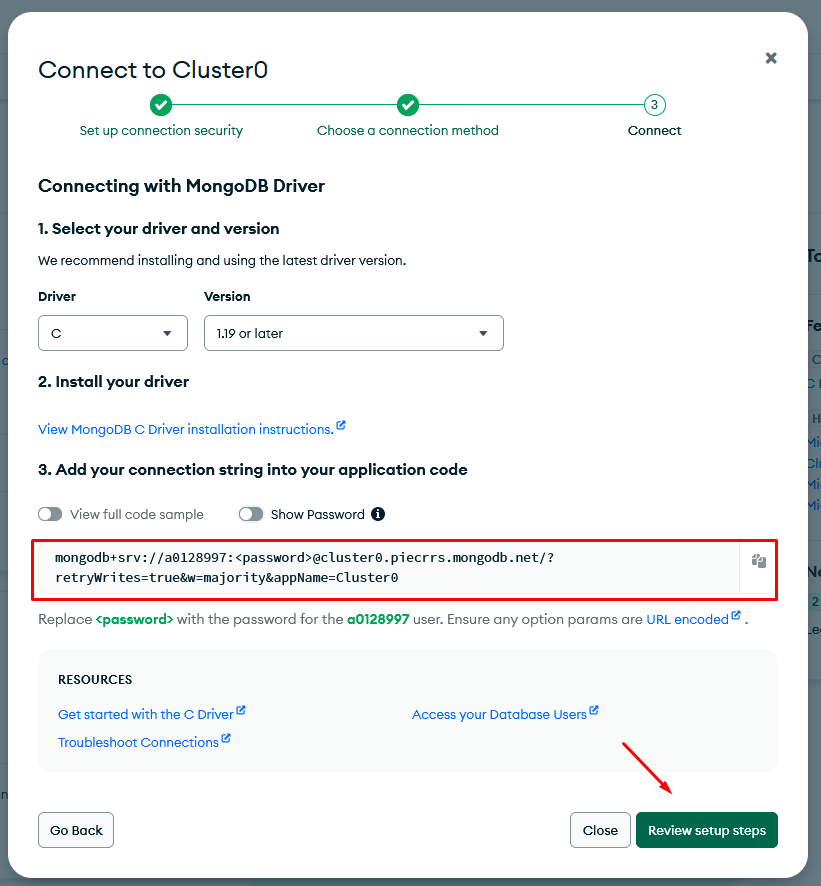
- Leave the default settings and view the string generated in step 3. Copy the part of the string after the @ and before the ? In the example:
cluster0.piecrrs.mongodb.net/. Click the Review setup steps button.
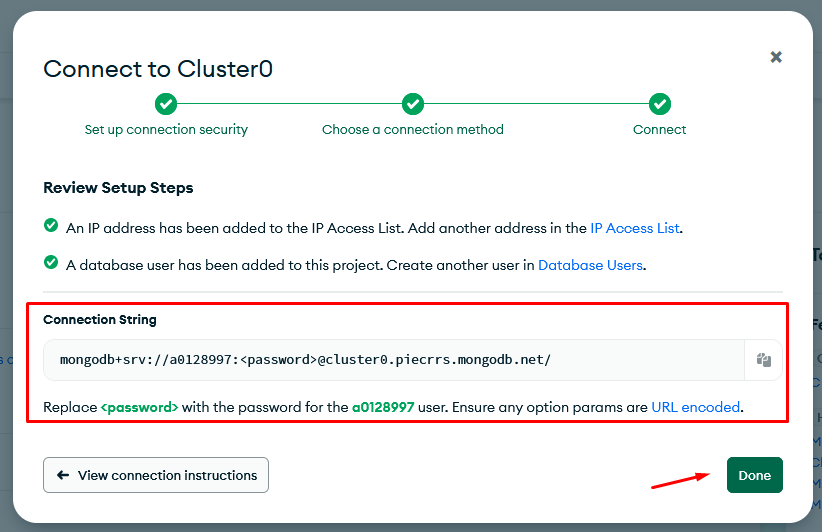
- View the string to connect in the next setup window (you can copy part of the string if not done in the previous step). Click the Done button.
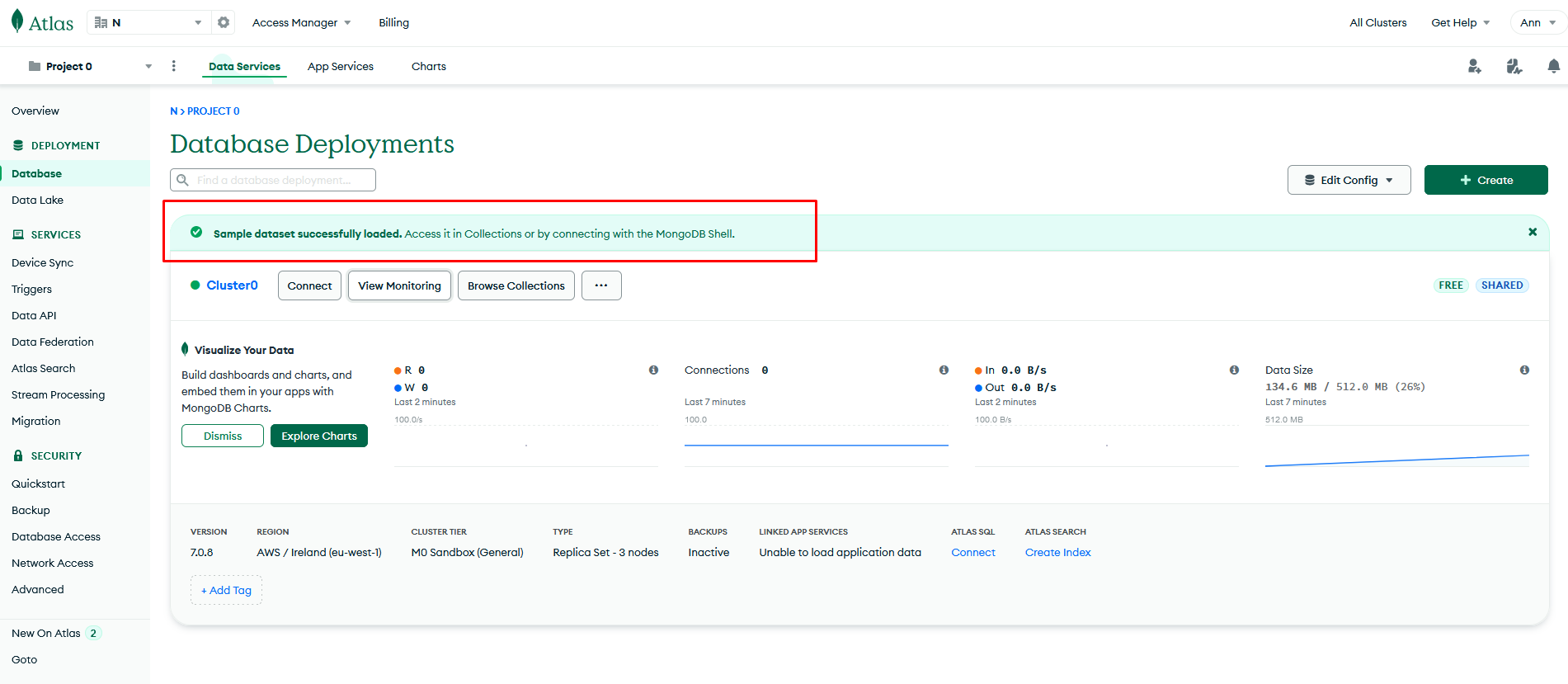
- View the created cluster on the Database tab;
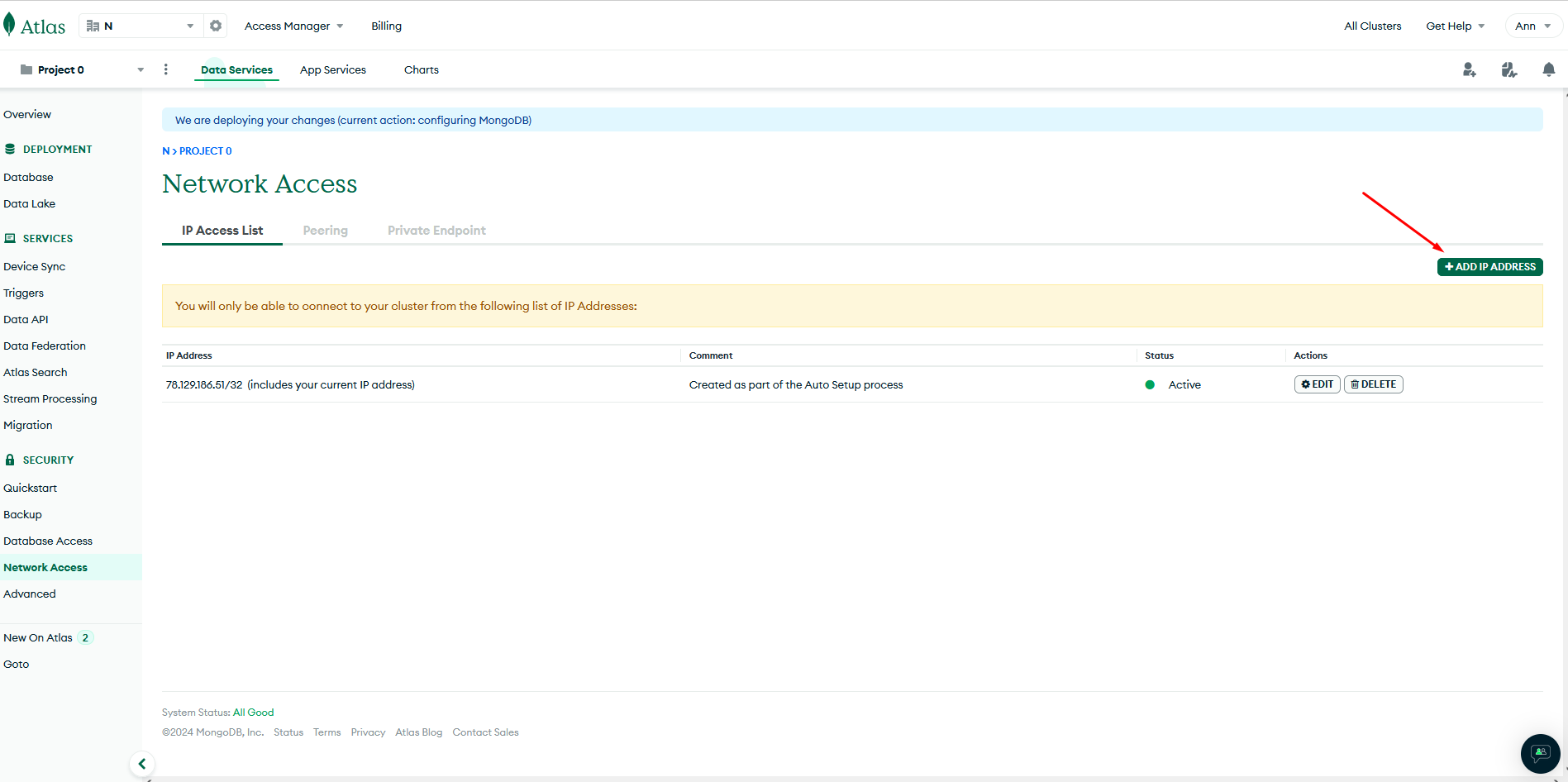
- Go to the Network Access tab and click on the Add IP Address button;
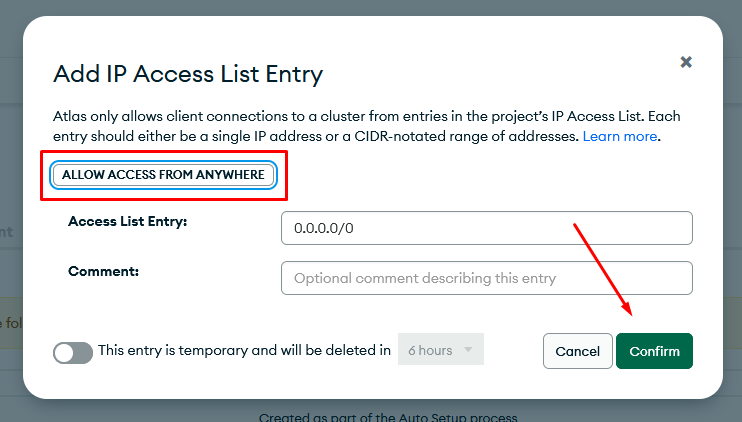
- Click the Allow access from anywhere button (no special access settings are needed to test authorization). Click the Confirm button.
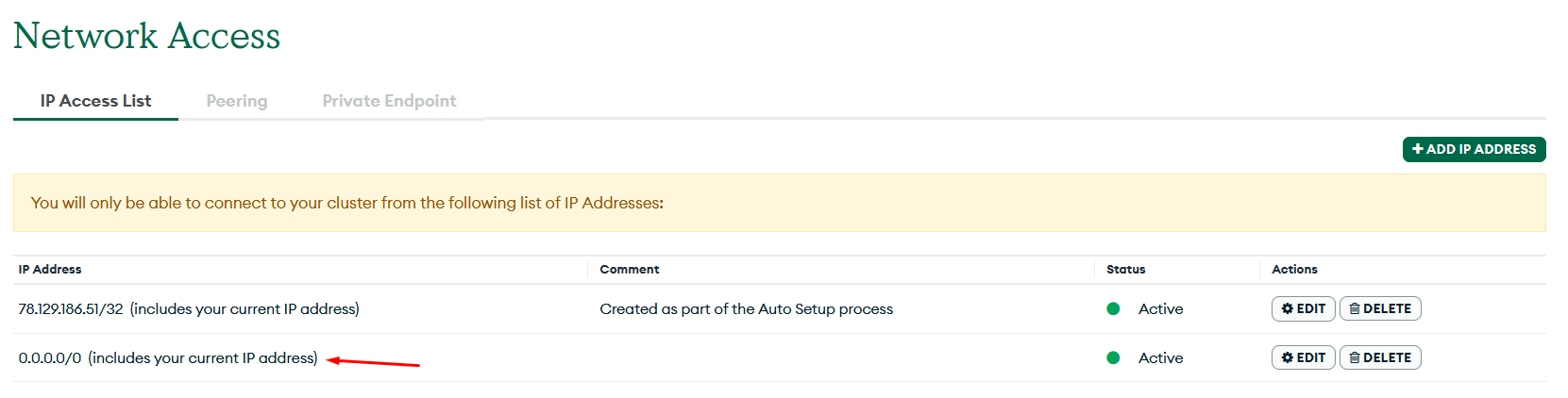
- View access availability on the Network Access tab.
For authorization you will need: login and password from step 3 and a part of the string from step 7.
Configuring authorization in nodes
When configuring a node in the MongoDB group, authorization is required. To do this, you need to:
- Select the required node from the MongoDB group;
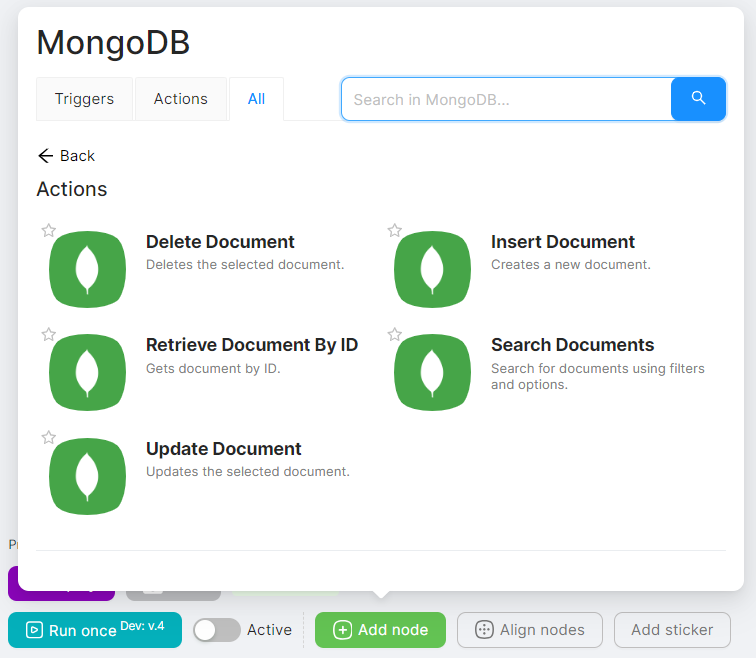
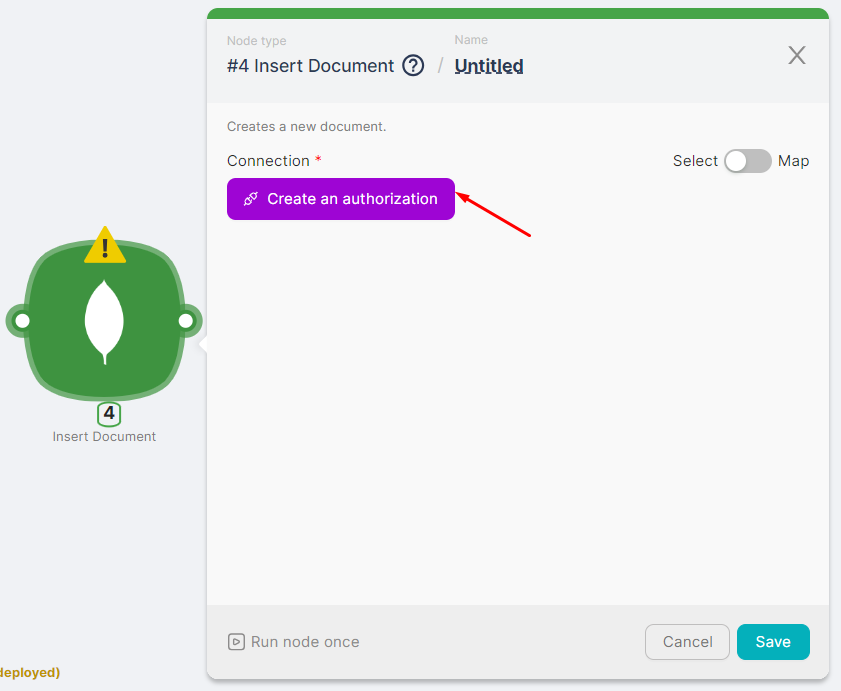
- Click the Create an authorization button;
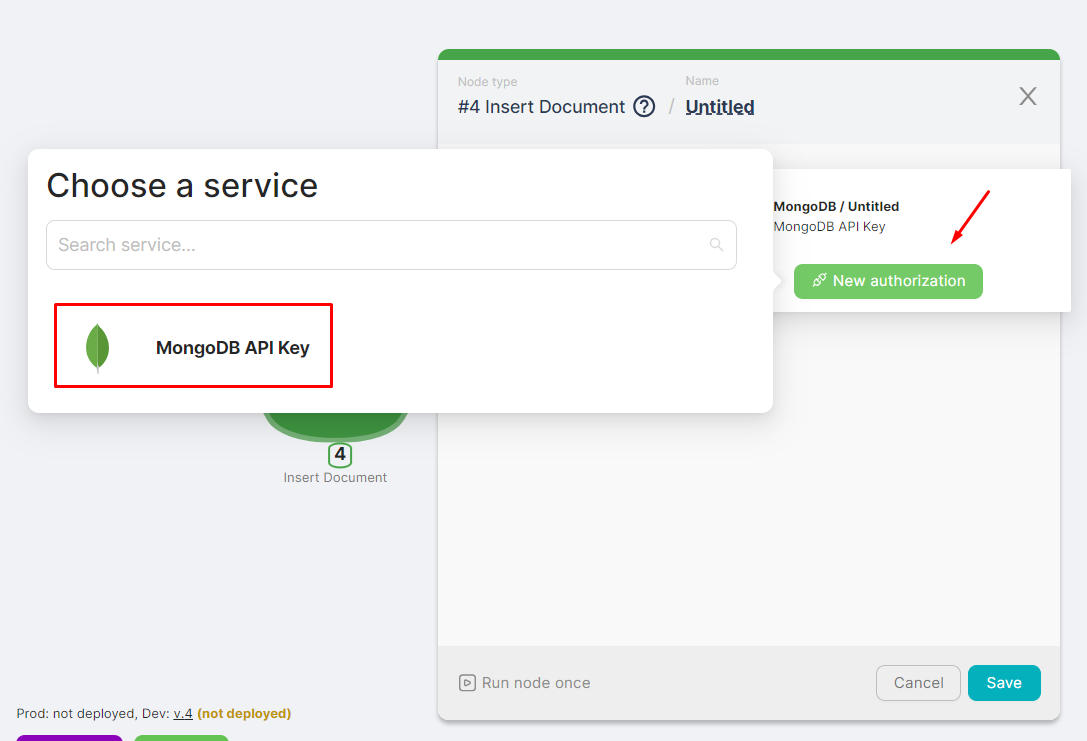
- Click on New Authorization and select MongoDB API Key;
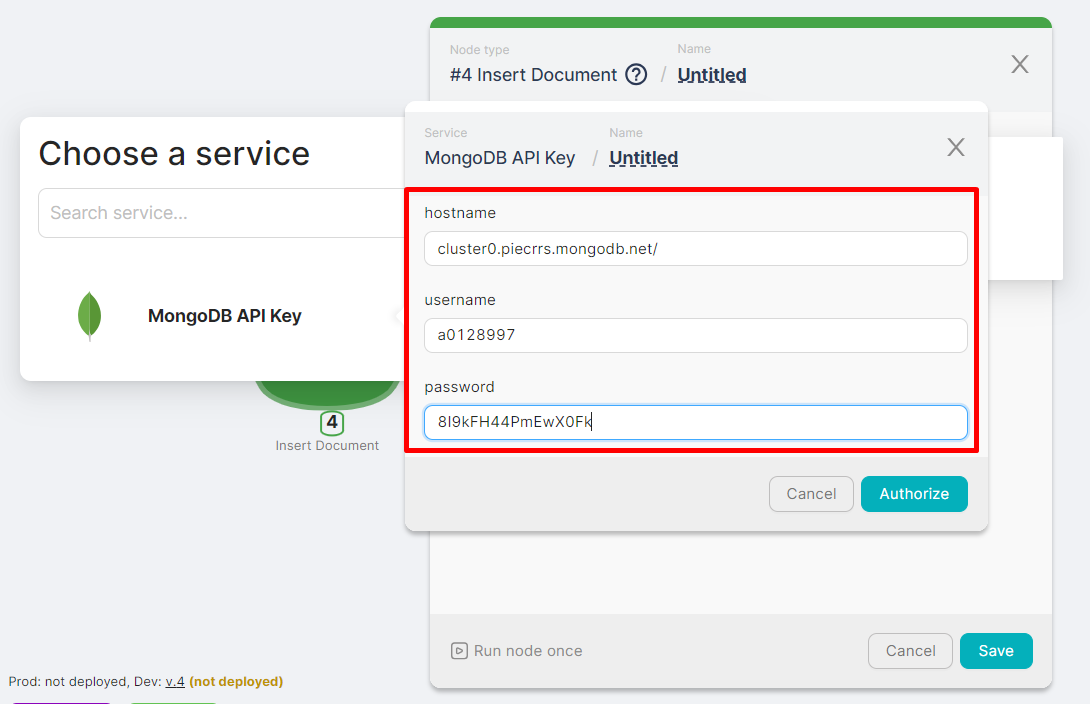
- In the fields for credentials enter the host (part of the string from step 7 of the instructions above), login and password (from step 3 of the instructions above). Click the Authorize button;
- View whether the node is authorized and fill in the remaining node configuration fields.
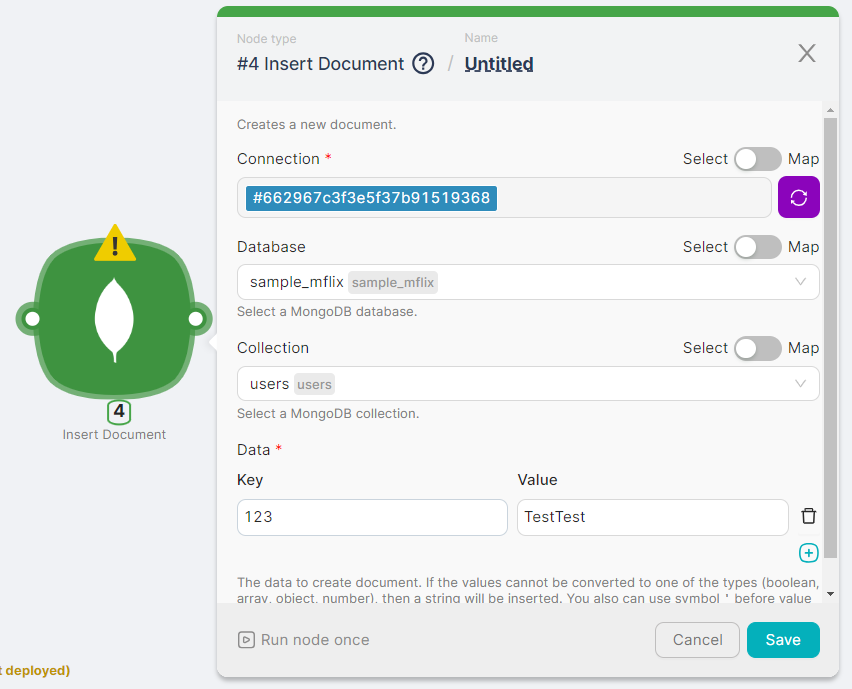
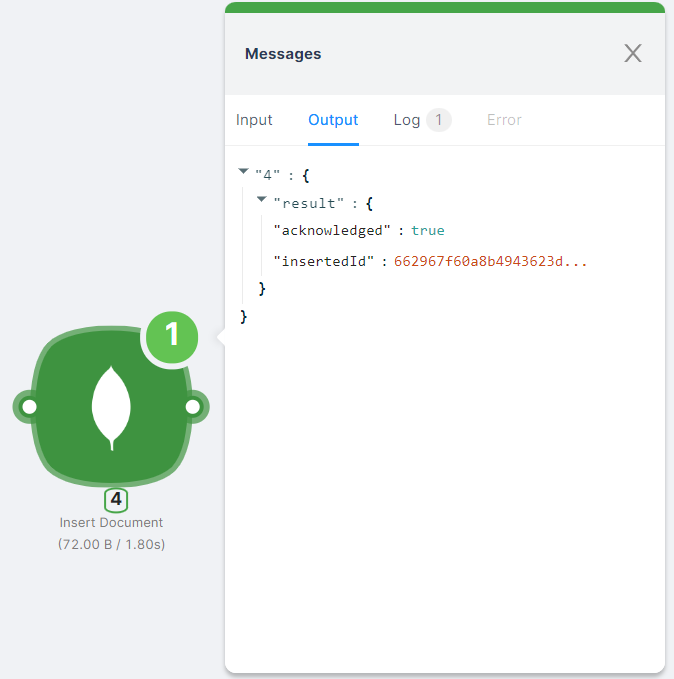
You can view the result of the node execution when you run the scenario or by clicking on the node's Run Once button.
Intercom
Automating customer interactions using Intercom.
Notion
Automating tasks with Notion integration.
Need Help? Ask the community
If something on this page is missing or unclear, post on the Latenode community forum. Our team and other users usually reply quickly.