
App Authorization Instructions
Slack Bot
Receiving a token
Before following the instructions, you need to sign up for Slack and create a workspace.
For nodes of the Slack bot group to work, it is necessary to get a token and perform authorization.
To obtain a token you need to:
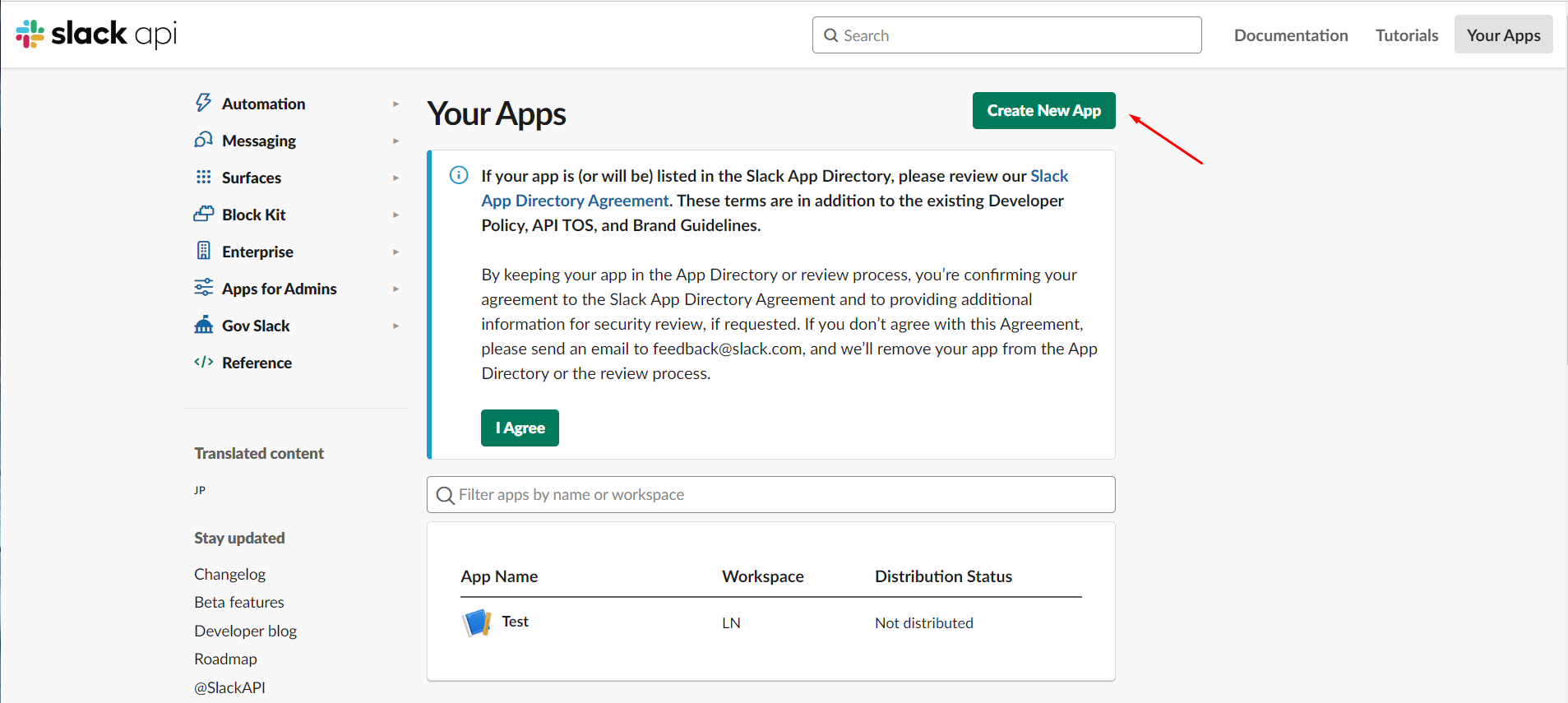
- Go to Slack API and create an app by clicking on Create New App;
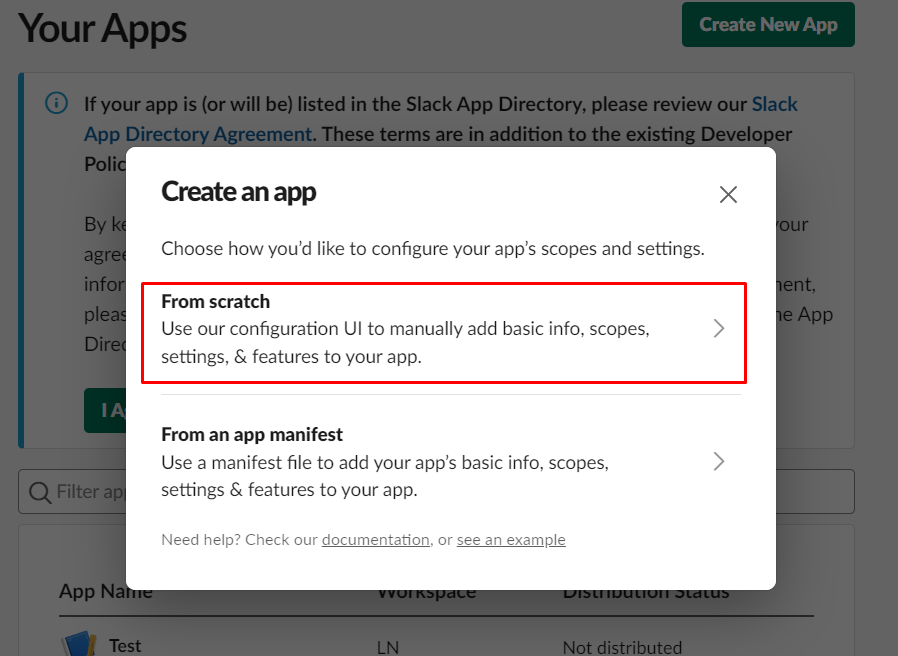
- In the Create an app window, select the From scratch option;
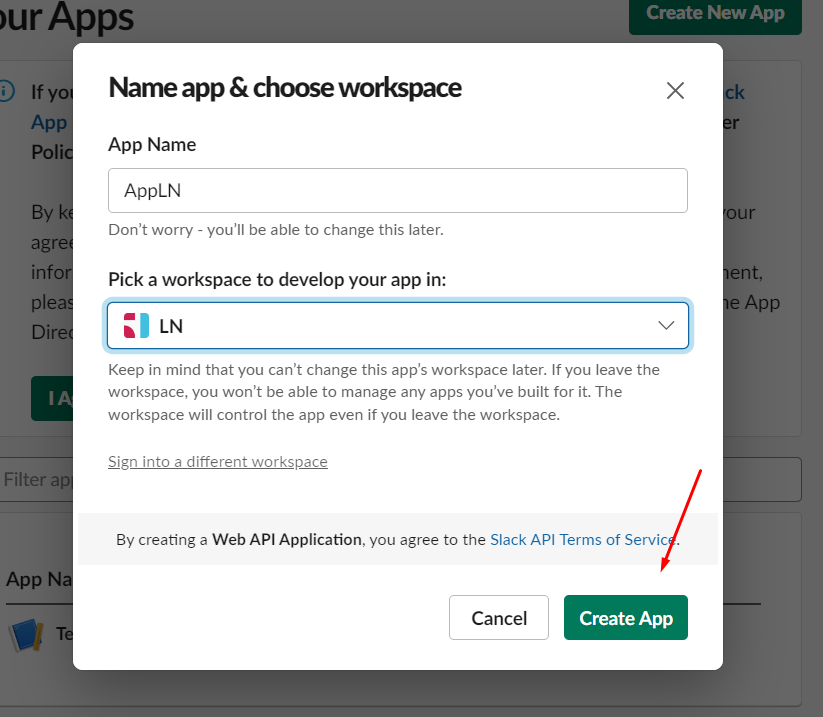
- Customize the app - fill in the name and select the desired Slack space. Click the Create App button;
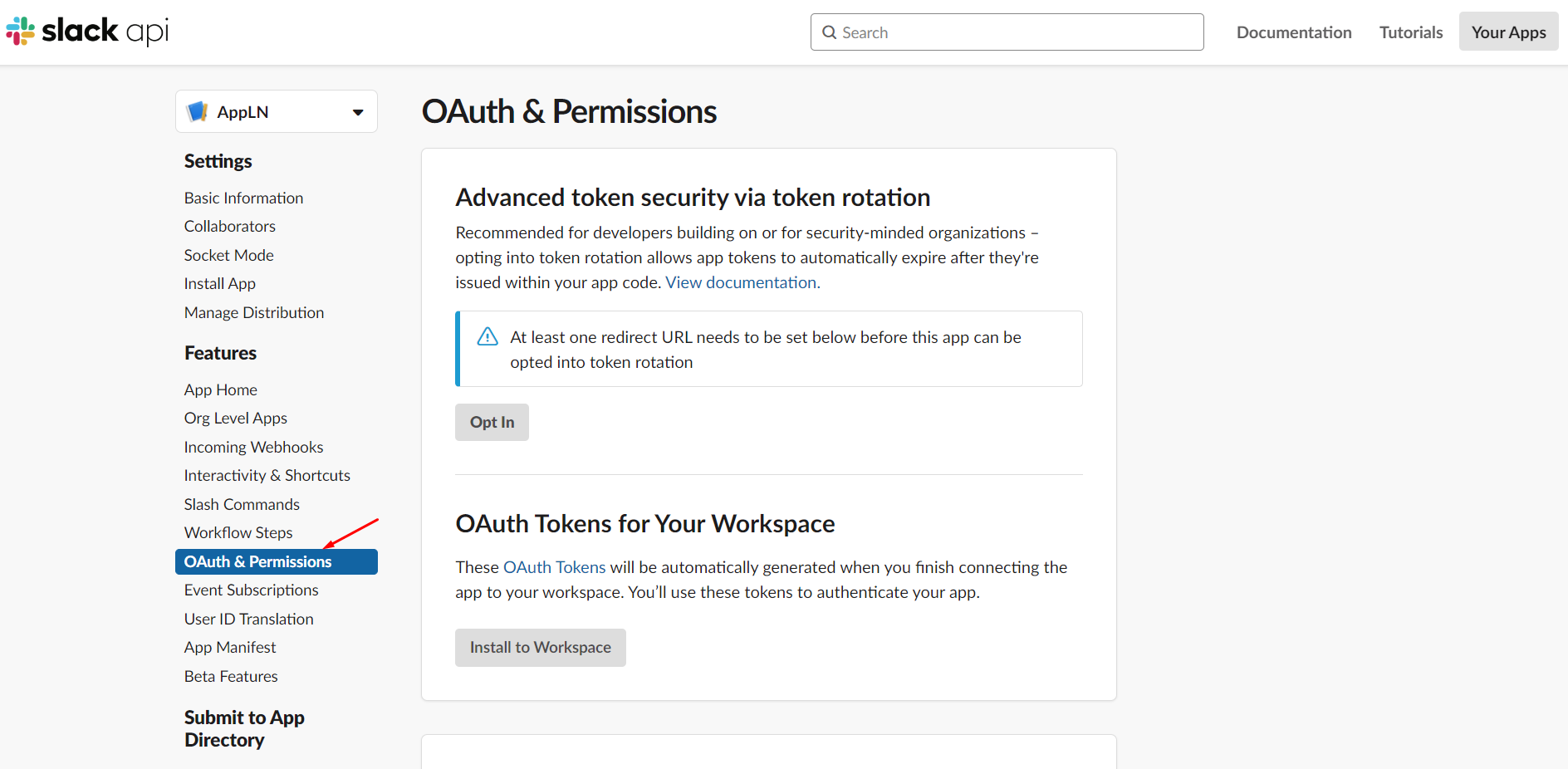
- On the application settings page, click the OAuth & Permissions tab;
- In the Scopes block, define the permissions available to the Slack bot;
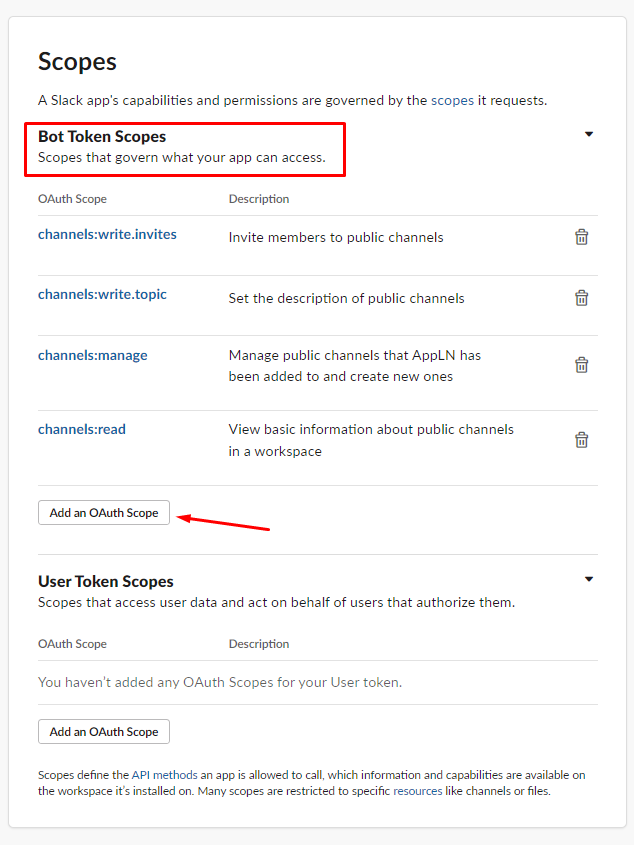
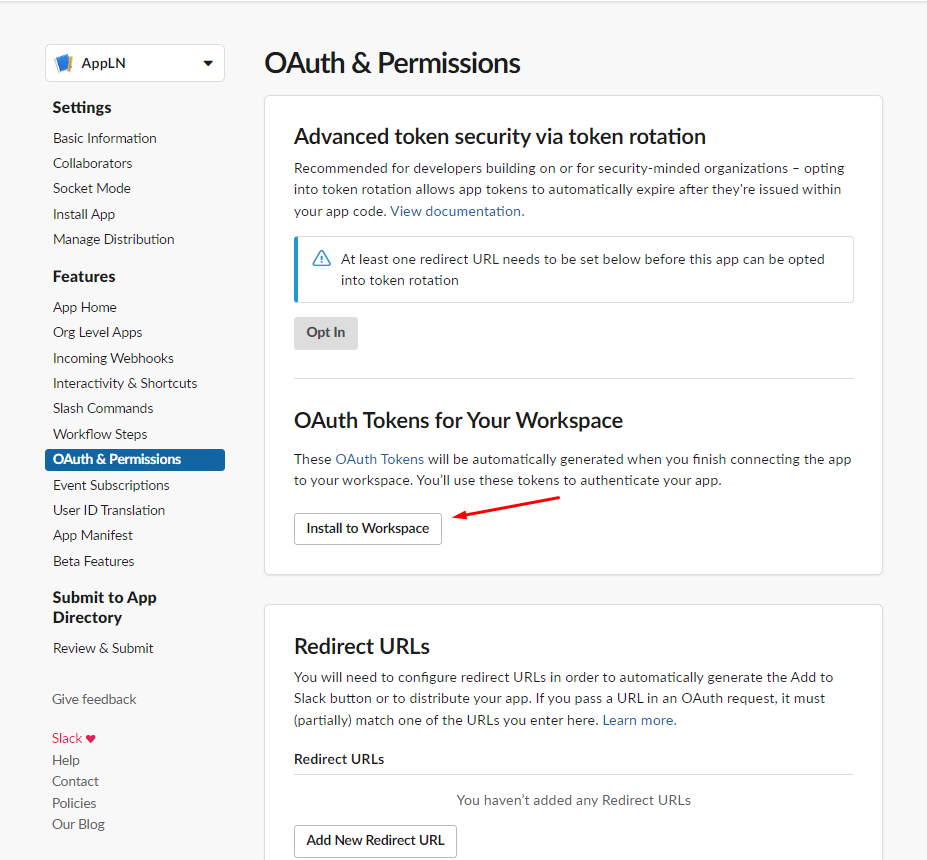
- In the OAuth Tokens for Your Workspace block, click the Install to Workspace button.
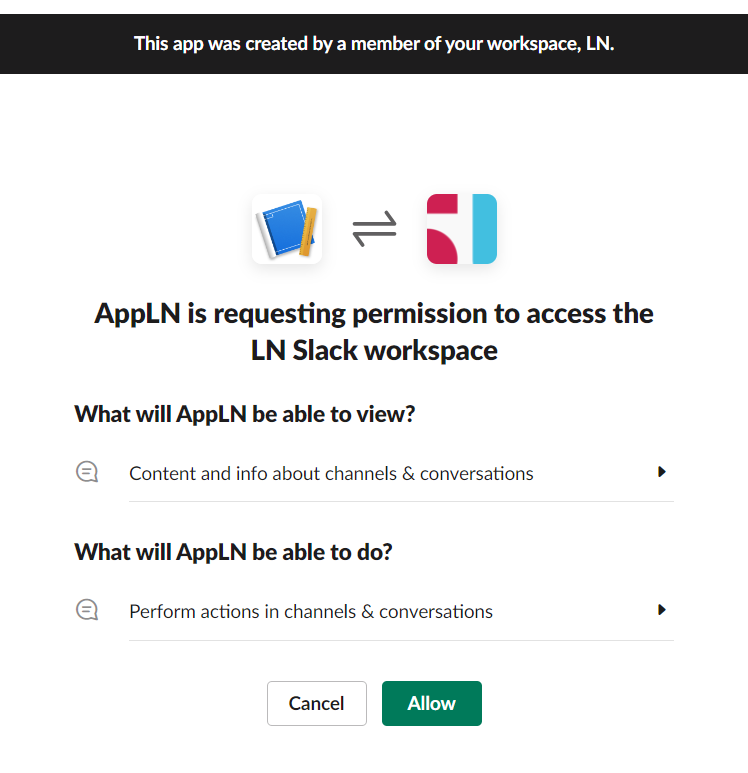
- Confirm accesses by pressing the Allow button;
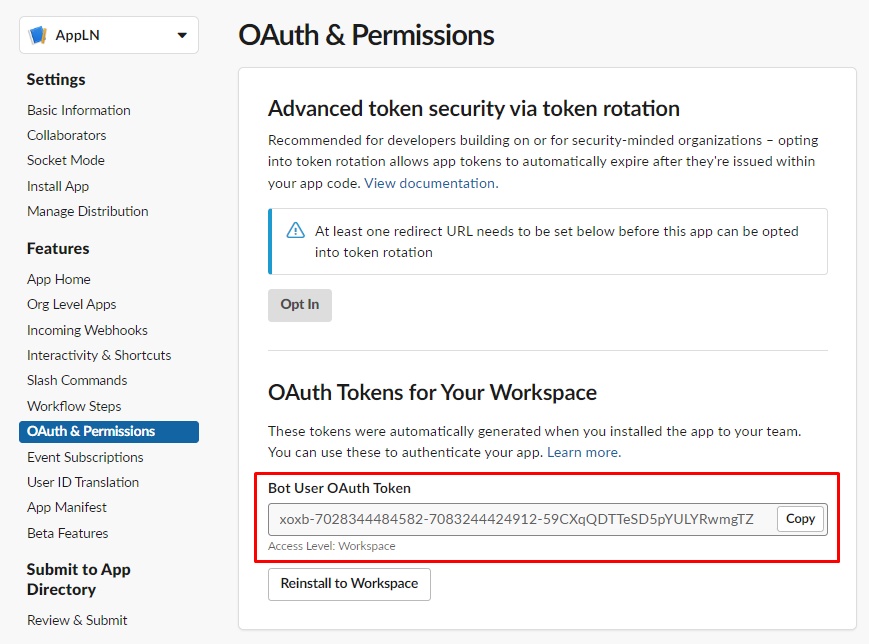
- In the OAuth Tokens for Your Workspace block, view and copy the Bot User OAuth Token;
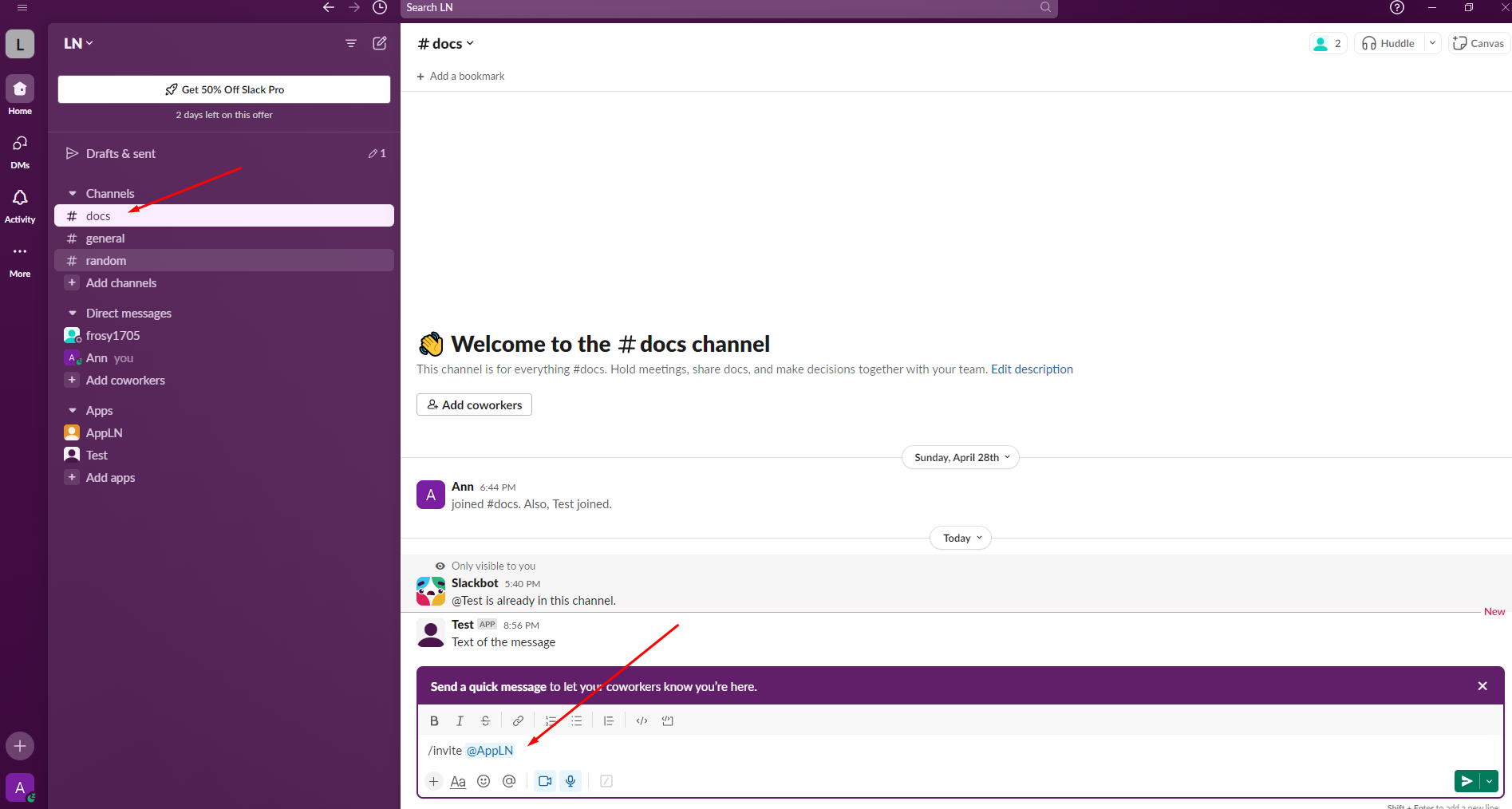
- Add a bot to the required channel by sending the message
/invite @<botname>to this channel, where<botname>is the name of the bot (corresponds to the name of the application that was created in the above step);
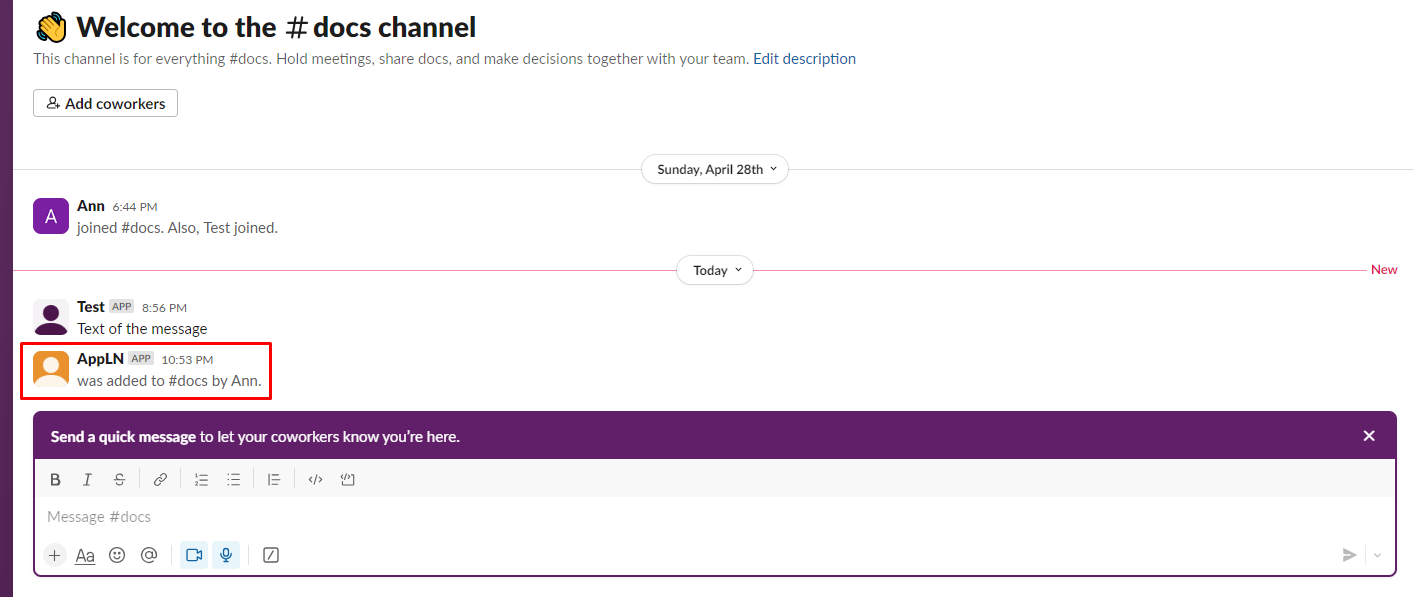
- View the availability of a bot added to the channel;
Configuring authorization in nodes
When configuring a node in the Slack bot group, authorization is required. To do this, you need to:
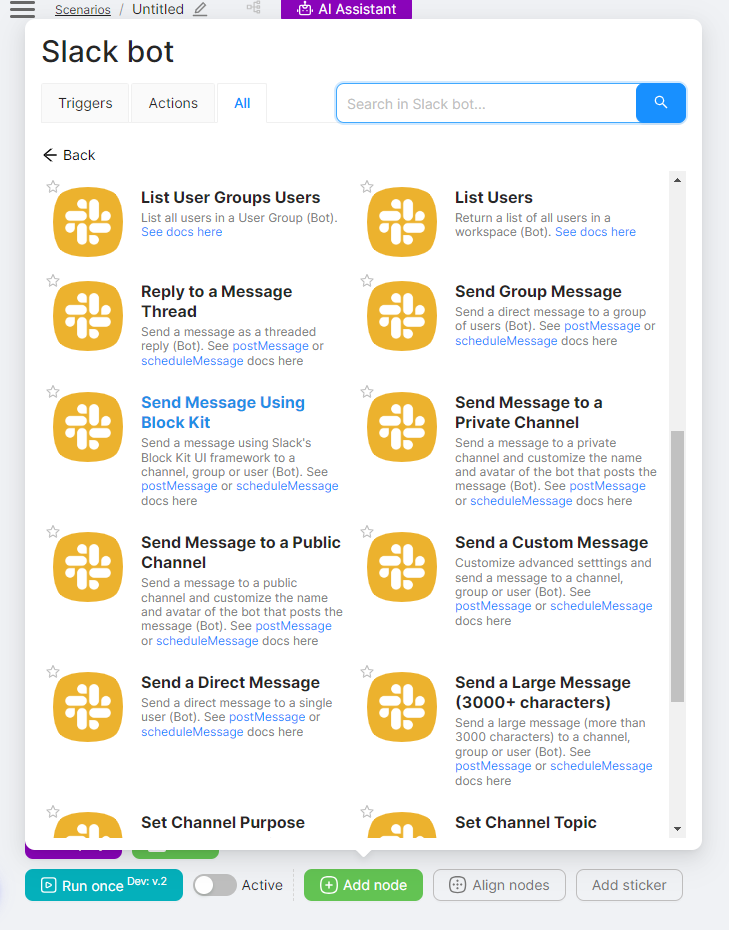
- Select the required node from the Slack bot group;
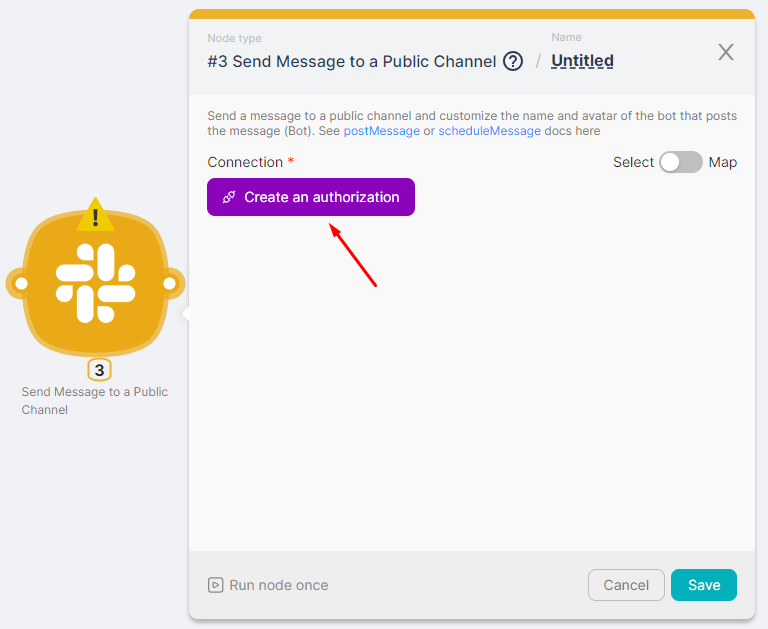
- Click the Create an authorization button;
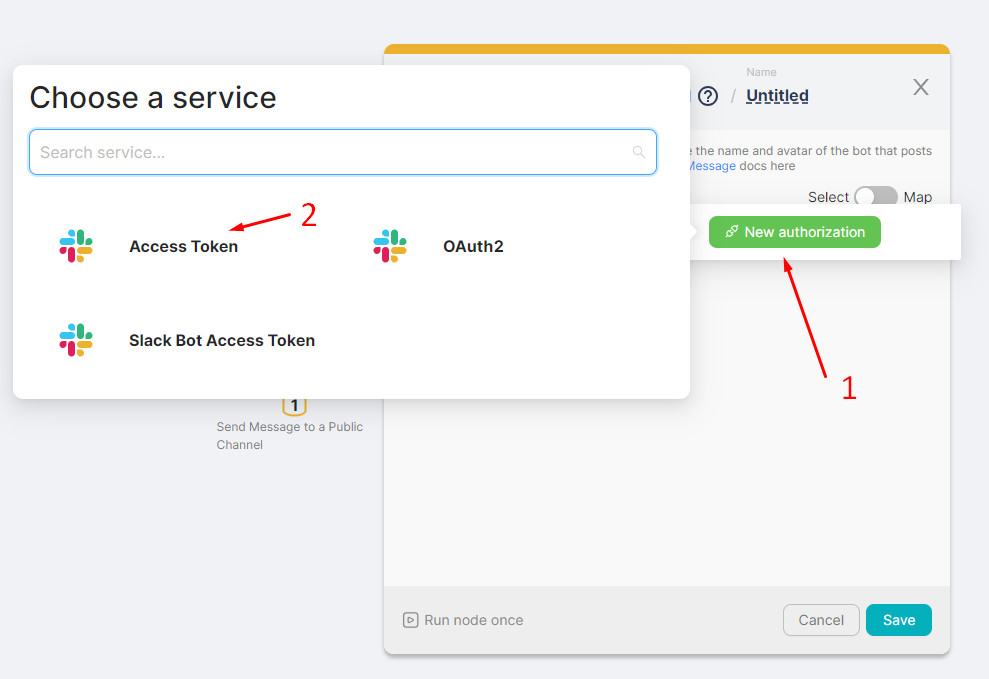
- Click on New authorization (1) and select Access Token (2);
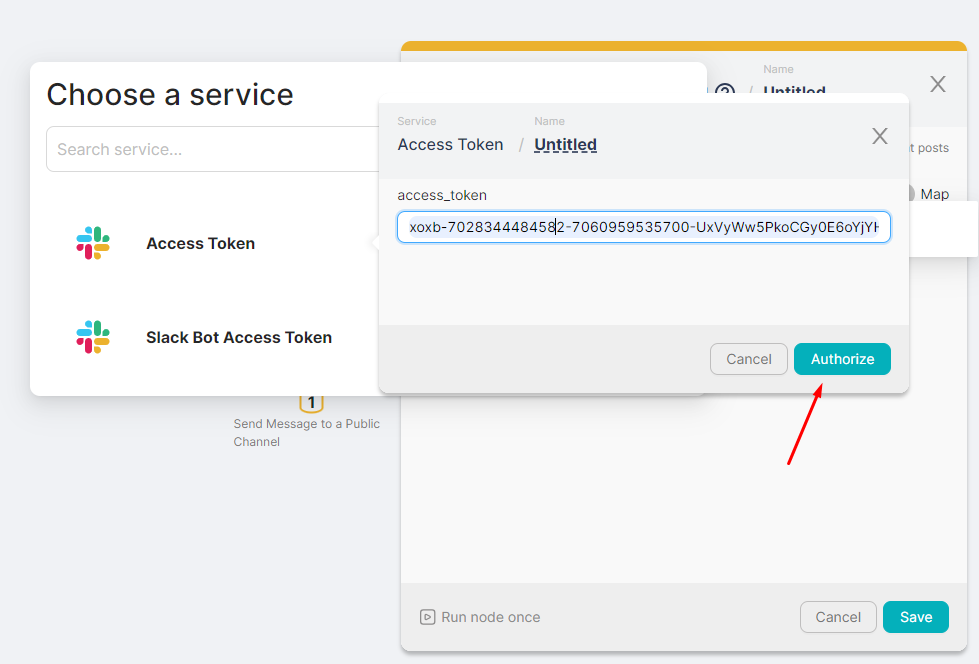
- In the access_token field enter the token received in item 8 of the instructions above. Press the Authorize button;
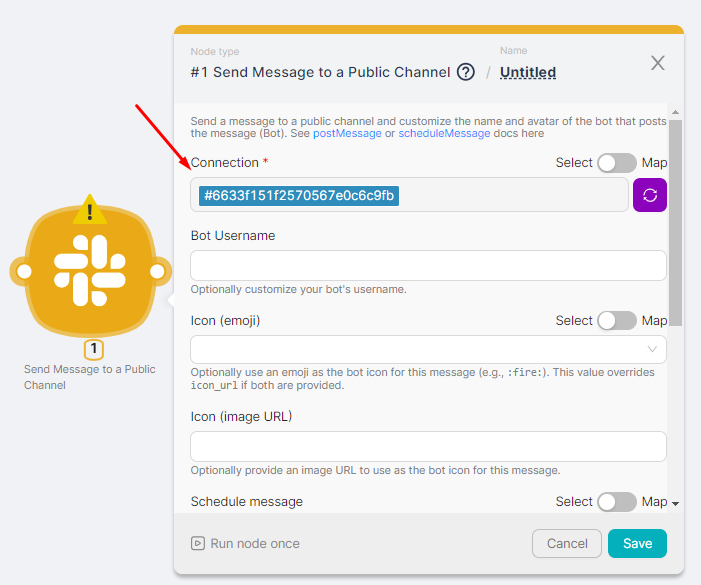
- View the presence of authorization in the node;
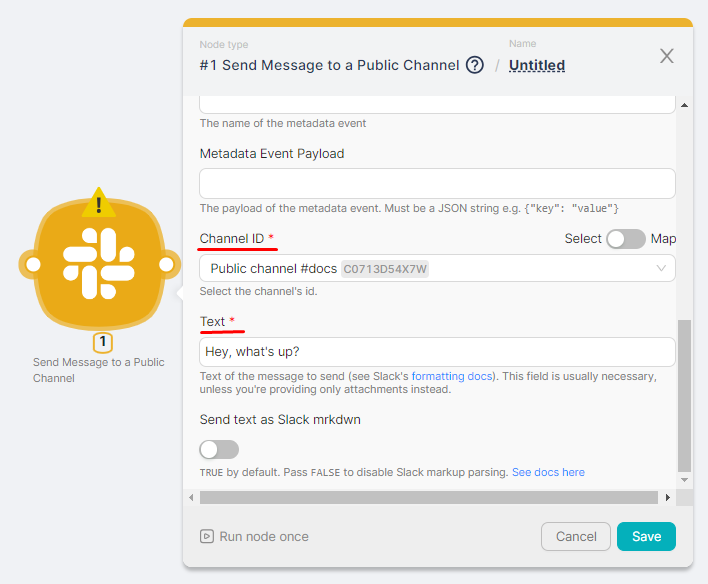
- Fill in the required fields of the node settings.
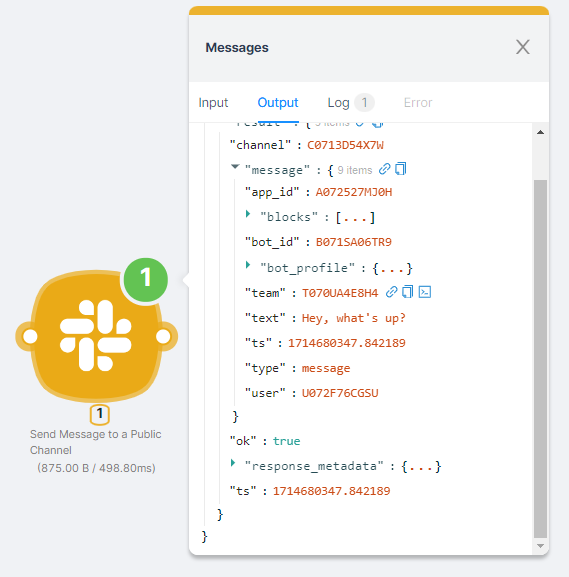
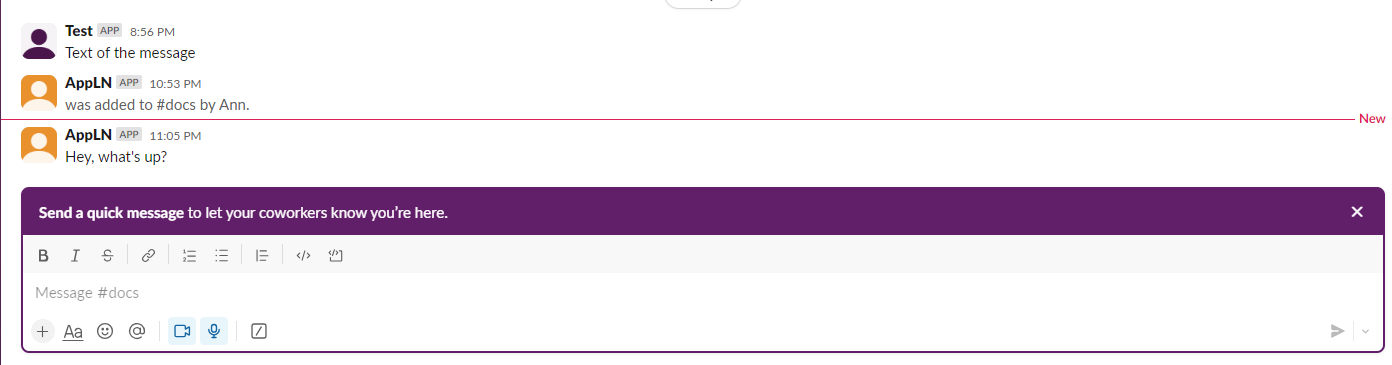
You can view the result of the node execution when you run the scenario or by clicking on the node's Run Once button. You can also see the message sent to the specified Slack channel.
Shopify
Managing incident response automation with Shopify.
Supabase
Using Supabase for real-time database automation.
Need Help? Ask the community
If something on this page is missing or unclear, post on the Latenode community forum. Our team and other users usually reply quickly.
0/100
0/2000