
Google Search Console MCP server
The Google Search Console MCP server is a ready-made scenario. It sits between your Search Console account and an MCP client, so you can ask questions like "what dropped last month?" and get live data back.
You import the template, connect Google, copy the server URL into Claude, Cursor, or another client, and turn the scenario on. The server is read-only: it cannot change, add, or delete anything in Search Console.
Copy the template
Copy this scenario into your workspace from the GSC MCP Server for SEOs template. Open the link and click Use template.
What you get
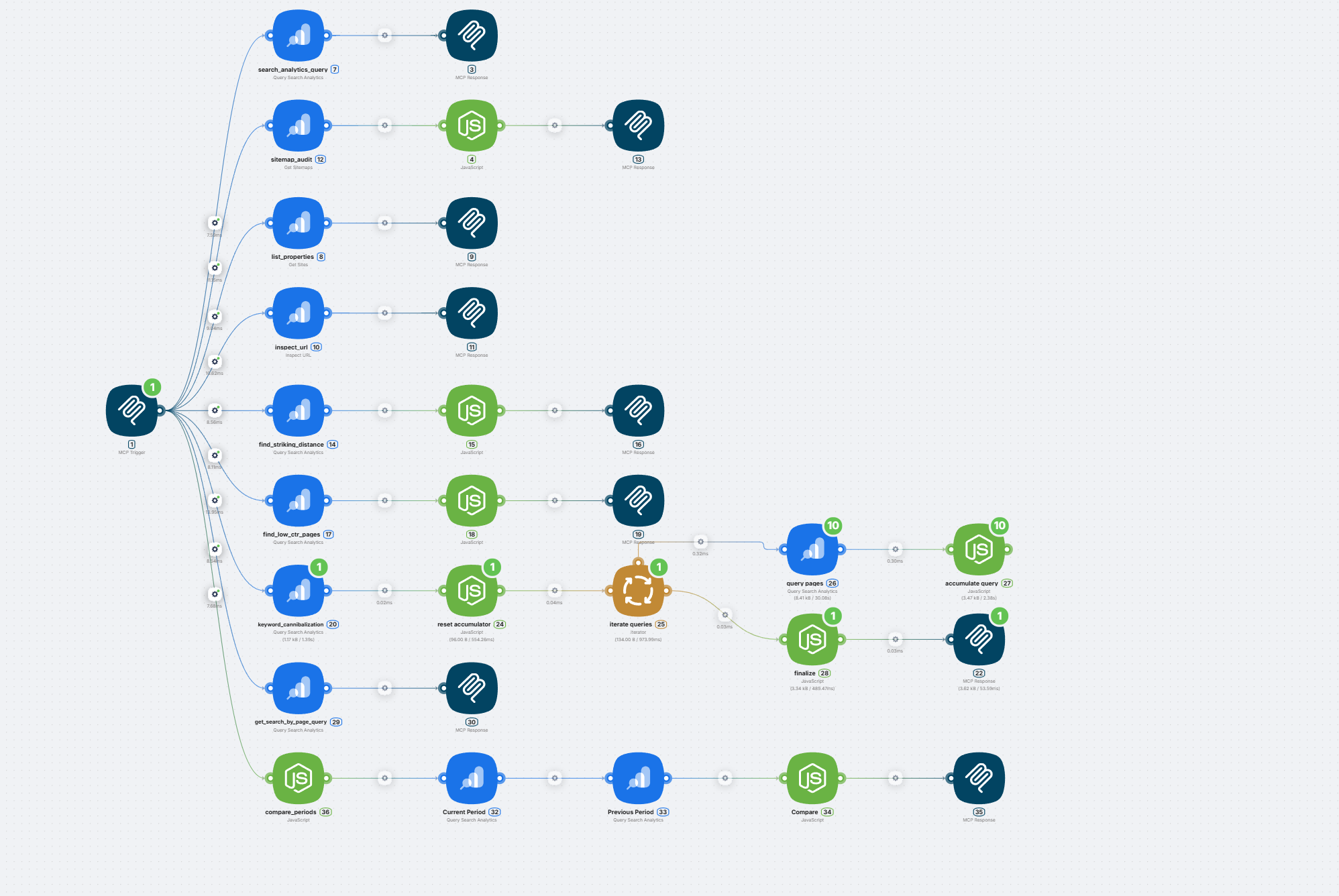
Nine tools. You do not call them by name: the assistant picks one from your question.
| Tool | What it answers |
|---|---|
list_properties | Which sites can I see? |
search_analytics_query | Clicks, impressions, CTR, positions |
compare_periods | What changed? |
get_search_by_page_query | What does this page rank for? |
find_striking_distance | What should I optimise first? |
find_low_ctr_pages | Why do these pages get impressions but no clicks? |
keyword_cannibalization | Are my pages competing with each other? |
inspect_url | Is this page indexed? |
sitemap_audit | Is anything broken in my sitemaps? |
Four of these go beyond the Search Console UI: period comparison by query, striking-distance keywords, low-CTR pages, and cannibalization.
Set up the server
Import the template
Open the GSC MCP Server for SEOs template and click Use template. The scenario lands in your workspace with all nine tools already built.
Turn on authentication and copy the URL
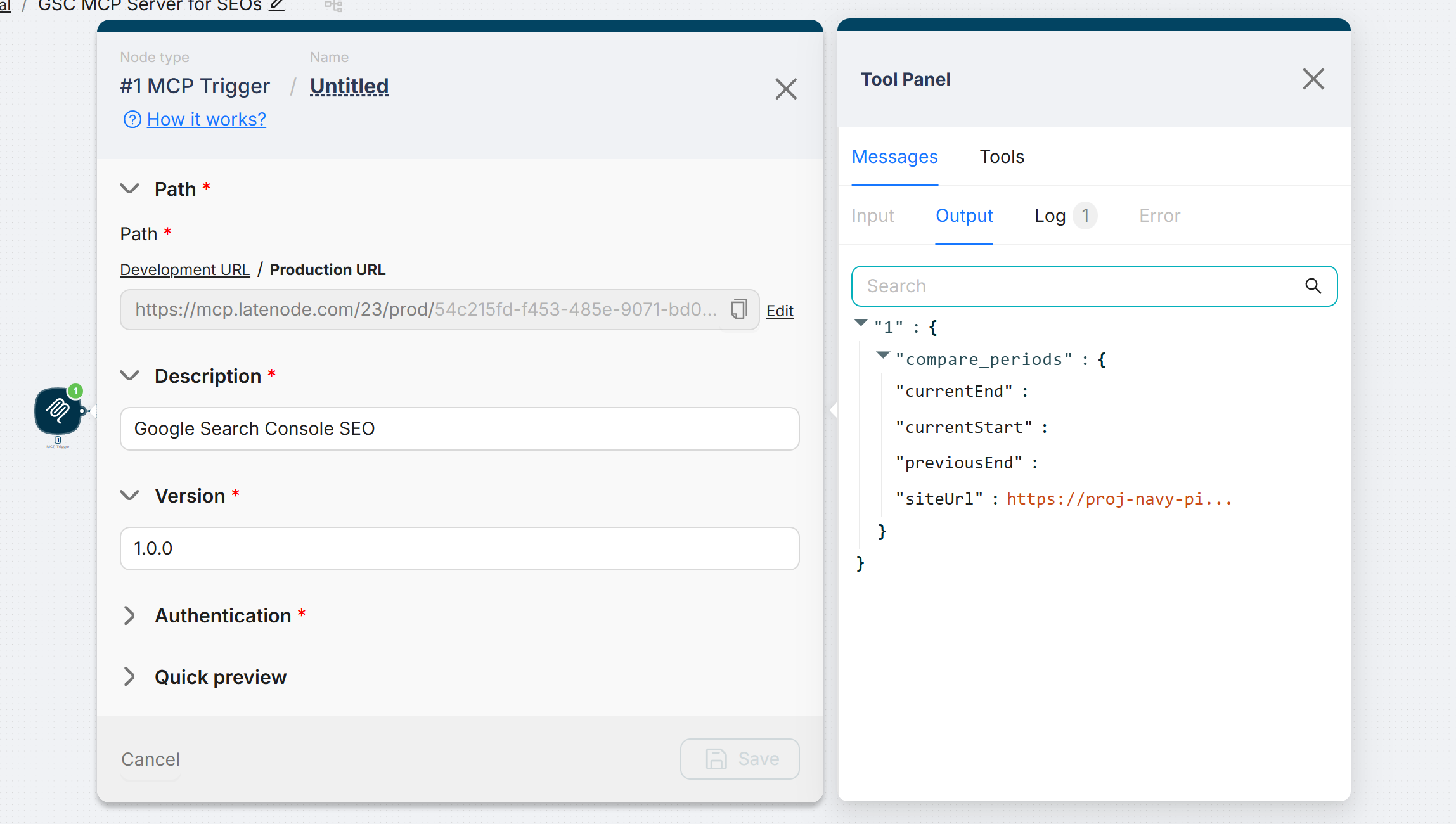
Open the MCP Trigger node.
- Expand Authentication, switch it on, and save the generated API Key
- In Path, switch from Development URL to Production URL
- Copy the address with the button next to the field
Use Development URL while you edit the scenario. Point lasting clients at Production URL.
Treat the URL and key like a password
If authentication is off, anyone who learns the URL can read your Search Console data.
Save and activate
Click Save, then switch the scenario to Active.
Connect your client
Replace SERVER_URL and API_KEY with your values. If a client asks for a header, use Authorization: Bearer API_KEY.
Edit claude_desktop_config.json:
{
  "mcpServers": {
    "gsc": {
      "type": "http",
      "url": "SERVER_URL",
      "headers": { "Authorization": "Bearer API_KEY" }
    }
  }
}
Quit the app completely and reopen it.
Open Settings → Connectors → Add custom connector, then paste the server address and API key.
Edit ~/.cursor/mcp.json:
{
  "mcpServers": {
    "gsc": {
      "url": "SERVER_URL",
      "headers": { "Authorization": "Bearer API_KEY" }
    }
  }
}
Edit ~/.codex/config.toml:
[mcp_servers.gsc]
url = "SERVER_URL"
[mcp_servers.gsc.http_headers]
authorization = "Bearer API_KEY"
Open Settings, enable Developer mode, then add the server under Connectors.
ChatGPT authenticated connectors need OAuth. This server uses a static API key, so ChatGPT only works if you turn authentication off. If you need ChatGPT, use a separate scenario with fewer tools rather than exposing the full set.
Setup for other MCP clients is the same idea: paste the Server URL and the API key. See Connecting to MCP Tools.
Connect Google
In Search Console, open Settings → Users and permissions and confirm your account is listed.
| Role | What works |
|---|---|
| Restricted user | Analytics, comparisons, striking distance, low CTR, cannibalization |
| Full user | All of the above, plus URL inspection and sitemaps |
| Owner | Everything |
Full user is the practical minimum. With Restricted, inspect_url and sitemap_audit return permission errors.
Then open any Google Search Console step in the scenario, click Connect in the Connection field, choose the account, and approve. Do this once: every step shares the connection.
To check that it works, ask: List my GSC properties.
How to ask
- Name the site exactly.
sc-domain:example.comfor a domain property, orhttps://example.com/with the trailing slash for a URL-prefix property. Copy it fromlist_properties. - Give a date range. For example: the last 28 days, or 1 to 30 June. Without one, the assistant picks dates itself.
- Do not ask about yesterday. Search Console data lags two to four days. End the range three days back.
Starter prompts:
- Show the top 20 queries for
sc-domain:example.comfrom 1 to 28 July - Compare the last 28 days with the previous 28 for
sc-domain:example.com - Find striking-distance keywords for
sc-domain:example.comover the last 28 days - Which pages on
sc-domain:example.comhave below-average CTR in July? - Check
sc-domain:example.comfor keyword cannibalization over the last 90 days - Which queries drive traffic to
https://example.com/pricing/in July? - Check the index status of
https://example.com/pricing/ - Are there any errors in the sitemaps for
sc-domain:example.com?
If the assistant picks the wrong tool, name it: use find_striking_distance for sc-domain:example.com.
How to read the tools
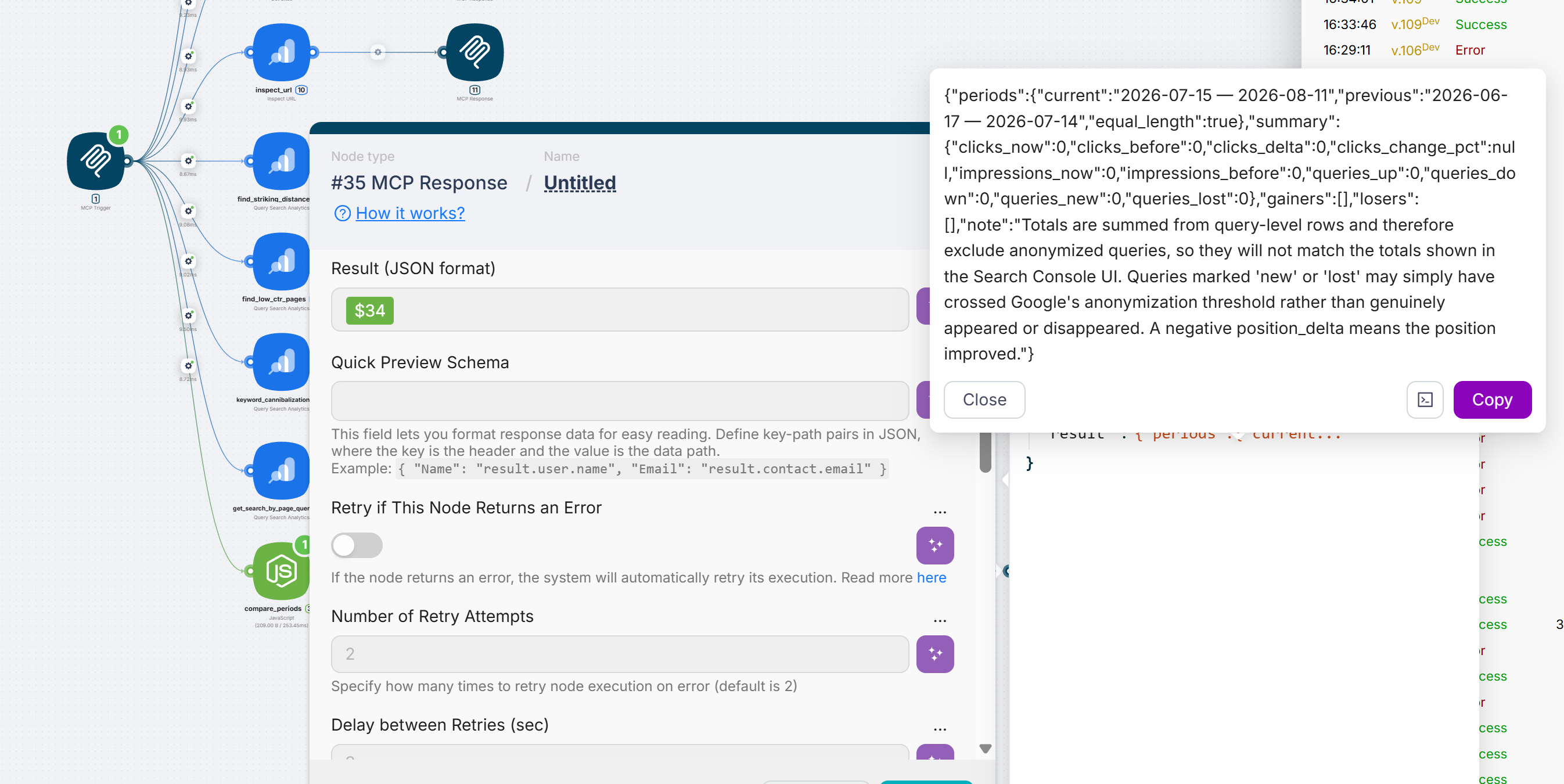
compare_periods. Name one period; the tool uses the same number of days immediately before. A negative position change means the rank improved (the number got smaller). Queries labelled new or lost may have crossed Google's privacy threshold rather than truly appeared or vanished.
get_search_by_page_query. Use the full URL as Search Console stores it, including the trailing slash. Asking about /pricing when the property stores https://example.com/pricing/ returns nothing.
find_striking_distance. Queries in positions 8 to 20 that already get impressions but few clicks. The potential-clicks figure is a priority signal, not a forecast.
find_low_ctr_pages. Pages whose CTR is below what is typical for their average position. Average position is averaged across every query the page ranks for. A weak CTR can also come from an AI Overview above the result, so treat the list as candidates, not a verdict.
keyword_cannibalization. Checks your 50 highest-volume queries (up to 25 competing pages each) to stay inside Google's daily quota. The conflict flag is true when the best-ranking page is not the one earning the clicks. Several pages ranking for one query is often normal.
inspect_url. Google allows 2,000 inspections per day per property.
sitemap_audit. Pay attention to any sitemap Google has never downloaded: usually unreachable or submitted with the wrong address.
Google limits
These limits come from Search Console, not from the server:
- Data lags two to four days; there is no live view
- Some rare queries are hidden for privacy, so query rows never add up to the totals in the Search Console UI
- Average position is an average across all impressions in the period, not where you rank right now
- History stops at 16 months
- A single response holds 25,000 rows at most, ordered by clicks; the long tail may be missing
Troubleshooting
| What you see | Why | What to do |
|---|---|---|
| No tools in the client | Scenario inactive, or wrong URL or key | Check Active and copy the URL and key again |
| Permission denied | Account lacks access to that site | Add the account in Search Console → Users and permissions |
| Property not found | Address format does not match | Copy the exact string from list_properties |
| Empty result for recent dates | Reporting lag | End the range three days back |
| Page query returns nothing | URL did not match exactly | Ask for a partial match on the path |
| Striking distance returns nothing | Thresholds too strict for a small site | Use a longer period, or say the site is low-volume |
| Cannibalization is slow | Up to 51 API calls | Expected; let it finish |
| Odd swings in a comparison | Periods differ in length | Check the equal-length flag in the response |
| Lots of new and lost queries | Google's privacy threshold shifted | Trust the gainers and losers lists, not the counts |
| URL inspection fails | Daily quota used up | Wait until tomorrow |
Related pages
- MCP Nodes: how MCP Trigger and tools work
- Connecting to MCP Tools: connect other MCP clients
Connecting to MCP Tools
How to connect MCP-compatible clients to your Latenode tools.
Adding and configuring authorizations
Adding and configuring authorizations
Need Help? Ask the community
If something on this page is missing or unclear, post on the Latenode community forum. Our team and other users usually reply quickly.