
Publishing a scenario and version history
While building, you constantly change the scenario on the canvas. To make it run autonomously on a schedule or in response to events, you need to deploy the working version to production. This page explains how Dev and Prod work, how to deploy, and how to roll back to a previously saved version.
Dev and Prod: two states of a scenario
Every scenario always has two versions: Dev and Prod. Both versions exist in parallel and are fully independent of each other.
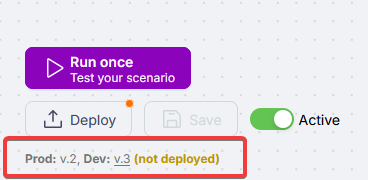
Dev (development environment)
This is where you build the scenario, test logic, and make changes. All runs here are manual and exist for testing and debugging.
Prod (autonomous version)
This is the autonomously running version of the scenario. It runs continuously: fires on a schedule, receives events from external sources, and executes tasks without manual input.
While you make changes in Dev, the current Prod version keeps running as usual. Only changes deployed after a new Deploy will reach production.
Deploying a scenario (Deploy)
Deploying copies the current Dev version into Prod.
First, look at the diagram to understand the transition logic:

- Click Deploy in the scenario editor.
- The current Dev version becomes the new Prod version.
Active toggle
After deploying, check the active status of the scenario.
- Active: the scenario runs autonomously, accepts events, and fires on schedule.
- Inactive: the scenario is deployed but automatic runs are paused.
Deploy and the active toggle are two separate actions. Deploy moves the version from Dev to Prod. The active toggle controls whether the Prod version runs automatically.
Version history and rolling back
A new version is created every time you save or run the scenario. This lets you return to a previous working state, compare current logic with past decisions, and continue from a known good point. Switch between versions in the history panel to do this.
How to view and restore a previous version:
- Open the version list.
- Select a stable previous version.
- That version immediately becomes your current version on the Dev canvas.
- Review it and make any adjustments if needed.
- Click Deploy to publish that version to Prod.
While you switch versions and review them in Dev, the current Prod version keeps running. Only the state you explicitly deploy will reach production.
What's next
Scenario Types
Types of automation in Latenode - from simple linear flows to multi-agent systems
Creating with AI
How to ask AI to build a scenario for you and bring it to a working state
Need Help? Ask the community
If something on this page is missing or unclear, post on the Latenode community forum. Our team and other users usually reply quickly.